K2 Workflow Designer - File Menu
The K2 Workflow Designer contains various menus which assist a user by providing a selection of tools that can be used in the designing or editing of a workflow. The File Menu is one of the menus allowing a user to save, publish or edit the properties of a workflow.
The Main Menu is accessible by clicking on the File Menu item.

Fig. 1. File Menu item
The File Menu is shown below:
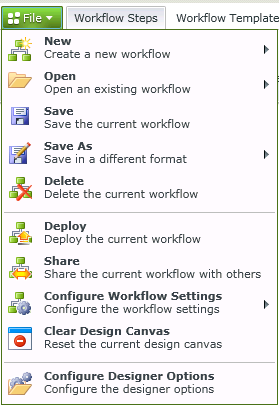
Fig. 2. File Menu
| Icons | What it is |
|---|---|
|
|
Enables the design of a new workflow that can be saved, deployed and assigned to a document, list or Form. |
|
|
Opens an existing personal or shared workflow. |
| Save | Saves the workflow to a default location determined by the system. |
|
|
Expands the Save As option to provide the option to save the workflow as either a local copy, to a file or as a template |
| Delete | Deletes the current workflow |
|
|
Deploys the workflow by starting the Deploy Workflow Wizard. |
| Share | To use an existing workflow in a different document library or by a different user than the one it was built in, the workflow must be shared. |
| Configure Workflow Settings | Opens the workflow properties dialog box allowing the workflow name and description to be edited. |
| Clear Design Canvas | Clears the Design Canvas |
| Configure Designer Options | Clicking on the Options button will open the Designer Options wizard screen |