K2 Intelligence
This topic describes how to install K2 Intelligence. The K2 Intelligence installer is included in the Nintex Automation K2 installation package as an optional component, which can be run in addition to the standard K2 installation.
 Permissions
The user account used to run the installation must have Read and Write permissions to the K2 directory. It is recommended that you use a low-trust user account for ease of access. However, if you choose to use a different user account, you must add it to the Log on as a service policy. To perform this action, you must have full Administrator rights.
To add the account to the policy:
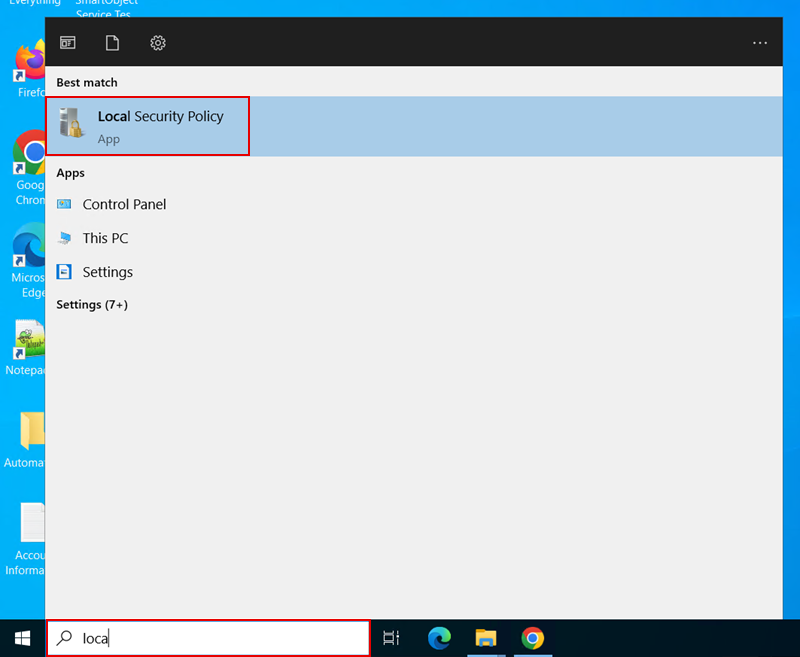
- Click on the Windows search bar and type Local.
-
Select Local Security Policy.
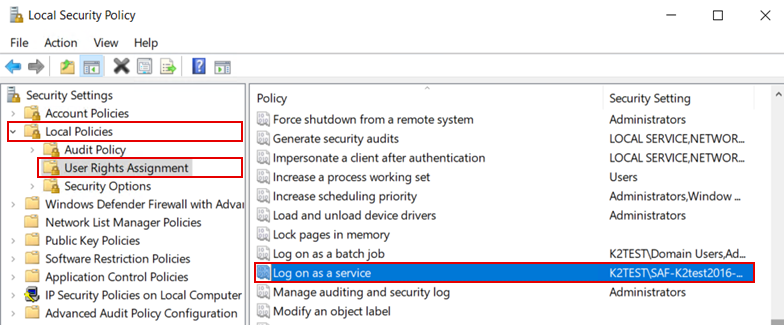
- Expand Local Policies and select User Rights Assignment.
-
Double-click the Log on as a service policy.
-
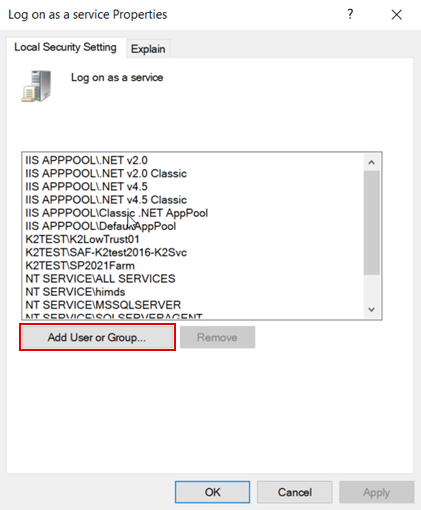
Click Add User or Group.
-
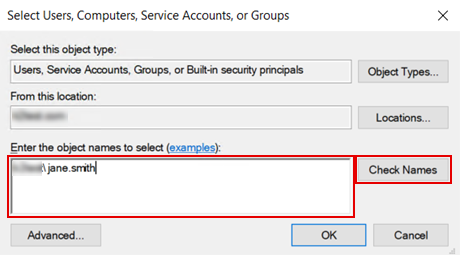
Enter the username of the account you want to add (in DOMAIN\username or .\username format), click Check Names to verify that the user account is correct, then click OK.
Prerequisites
Nintex Automation K2 (5.9.1) must be installed before installing K2 Intelligence.
Minimum system requirements
Server requirements:
-
Windows Server 2016 or later
-
.NET Framework 4.8 installed (required by the installer)
-
PowerShell enabled (the execution policy must allow scripts, or the installer scripts must be unblocked)
-
Administrator privileges on the server (required to create a Windows Service and register K2 objects)
For Full Setup or K2 Intelligence Service Object options:
-
The K2 Server must be running and accessible on localhost:5555 (standard connection string). The installer uses integrated Windows authentication.
-
K2 administrator credentials, or an account with permissions to register service types and deploy packages, are required.
For the K2 Intelligence Service option:
-
A Windows service account (domain or local) with the Log on as a service right is required.
-
This account should be low-privilege but must have network access to perform its functions (ensure required ports are unblocked if not running locally). File system permissions should be limited to Read/Write access for the folder where K2 Intelligence is installed, typically under the standard K2 installation directory.
- Do not use your personal account unless you are testing.
Port planning:
- The default port for the AI endpoint is 62137.
- You can change this later in appsettings.json, but the installer validates this port during installation and will throw an error if something else is already using it.
Installation steps
- Extract the Nintex Automation K2 (5.9.1) installation package to your preferred directory.
- Open the folder you extracted the files to and run the K2 Intelligence Setup.exe file. You can also access the installer from the Nintex Automation K2 (5.9.1) release notes.
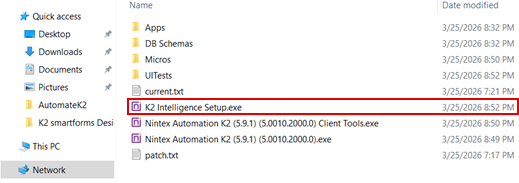
- The Setup Manager opens. Click Next.
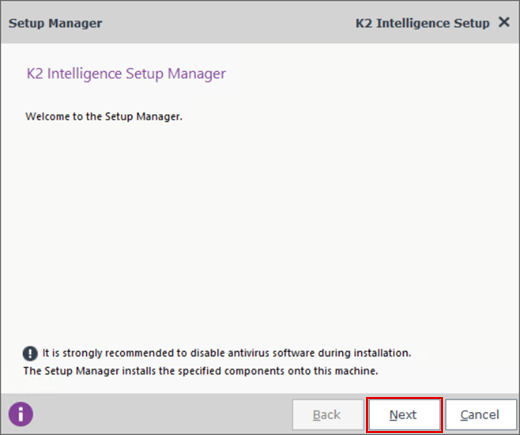
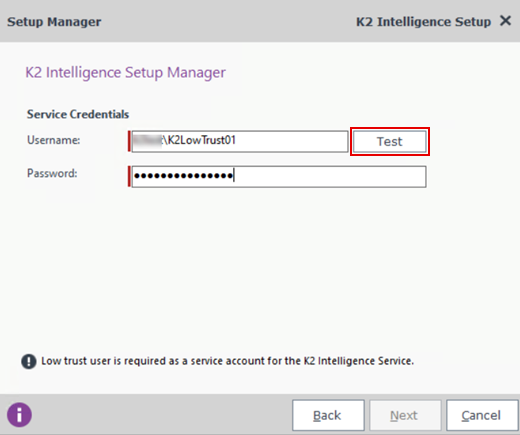
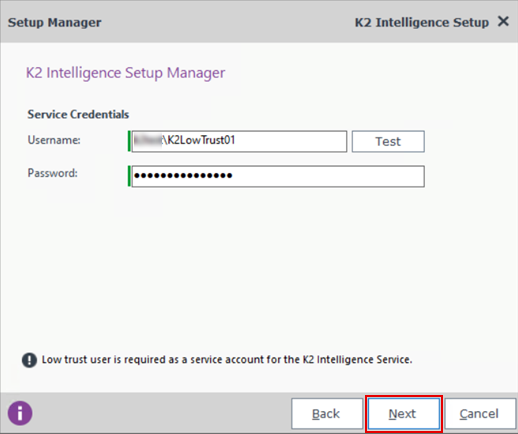
- Enter the low-trust user credentials. Alternatively, enter the account name (in DOMAIN\username or .\username format) of the user you added to the Log on as a service policy and the password.
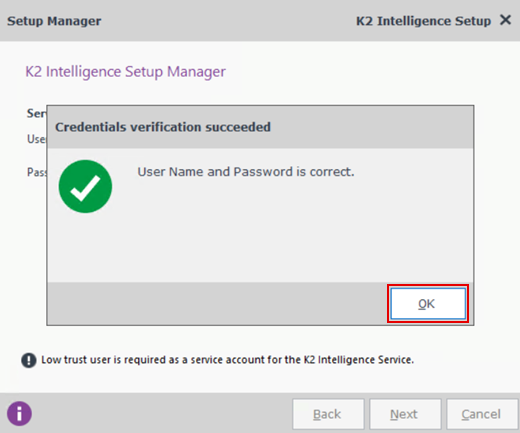
- Click Test to verify that the credentials are correct. If an error occurs, ensure that the account exists and that the credentials are valid. Also verify that the user account has the required logon rights (that is, the account is included in the Log on as a user policy). See the Permissions section for more information on how to add a user account to this policy.
- Click OK.
- Click Next.
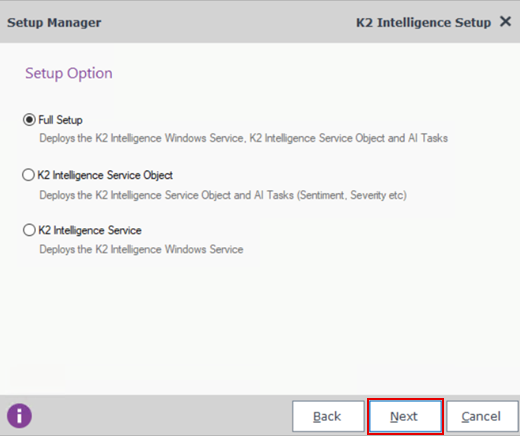
- Select the Setup Option and click Next.
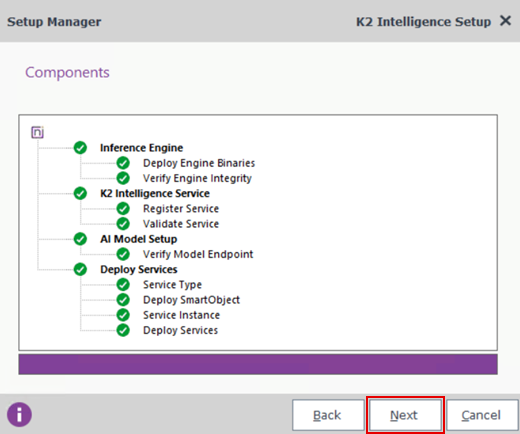
- Once all the components are installed, click Next.
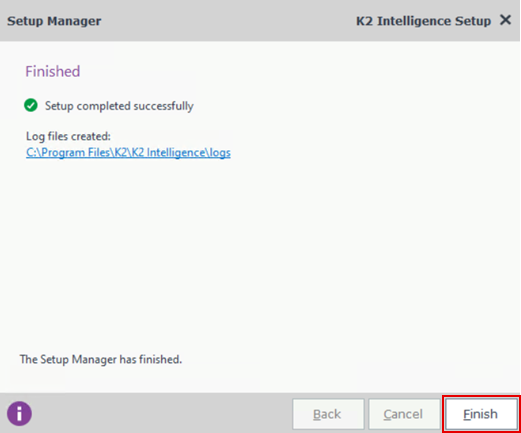
- Log files are saved in the C:\Program Files\K2\Intelligence\logs directory. In this directory, there are three log files: one for the installer, one for the Windows service registration, and one for AI inference. The default logging level includes information and error entries. Use the installer log file to view additional details and identify any errors that may have occurred during the installation. To find an error, search for the "ERR" key word in the logs file.
- Click Finish.
- Open your web browser and navigate to localhost:62137/v1/health. This returns a valid JSON response confirming that the service is running.
Post installation
Open Management and navigate to Integration > Service Instances. Confirm that the K2 Intelligence Service is listed.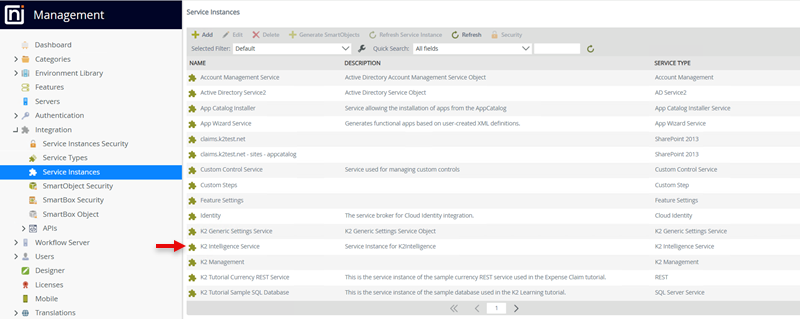
Next, in Management go to Categories > System > K2 Intelligence Service > K2 Intelligence Service. Verify that the required SmartObjects are available for creating AI tasks, along with preconfigured base AI tasks.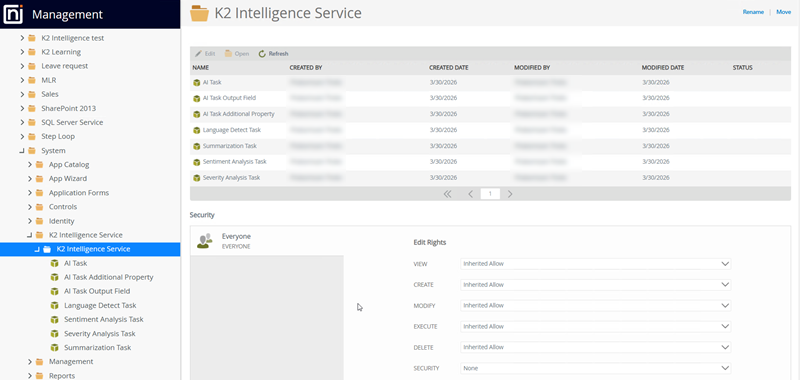
For information on configuring and using AI tasks, refer to the K2 Intelligence service documentation. For advanced configuration of the underlying model, see the Windows Service documentation.
API key:
The API key is not tied to the inference engine. The model can be changed without impact. However, if a different inference engine is used (such as Ollama or similar), it may not require a key by default, although one can be configured. That key can then be used in K2.
Model name:
The default model name is K2IntelligenceModel. If you are using a different model, update the value in both the models.ini file and the K2 service instance configuration. This step is only required if the model name is changed after installation.
Endpoint URL:
If the AI engine is hosted on a different machine or uses a non-default port, update the endpoint URL in the K2 service instance configuration accordingly.
Use HTTPS: If you want to access the K2 Intelligence endpoint URL via HTTPS, you can change the UseHttps value to True in the appsettings.json file under LlamaServer. Remember to also provide your SSL certificate values in the SslCertFile and SslKeyFile.
Model files:
The installer does not download AI models. All required model files are included with the installer, allowing for offline operation.
Firewall rules:
If the endpoint is accessed from external servers, configure Windows Firewall to allow inbound traffic on port 62137 (or the port configured for your environment).
Additional configuration:
For detailed configuration, refer to the K2 Intelligence service documentation, which covers service instances, API keys, and model settings. For advanced configuration of the underlying service, refer to the Windows Service documentation.
Troubleshooting
Common failure points during installation:
| Step that failed | Likely cause | What to do |
|---|---|---|
| Verify Engine Integrity | The file copy did not complete | Re-run the installer. |
| Validate Service | The Register Service step failed before this step ran, so the service was never created | Check Windows Services to confirm the service does not exist. If it is missing, the previous step failed - review Register Service. |
| Verify Model Endpoint | The service has not started yet (it can take 30+ seconds), port 62137 is in use or small chance, the model failed to wake up. | Check the service status manually or review the log files. |
| Service Type | The K2 Server is not running, the broker DLL is missing, or there are insufficient permissions to register service types. | Ensure that you have K2 administrator permissions. |
| Service Instance | The Service Type step failed (so there is nothing to create an instance of), or there is a K2 connection issue. | Ensure that the Service Type step completed successfully first. Check K2 connectivity and permissions. |
| Deploy SmartObject / Deploy Services | You do not have a Nintex Automation K2 5.9.1 environment, or you have insufficient permissions | Verify your Nintex Automation K2 version and account permissions. If this step fails, the package can be deployed manually. |
Port 62137 is already in use
Issue
The K2 Intelligence service uses port 62137 by default. If this port is already in use, the Verify Model Endpoint step in the AI Setup Model process fails.Error message: Port 62137 is already in use on the host.
Cause
The default port used by K2 Intelligence is already in use.Resolution
- Open the File Explorer and navigate to C:\Program Files\K2\K2 Intelligence.
- Open the appsettings.json file.
- Locate Port under the LlamaServer section and change the port number from 62137 to any available port number. Speak to your administrator if you're unsure which ports are available.
- Save the changes.
Edit the service instance and update the port number.
- Restart the K2 Intelligence service in the Windows Services and refresh the service instance endpoint in Management to use the new port.
Internal error, code 106
Issue
When the installer does not have sufficient Read and Write permissions to the K2 installation directory, the installation fails with an extraction error.Error message: Internal error, code 106.
Cause
The K2 Intelligence installer requires full Read and Write access to the K2 directory. If the executing user lacks these permissions, file extraction cannot complete.Resolution
Ensure that the user running the installer has Read and Write permissions and run the installer again.Incorrect directory installation
Issue
K2 Intelligence installation fails or cannot complete successfully when K2 is installed in a non-default directory (i.e. not C:\Program Files\K2).Cause
The K2 Intelligence installer assumes that K2 is installed in the default location (C:\Program Files\K2). As a result, it extracts or places installation files into this default directory and expects a relative path structure. When you run a Full Setup in an environment where Nintex Automation K2 is installed in a custom location, this path mismatch prevents the installer from correctly locating required files and completing the installation.Resolution
- Run the K2 Intelligence installer until the extraction completes and you are presented with the first screen of the installer, then close the installer.
- If a previous installation attempt was made, stop the K2 Intelligence Service in Windows Services before moving the folder, as the service may reference the previous installation path.
- Move the K2 Intelligence folder from:
C:\Program Files\K2 to:
the custom K2 installation directory. Example: C:\Program Files\Custom-K2 - Navigate to the custom K2 Intelligence location and run: SourceCode.Intelligence.Installer.SetupManager.exe to start the installation from the custom location.
- Continue with the installation steps. The K2 Intelligence Service will be re-registered and automatically started using the updated installation path.
- To clean up your environment, ensure the entire K2 Intelligence folder is removed from the default location (C:\Program Files\K2 ).
Considerations
- Re-running the installer
If you run the installer on a system where it has already been executed, all installation steps will be performed again. This includes copying all missing files to the installation directory.- Service type registration:
This process is idempotent. Re-running the installer will update the existing service type rather than creating duplicates.
- Service instance registration:
This process is not idempotent. Re-running the installer may create duplicate K2 Intelligence service instances. Although the installer attempts to remove an existing instance before creating a new one, duplicate instances may still occur in some scenarios
- Credential prompt:
The credentials configuration step will be presented again during the installation process.
- Service registration:
Rerunning the installer removes and reregisters the service.
- Service type registration:
- K2 Intelligence installation location
K2 Intelligence assumes that the Nintex Automation K2 installation directory is located under the default path (C:\Program Files\K2).
If Nintex Automation K2 is installed in a custom location, the K2 Intelligence installer may extract the installation files into C:\Program Files\K2 instead of the custom K2 installation directory. This can prevent the Full Setup from completing successfully. See the troubleshooting steps for a resolution.