K2 Intelligence service
The K2 Intelligence service type exposes the K2 Intelligence service instance and then create SmartObjects that utilize the service objects exposed by the service instance. It lets you create and run AI-powered tasks within your K2 environment by defining the task and its expected response. You can create more service instances which will include the AI tasks. The K2 Intelligence Service runs llama-server (from llama.cpp) as a managed Windows service. See the K2 Intelligence Service Windows service for more information, and best practices for creating and managing AI tasks.
- See Out-of-the-box AI tasks for an example of executing the out-of-the-box AI task SmartObjects in Management.
- See Create an AI task for example of creating and configuring a custom AI task in K2 Intelligence.
 Prerequisites
Service authentication
Prerequisites
Service authentication
- Impersonate (default)
- OAuth
- ServiceAccount
- Single Single-on
- Static
Service keys (Service instance configuration settings)
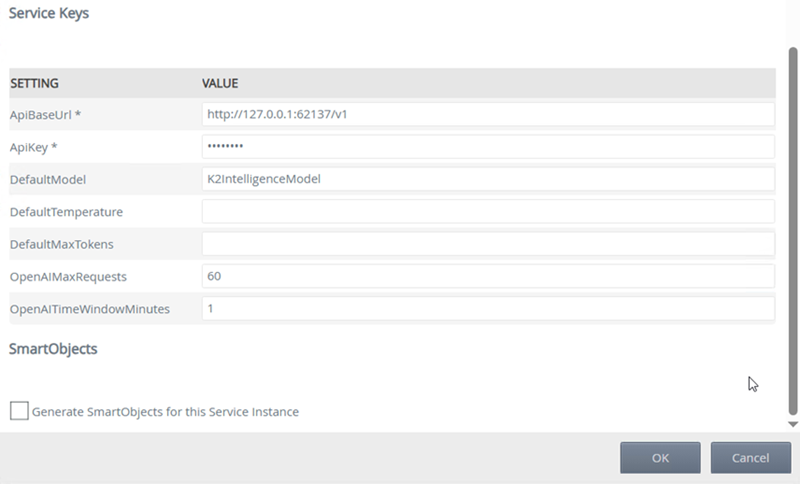
| Key | Can be modified | Data type | Sample value | Notes |
|---|---|---|---|---|
| ApiBaseURL | Yes (required) | Text |
https://localhost:62137/v1 |
Your OpenAI provider endpoint. |
| ApiKey | Yes (required) | Text | 98nklsdflkw3op4u! |
API key for authentication. |
| DefaultModel | Yes | Text | K2IntelligenceModel | The name of the default AI model. |
| DefaultTemperature | Yes | number | 0.7 | Controls randomness, 0.7 is normally a good middle ground. |
| DefaultMaxTokens | Yes | number | 512 | Controls total token allowance, reasoning included. |
| OpenAIMaxRequests | Yes | number | 60 | The maximum requests returned |
| OpenAITimeWindowMinutes | Yes | number | 1 | The time window (in minutes) over which maximum request limits are enforced. |
Management SmartObjects
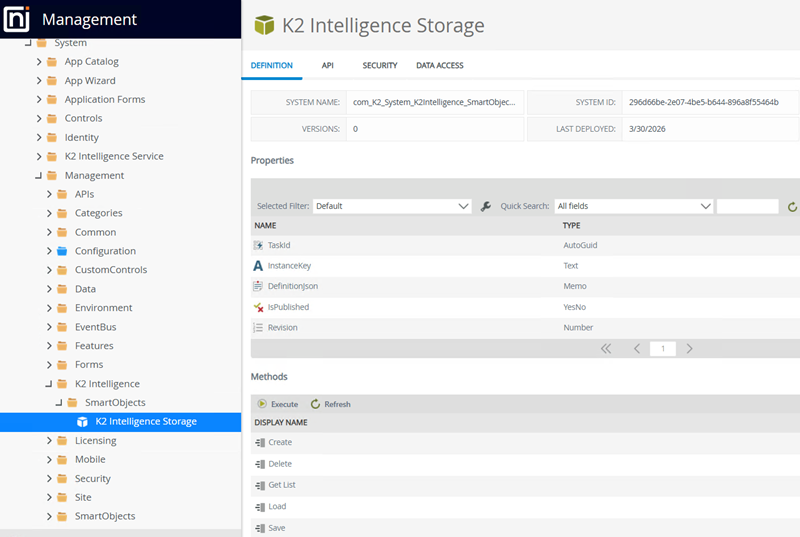 SmartObjects
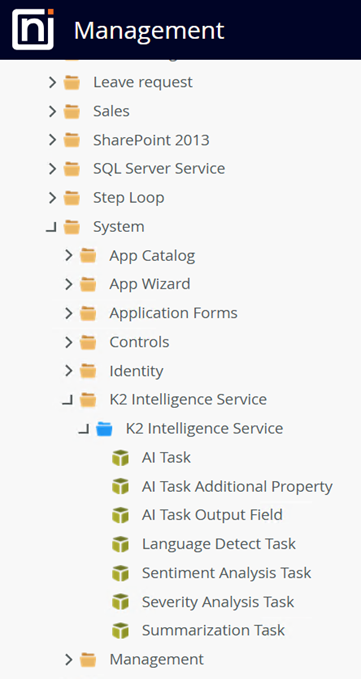
The service includes seven SmartObjects. Three of these, AI Task, AI Task Additional Property, and AI Task Output Field, are used to create and manage custom AI tasks. The remaining four are out-of-the-box objects that define the expected response format and handle execution of results. These are system objects and cannot be deleted.
These SmartObjects are:
| SmartObject | Description |
|---|---|
| AI Task | Allows you to create and manage custom AI tasks. |
| AI Task Additional Property | Lets you pass provider-specific parameters or settings that are not covered by the standard task configuration. |
| AI Task Output Field | Defines what structured information you want the AI to return. This is how you get typed data back from the AI instead of just plain text. |
| Sentiment Analysis | Analyzes the sentiment of the provided text by identifying emotionally significant words or phrases. It considers the overall tone, summarizes the content, and classifies the sentiment as positive, negative, or neutral. |
| Severity Analysis | Uses scope, consequence, urgency, and reversibility to assess how critical or severe the situation, complaint, or issue described in the text is, regardless of domain or context. It is recommended that you modify this to meet your needs. |
| Summarization | Summarizes the given text into concise key points. |
| Language Detection | Identifies the language of the provided text. Only the language name is returned in the response if it is a supported language. If it is not supported, it is shown as “Other”. |
 AI task
See Create and manage AI tasks for more information about creating an AI task.
Properties
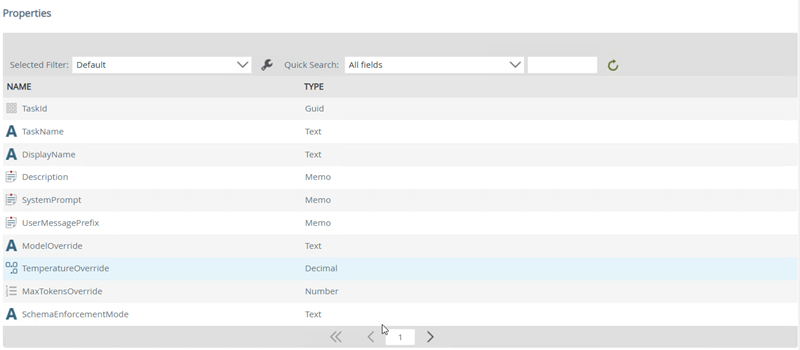
| Properties | Description |
|---|---|
| TaskId | A unique ID for the task |
| TaskName | A unique name to identify your task (used internally) |
| DisplayName | A friendly name for the task |
| Description | A description for the task |
| SystemPrompt | Instructions given to the AI about its behavior |
| UserMessagePrefix | Text that is automatically added before the user's message |
| ModelOverride | Type a new default AI model for the specific task. This overrides the default AI model |
| TemperatureOverride | Control randomness (0.0 = precise, 2.0 = creative) |
| MaxTokensOverride | Sets a maximum total token limit. If the limit is reached, the process will return an error, providing a safeguard against excessive usage |
| SchemaEnforcementMode | Controls how strictly the response format is enforced (ResponseFormat, PromptInjection, Both, or blank) |
| AllowPerCallOverrides | Enables the caller to override settings |
| CreatedDate | Date the task was created |
| IsPublished | Indicates whether the task is published or not. If the task is not in a published state then you won't be able to generate the SmartObject for it |
| Revision | A version number or label used to identify and track changes to a task over time, making it easy to determine the most current version |
| Success | Indicates whether the execution was successful |
| ErrorMessage | A system generated message informing you that a task failed or could not be completed |
| SanitizeUserMessage | Clean user input before sending to AI (removes potential injection attempts, normalizes text) |
Methods
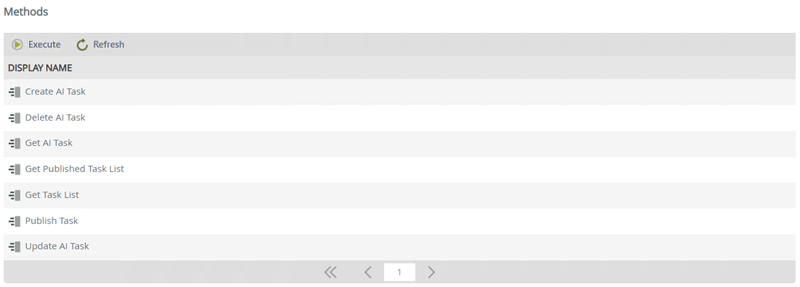
| Methods | Description |
|---|---|
| Create AI Task | Creates a new AI task |
| Delete AI Task | Permanently deletes an AI task. This action cannot be undone |
| Get AI Task | Get a single task by its ID |
| Get Published Task List | List of published tasks |
| Get Task List | List all tasks (including drafts) |
| Publish Task | Publish a task to make it available as a dynamic SmartObject |
| Update AI Task | Modify an existing task |
AI task additional property
See Create and manage AI tasks for more information about adding additional properties to an AI task.
Properties
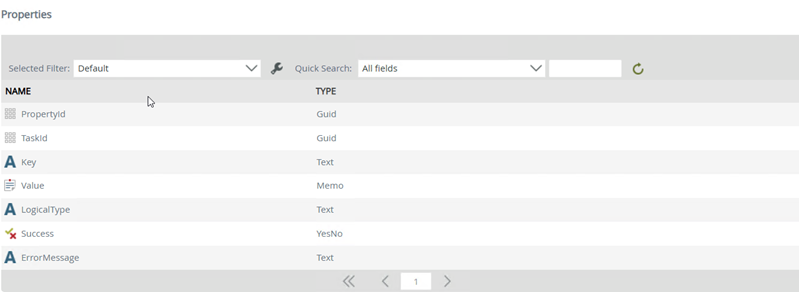
| Properties | Description |
|---|---|
| PropertyId | A unique ID for the property |
| TaskID | A unique ID for the task |
| Key | The parameter name |
| Value | The parameter value |
| LogicalType | The type of value (text, number, json) |
| Success | Indicates whether the execution was successful |
| ErrorMessage | A system generated message informing you that the execution failed or could not be completed |
Methods
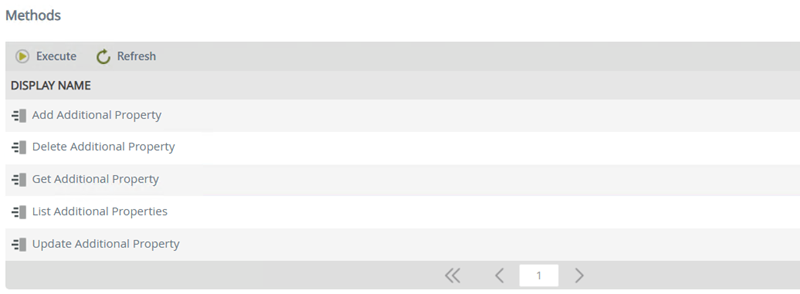
| Methods | Description |
|---|---|
| Add Additional Property | Use this method for provider-specific features (top_p, presence_penalty, frequency_penalty), custom sampling parameters, advanced model settings, feature flags or experimental options, and nested fields. Ensure logical type of JSON is set for nested fields |
| Delete Additional Property | Permanently deletes a property |
| Get Additional Property | Get a single property by its ID |
| List Additional Properties | Lists all properties of a task |
| Update Additional Property | Change a property's value or type |
AI Task Output Field
See Create and manage AI tasks for more information about AI task output fields.
Properties
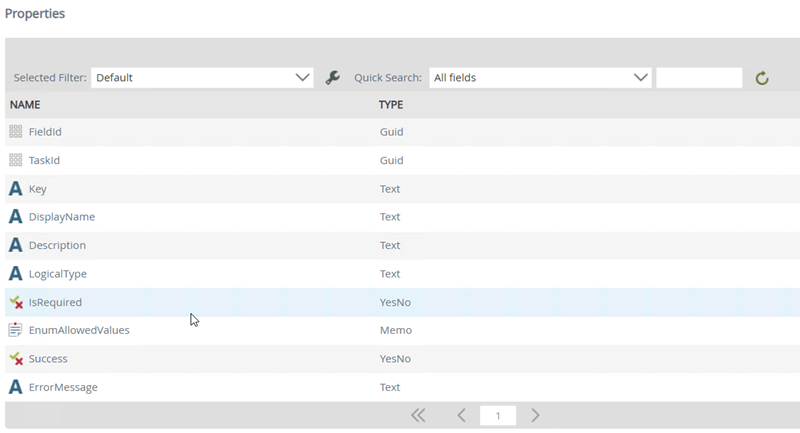
| Properties | Description |
|---|---|
| FieldId | A unique ID for the output field |
| TaskId | A unique ID for the task |
| Key | A unique, single-word name for the output field (this becomes the property name) |
| DisplayName | A user-friendly label for the output field shown as the output name when mapping the SmartObject |
| Description | A description visible to the AI model that helps guide what is required for the specific field. For example, in sentiment analysis, the key might be “reason” and the description “the reason for the sentiment classification.” The model uses this description as guidance |
| LogicalType | The type of data (text, number, boolean, datetime, int, string, yesno etc.) |
| IsRequired | Indicates whether this field must be present in the AI response. It is left blank if this is not set to true. |
| EnumAllowedValues | Use this to restrict the AI model to a predefined set of options instead of allowing free form responses. For example, in sentiment analysis, you can specify “positive, negative, neutral,” which limits the model to selecting one of these comma separated values |
| Success | Indicates whether the execution was successful |
| ErrorMessage | A system generated message informing you that the execution failed or could not be completed |
Methods
| Methods | Description |
|---|---|
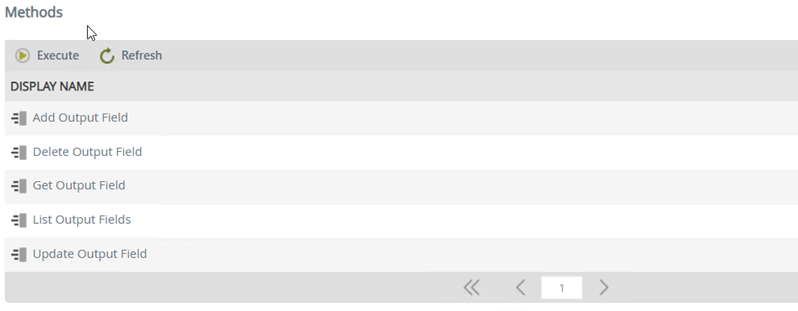
| Add Output Field | Extracts specific pieces of information from the AI response, typed data (numbers, dates, yes/no values), validated responses (required fields, specific options) or data that can be used directly in yourworkflow |
| Delete Output Field | Permanently deletes a field. This cannot be undone |
| Get Output Field | Get a single output field by itsID |
| List Output Fields | List all output fields of a task |
| Update Output Field | Modify an existing output field |
Sentiment Analysis, Severity Analysis, Summarization, and Language Detection
Use these SmartObjects to define and execute AI prompts. See AI Prompts for an example of executing AI prompts.
Properties
| Properties | Description |
|---|---|
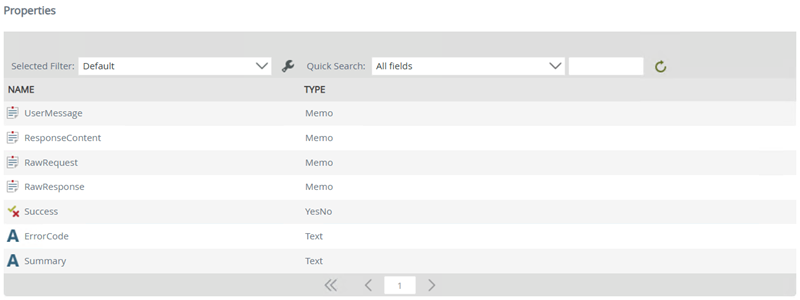
| UserMessage | The input text or data to be processed by the AI |
| ResponseContent | The primary content extracted from the AI’s response |
| RawRequest | The request that was sent, with any sensitive information redacted |
| RawResponse | The complete response from the AI provider |
| Success | Indicates whether the execution was successful |
| ErrorCode | The error code returned if an issue occurs |
| Summary | Summary of the UserMessage |
Methods
| Methods | Description |
|---|---|
| Execute | Executes a published task.a published task |
AI prompts
As an example, when you execute a sentiment analysis prompt, the K2 Intelligence service generates a JSON raw request that includes the prompt below:
You are a sentiment analysis assistant.
Sentiment Analysis prompt scenario
Analyze the sentiment of the provided text by following these steps:- Identify the emotionally significant words or phrases in the text.
- Consider the overall tone - is it favorable, unfavorable, or neither?
- Classify the sentiment as positive, negative, or neutral.
- Summarize your reasoning in one sentence.
- Positive: expresses approval, happiness, satisfaction, or optimism
- Negative: expresses disapproval, sadness, frustration, or criticism
- Neutral: expresses facts or balanced views with no strong emotional lean
Return the classified sentiment along with a single concise sentence explaining the reasoning behind the classification.
Example:
To run a sentiment analysis prompt:
- Expand System, then K2 Intelligence Service/K2 Intelligence Service.
- Select Sentiment Analysis Task, then select the Execute method, and click Execute.
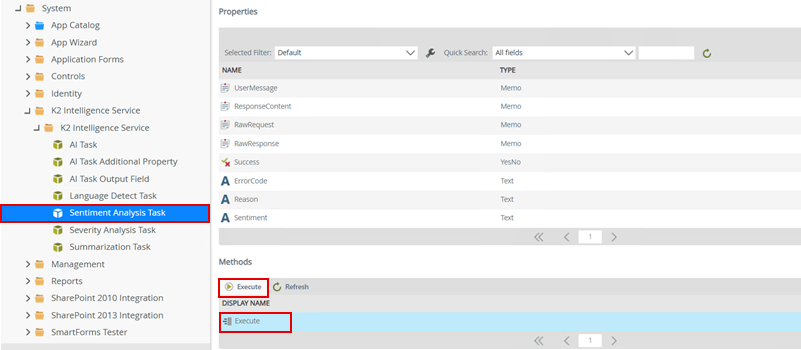
- In the User Message property, type the message you want to analyze under Value, and click Execute.
In this example, we use the following input:
User Message:
"I received my order but the item was broken already, the delivery took too long and the driver was so rude. I'm not happy at all and I want a refund."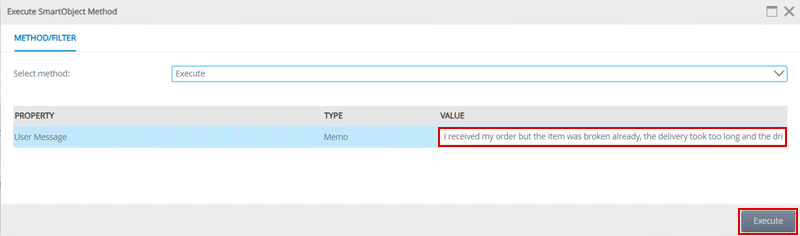
Results:
In the results, we get the following output.
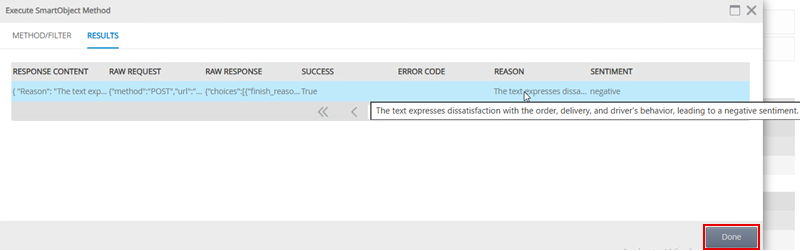
RAW response content:
JSON response content
{
  "Reason": "The text expresses dissatisfaction with the order, delivery, and service, indicating a negative sentiment."
  ,
  "Sentiment": "negative"
}
Raw request:
JSON raw request
{
  "method": "POST",
  "url": "http://127.0.0.1:62137/v1/chat/completions",
  "headers": {
    "Content-Type": "application/json",
    "Authorization": "Bearer [REDACTED]"
  },
  "body": {
    "model": "K2IntelligenceModel",
    "messages": [
      {
        "role": "system",
        "content": " You are a sentiment analysis assistant. Analyze the sentiment of the provided text by following these steps:\n\n  1. Identify the emotionally significant words or phrases in the text.\n  2. Consider the overall tone - is it favorable, unfavorable, or neither?\n  3. Classify the sentiment as positive, negative, or neutral.\n  4. Summarize your reasoning in one sentence.\n\n  Definitions:\n  - positive: expresses approval, happiness, satisfaction, or optimism\n  - negative: expresses disapproval, sadness, frustration, or criticism\n  - neutral: expresses facts or balanced views with no strong emotional lean"
      },
      {
        "role": "user",
        "content": "[REDACTED]"
      }
    ],
    "temperature": 0.2,
    "response_format": {
      "type": "json_schema",
      "json_schema": {
        "name": "SentimentTask",
        "strict": true,
        "schema": {
          "type": "object",
          "properties": {
            "Reason": {
              "type": "string",
              "description": "Concise single sentence reason for sentiment classification."
            },
            "Sentiment": {
              "type": "string",
              "description": "The identified sentiment classificaiton.",
              "enum": [
                "positive",
                "negative",
                "neutral"
              ]
            }
          },
          "additionalProperties": false,
          "required": [
            "Reason",
            "Sentiment"
          ]
        }
      }
    }
  }
}
Raw response:
JSON raw response
{
  "choices": [
    {
      "finish_reason": "stop",
      "index": 0,
      "message": {
        "role": "assistant",
        "content": {
          "Reason": "The text expresses dissatisfaction with the order, delivery, and service, indicating a negative sentiment.",
          "Sentiment": "negative"
        }
      }
    }
  ],
  "created": 1776407055,
  "model": "K2IntelligenceModel",
  "system_fingerprint": "b8390-b6c83aad",
  "object": "chat.completion",
  "usage": {
    "completion_tokens": 43,
    "prompt_tokens": 188,
    "total_tokens": 231
  },
  "id": "chatcmpl-5cWNNx15U4l7Htq06wMw6MoME4dC0jmg",
  "timings": {
    "cache_n": 0,
    "prompt_n": 188,
    "prompt_ms": 2431.119,
    "prompt_per_token_ms": 12.931484042553192,
    "prompt_per_second": 77.33064485942481,
    "predicted_n": 43,
    "predicted_ms": 2825.318,
    "predicted_per_token_ms": 65.70506976744187,
    "predicted_per_second": 15.219525731262815
  }
}