Create and manage AI tasks
Create and manage AI tasks using the K2 Intelligence service to automate processes and integrate intelligent capabilities into your workflows. The K2 Intelligence Service runs llama-server (from llama.cpp) as a managed Windows service. See the Best pactices, K2 Intelligence service and K2 Intelligence Service Windows service for more information.
- See Out-of-the-box AI tasks for an example of executing the out-of-the-box AI task SmartObjects in Management.
- See Create an AI task for example of creating and configuring a custom AI task in K2 Intelligence.
Before you begin:
-
Take the Get started with K2 Intelligence course in Nintex University to view video tutorials on how to use this Nintex capability
Prerequisites
- You need to have the K2 Intelligence service installed. See the K2 Intelligence installation for more information.
- You need to have created a K2 Intelligence service instance. See the K2 Intelligence service for more information.
 Key concepts
AI Task: A reusable definition of an AI operation with its own configuration
Output Fields: The structured data you want the AI to return
Published Task: A task that is ready to be executed
Dynamic SmartObject: A task that has been published becomes available as a SmartObject you can call
AI task
Create an AI task
To create an AI task use the Create AI Task method in Management > Categories > System > K2 Intelligence Service > AI Task.
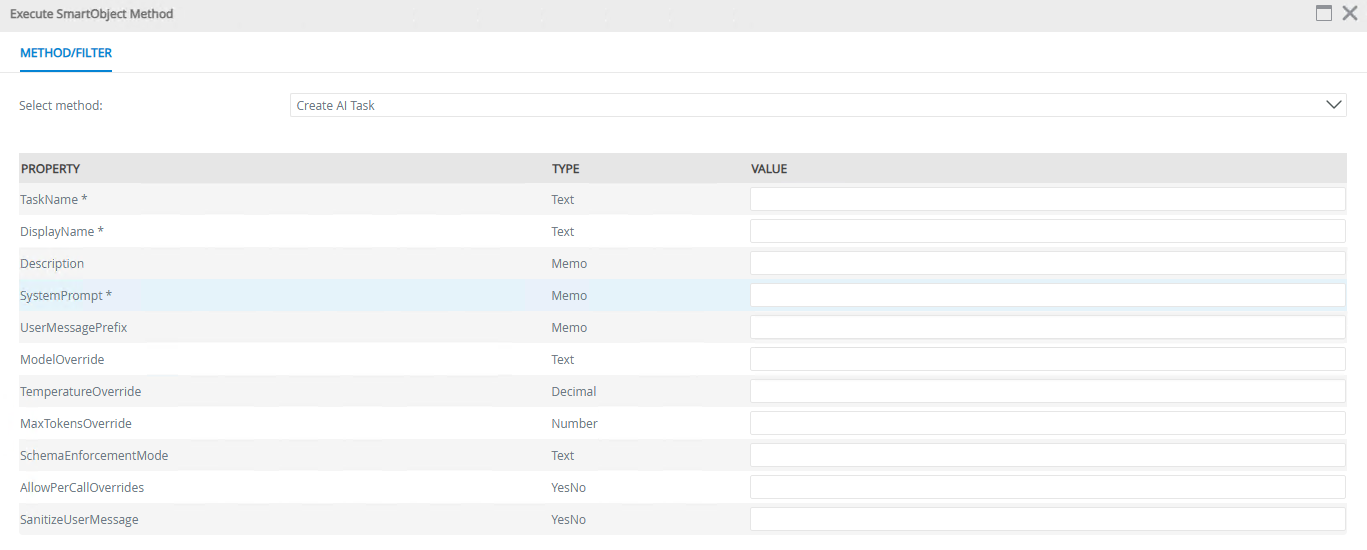
| Field | Description | Required |
|---|---|---|
| TaskName | A unique name to identify your task (used internally). | Yes |
| DisplayName | A friendly name for the task. | Yes |
| SystemPrompt | Instructions that tell the AI what to do and how to behave. | Yes |
| Description | A description of what this task does. | No |
| UserMessagePrefix | Text that is automatically added before the user's message for example Analyze the following: | No |
| ModelOverride | Type a new default AI model for the specific task. This overrides the default AI model | No |
| TemperatureOverride | Control randomness (0.0 = precise, 2.0 = creative). | No |
| MaxTokensOverride | Sets a maximum total token limit. If the limit is reached, the process will return an error, providing a safeguard against excessive usage. | No |
| SchemaEnforcementMode | Controls how strictly the response format is enforced (ResponseFormat, PromptInjection, Both, or blank). | No |
| AllowPerCallOverrides | Enables the caller to override settings. | No |
| SanitizeUserMessage | Clean user input before sending to AI (removes potential injection attempts, normalises text). | no |
Use the following steps to create an AI task:
- Enter the required AI task information and optional information based on the task needs.
- Click Execute.
- Copy the generated Task ID, this is required to publish and manage the task.
When you create a task, the following happens:
- A unique ID is generated for your task.
- The task is saved as a "draft" (not yet available for execution).
- You can add output fields and additional properties before publishing.
Example task
TaskName: SentimentAnalysis
DisplayName: Sentiment Analysis
SystemPrompt: You are a sentiment analysis assistant. Analyze the sentiment of the given text and respond with 'sentiment' (must be one of positive, negative, or neutral) and 'reason' (a brief string explaining your assessment)
Description: Creates a concise summary of any text
AllowPerCallOverrides: Yes
Publish a task
Tasks must be published before they can be executed and used in workflows. Publishing makes the task available as a dynamic SmartObject.
How to publish a task
Use the Publish Task method in Management > Categories > System > K2 Intelligence Service > AI Task.

| Field | Description | Required |
|---|---|---|
| TaskId | The ID of the task to publish | Yes |
Use the following steps to publish a task:
- Enter the TaskId.
- Click Execute.
- Refresh the K2 Intelligence Service instance.
What happens when you publish:
- The task is marked as published.
- A revision number is assigned.
- The task becomes available for execution (after service refresh).
After publishing:
You need to refresh the service instance for the new task to appear as a dynamic SmartObject. The system name will be "AITask_" followed by the task ID. The visible name will be the display name you chose in the task creation.
Any changes to tasks require a service instance refresh.
Manage tasks
View Tasks
Use these methods to find and review tasks:
| Method | Description |
|---|---|
| Get AI Task | Get a single task by its ID. |
| Get Task List | List all tasks (including drafts). |
| Get Published Task List | List only published tasks. |
Update tasks
Use the Update Task method to modify an existing task:
| Field | Description |
|---|---|
| TaskName | A unique name to identify your task (used internally). |
| DisplayName | A friendly name for the task. |
| SystemPrompt | Instructions that tell the AI what to do and how to behave. |
| Description | A description of what this task does. |
| UserMessagePrefix | Text that is automatically added before the user's message for example Analyze the following: |
| ModelOverride | Type a new default AI model for the specific task. This overrides the default AI model. |
| TemperatureOverride | Control randomness (0.0 = precise, 2.0 = creative). |
| MaxTokensOverride | Sets a maximum total token limit. If the limit is reached, the process will return an error, providing a safeguard against excessive usage. |
| SchemaEnforcementMode | Controls how strictly the response format is enforced (ResponseFormat, PromptInjection, Both, or blank). |
| AllowPerCallOverrides | Enables the caller to override settings. |
| SanitizeUserMessage | Clean user input before sending to AI (removes potential injection attempts, normalises text). |
After Updating
-
Updating a task does not automatically update the published SmartObject. You may need to refresh the service instance.
-
If the SmartObjects themselves were modified, they must also be updated to reflect those changes.
To do this, navigate to the service instance, select Generate SmartObjects, then go to the Update tab. Any SmartObjects that have been modified will appear and can be selected for update. If this step is not completed, the changes will not take effect.
Delete tasks
Use the Delete Task method to permanently remove a task. This cannot be undone, this can only happen if the task SmartObject is not in use.
Execute a task
Once published, tasks can be executed directly from your workflows, views and forms.
Output fields
Add output fields
To create output fields use the Add Output Field method in Management > Categories > System > K2 Intelligence Service > AI Task Output Field:
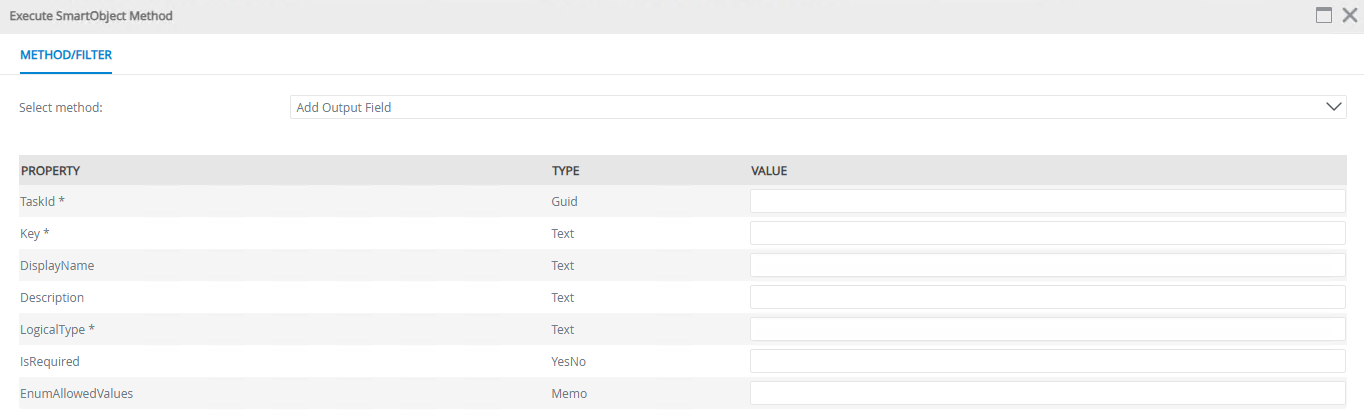
| Field | Description | Required |
|---|---|---|
| TaskId | The ID of the task you are adding the output field to | Yes |
| Key | A unique name for this field (becomes the property name) | Yes |
| DisplayName | A user-friendly label for the output field shown as the output name when mapping the SmartObject | No |
| Description | A description visible to the AI model that helps guide what is required for the specific field. For example, in sentiment analysis, the key might be “reason” and the description “the reason for the sentiment classification.” The model uses this description as guidance | No |
| LogicalType | The type of data (text, number, boolean, datetime, int, string, yesno etc.) | Yes |
| IsRequired | Indicates whether this field must be present in the AI response. It is left blank if this is not set to true. | No |
| EnumAllowedValues | Use this to restrict the AI model to a predefined set of options instead of allowing free form responses. For example, in sentiment analysis, you can specify “positive, negative, neutral,” which limits the model to selecting one of these comma separated values | No |
Use the following steps to create an output field:
-
Enter the output field property details.
-
Click Execute
-
Copy the generate output field ID. This ID will be required for managing the output field.
Logical style
| Type | Description | Example Use |
|---|---|---|
| text | Plain text | Names, descriptions |
| memo | Long text | Summaries, content |
| number | Whole numbers | Counts, quantities |
| decimal | Numbers with decimals | Prices, percentages |
| boolean | Yes/No values | Flags, confirmations |
| datetime | Date and time values | Dates, timestamps |
Manage output fields
View fields
| Method | Description |
|---|---|
| GetOutputField | Get a single field by its ID |
| ListOutputFields | List all fields for a task |
Update fields
Use the Update Output Field method to modify an existing field:
| What you can change | Notes |
|---|---|
| DisplayName | User-facing label |
| Description | Field description |
| IsRequired | Whether the field is mandatory |
| LogicalType | The type of data (text, number, boolean, datetime, int, string, yesno etc.) |
| EnumAllowedValues | Allowed options for enums |
Delete fields
Use the Delete Output Field method to remove a field. This cannot be undone.
Additional properties
Create additional properties
To create additional properties use the Add Additional Property method in Management > Categories > System > K2 Intelligence Service > AI Task Additional Property.
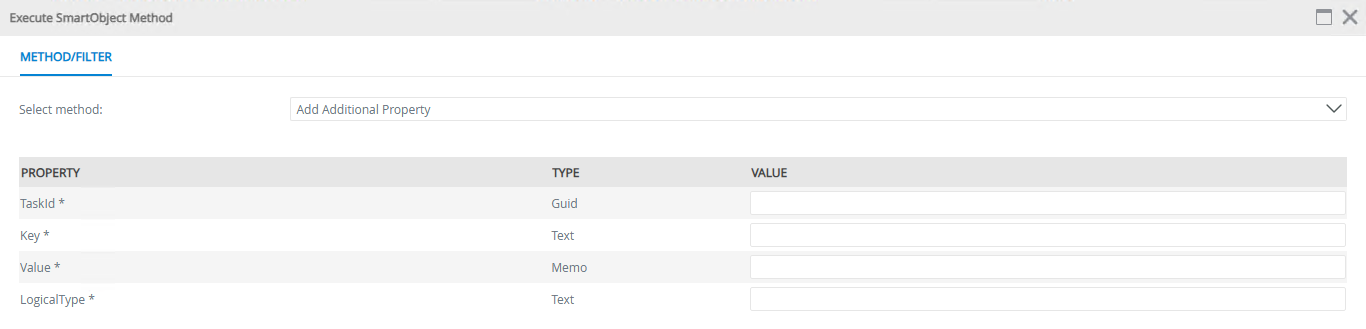
| Field | Description | Required |
|---|---|---|
| TaskId | The ID of the task you are adding to | Yes |
| Key | The parameter name | Yes |
| Value | The parameter value | Yes |
| LogicalType | The type of value (text, number, json) | Yes |
Use the following steps to create an additional property:
-
Enter the property details.
-
Click Execute
-
Copy the generated additional property ID. This ID will be required for managing the additional property.
Example
Key: top_p
Value: 0.9
LogicalType: decimal
Key: presence_penalty
Value: 0.5
LogicalType: decimal
Manage additional properties
View properties
| Method | Description |
|---|---|
| GetAdditionalProperty | Get a single property by its ID |
| ListAdditionalProperties | List all properties for a task |
Update properties
- Use the Update Additional Property method to change a property's value or type.
Delete properties
- Use the Delete Additional Property method to remove a property.
Configuration options
Service-level settings.
These following defaults apply to all tasks unless overridden:
| Setting | Description |
|---|---|
| ApiBaseUrl | The AI provider endpoint URL |
| ApiKey | Authentication key |
| DefaultModel | The AI model to use |
| DefaultTemperature | Default randomness (0.0-2.0) |
| DefaultMaxTokens | Default response length limit |
Task-level overrides
Tasks can override service defaults:
AllowPerCallOverrides enables overrides at execution time wherever the SmartObject is used, including workflows, views, and forms. If AllowPerCallOverrides is enabled, the following can be overridden at execution time:
| Setting | Description |
|---|---|
| ModelOverride | Use a different model for this task |
| TemperatureOverride | Different temperature for this task |
| MaxTokensOverride | Different token limit for this task |
| Per-Call | Overrides |
| DefaultMaxTokens | Default response length limit |
| Model | Use a different model for this execution |
| Temperature | Different temperature for this execution |
| MaxTokens | Different token limit for this execution |
Schema enforcement modes
Schema enforcement controls how strictly the AI must follow your output field definition. Choose the mode that matches your requirements.
It returns the AI's raw text response without any validation or structure requirements.
None
Use it when:
- You only need the raw text response
- You don't need structured data
- The AI's response format is unpredictable
- ResponseContent property contains the full AI response
- No output fields are validated
ResponseFormat
What it does:
-
Forces the AI model to return data in a structured JSON format based on the defined schema.
- The API enforces the format before returning the response.
- Your AI provider supports structured outputs (OpenAI)
- You want the API to guarantee the response structure
- You need reliable structured data
- Response is guaranteed to match your schema
- Output fields are populated from the validated response
- Most reliable option for compatible providers
A response is not guaranteed if schema enforcement fails. In such cases, the system will return an error instead of a response.
PromptInjection
What it does:
Embeds your schema requirements directly into the system prompt sent to the AI. The AI is instructed to return JSON matching your schema.
When to use:
- Your AI provider does not support structured outputs
- You want some structure but can tolerate occasional deviations
- You need compatibility with older or different AI models
What you get:
- System prompt includes schema instructions
- Best-effort structure enforcement
- AI may occasionally return non-JSON or mismatched schema
Both
What it does:
Uses both ResponseFormat (if supported) and PromptInjection together for maximum compliance.
When to use:
- You want the highest chance of correct structure
- Your provider supports ResponseFormat
- You want a fallback to prompt-based enforcement
What you get:
- Schema enforced at API level and in prompt
- Best available enforcement
- Maximum reliability
Input sanitization
The service can automatically clean user input before sending it to the AI. This is controlled by the SanitizeUserMessage setting on each task.
What gets sanitized
When enabled, user messages go through a cleaning process that:
- Removes control characters that could cause issues
- Normalizes Unicode characters (fancy quotes become regular quotes, em-dashes become hyphens)
- Removes zero-width characters and other invisible text
- Checks for potential injection attempts (SQL, script injection)
When to enable it
Enable sanitisation when:
- User input comes from external sources and it is a concern (forms, emails, documents)
- You want consistent, predictable text going to the AI (In some cases accuracy can drop depending on the task and the input text, but security concerns override this)
- Security is a concern (always a good idea for production!)
You can leave it disabled when:
- You need to preserve exact formatting (code snippets, special characters)
- Your input is already trusted/controlled
- You have your own sanitisation in your workflow
How to enable
Set SanitizeUserMessage to Yes when creating or updating a task. It's optional and defaults to disabled.
Troubleshooting
- Issue:
Task not found.
Cause:
Task ID incorrect or task not published.
Resolution:
Verify the TaskId and check the publication status. - Issue:
Schema validation failed.
Cause:
AI response missing required fields.
Resolution:
Check the system prompt, adjust the schema enforcement. - Issue:
Invalid JSON response.
Cause:
AI returned non-JSON content.
Resolution:
Use PromptInjection or Both modes. - Issue:
Configuration error.
Cause:
Missing API URL or key.
Resolution:
Check the service configuration. - Issue:
Task not appearing.
Cause:
Service not refreshed after publishing.
Resolution:
Refresh the service instance.