K2 Workflow Designer - Design Workflow Wizard Navigation
When selecting to Design Workflow by right clicking on a Form, the Workflow Settings wizard opens. The Workflow Settings wizard enables a user to configure the first step of the K2 Workflow Designer workflow. The Workflows wizard screen is context sensitive and will display differently depending on the selections made. After configuring the Workflow wizard, the design canvas will be displayed with the information contained in the first step of the workflow. Once the workflow is created, saved or deployed it will display under Personal Workflows. Selecting this option will open the Workflow Name wizard screen. Following are the steps of the Workflow Wizard:
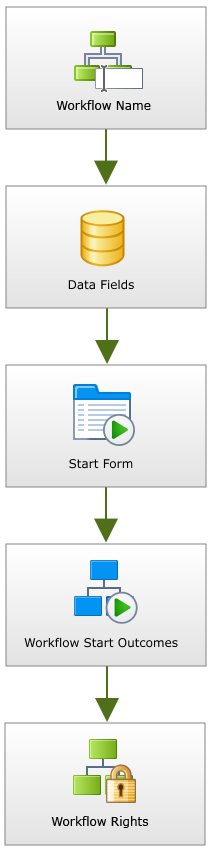
Fig. 1. New Workflow wizard
| Feature | What it is |
|---|---|
| Workflow Name | Used to specify a Name and Description for the workflow |
| Data Fields | Used to add additional Workflow data fields to the workflow |
| Start Form | Used to specify the rule to start the workflow |
| Workflow Start Outcomes | Used to specify the possible Outcomes for the workflow step |
| Workflow Rights | Used to specify Workflow Rights for the workflow |