K2 Workflow Designer - Data Fields
The Data Fields wizard screen is used to add additional workflow Data Fields to the workflow. The Data Fields functionality is used to store custom data that can then be used dynamically throughout the workflow while designing the workflow.
Additional fields can be added to be used as Data Fields.
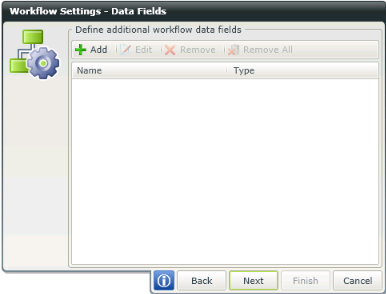
Fig. 1. Workflow Settings - Data Fields
| Feature | What it is | How to use it |
|---|---|---|
| Add | Adds a new Data Field to the workflow | Click Add |
| Edit | Edits an existing Data Field | Click Edit |
| Remove | Removes a Data Field | Click Remove |
| Remove All | Removes all the Data Fields from the workflow | Click Remove All |
Add a Workflow Data Field
When clicking on Add, the Add Workflow Data Field screen opens. Configure the Workflow Data Field on this screen.
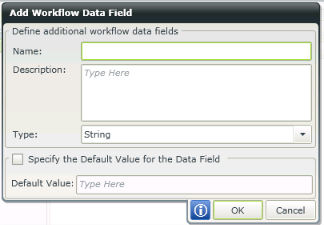
Fig. 2. Workflow Settings - Data Fields
| Feature | What it is | How to use it |
|---|---|---|
| Name | The Name of the Data Field. This is used to easily identify the Data Field for future use | Type a name for the new Data Field in the text box |
| Description | The description of the Data Field. This is used to easily identify and describe the Data Field for future use | Type a description for the new Data Field in the text box |
| Type |
The type of Data Field. The following types of Data Fields are available:
|
Select the Data Field type from the drop down list |
| Specify the Default Value for the Data Field | Select this option if a specific default value needs to be specified for the Data Field | Select the check box |
| Default Value | Specifies a custom Default Value for the Data Field | Type a value in text box |
How to use the Workflow Integration in the K2 Workflow Designer