K2 Workflow Designer - Workflow Name
The Workflow Name wizard screen is used to specify a Name and Description for the workflow. In addition, the Form State can be selected. If a SmartObject is linked to the Form through a bound View, an Item Reference is automatically created for the SmartObject by default.
If the workflow is deployed and the Form is subsequently changed, it is important to run the wizards again to ensure that the correct version is recognized before deploying again
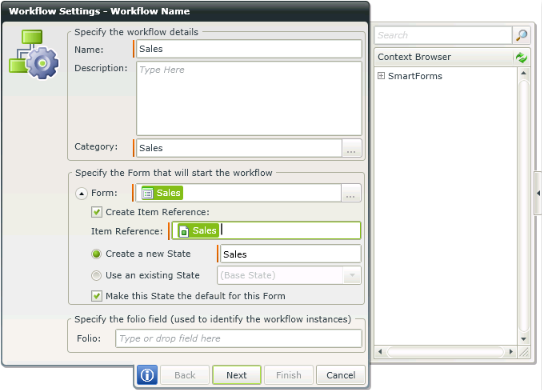
Fig. 1. Workflow Settings - Workflow Name
| Feature | What it is | How to use it |
|---|---|---|
| Name | The Name of the workflow. The Red line at the beginning of the text box indicates that the Name text box is mandatory | Type a name for the new workflow in the Name text box |
| Description | The description of the workflow | Type a brief description for the new workflow |
| Category | The category text box is automatically populated with the category where the Form resides. This can be edited to another user specified category | Type another category. This is a required field |
| Form | The Form used to design the workflow will be listed here. Select another Form if required to start the workflow with | Select the option. This is a required field |
| Create Item Reference | The Item Reference feature automatically binds the SmartObject data used in a Form to the workflow making it easier and quicker to design a workflow. This eliminates the need to manually configure certain rules such as the rule to return data on a Form at approval and the need to define each data field. The Item Reference replaces the Identity Field/Data field configuration as it has expanded upon the previous functionality. | Select the option if a SmartObject should be used to create an Item Reference |
| Item Reference | The SmartObject used to create the Item Reference. The default SmartObject that is bound to the Form is used by default. If the field is blank, there are more than one View linked to the Form and the specific SmartObject to be used to create the Item Reference should be selected from the Context Browser | Select the SmartObject from the Context Browser if the field is blank or another SmartObject is required. An Item Reference will be created using the SmartObject selected |
| Create a New State |
Creates a new State. For more information on Form states, see the following topics: |
Select the option and specify a name for the state |
| Use an existing State | Uses an existing State. The default is Base State . For more information on Form states, see the following topics: | Select the option and then required state from the drop down |
| Make this State the default for this Form | Makes the selected State the default for the Form. For more information on Form states, see the following topics: | Select the option if required |
| Folio | The Folio text box is used to add static or dynamic information that is used to uniquely identify the running instances of the workflow | Type text or drag and drop a field from the Context Browser |
How to use the Workflow Integration in the K2 Workflow Designer