Wait for OCR
The Wait for OCR action An instruction within a botflow. in a botflow Automated steps that you can design for each bot that will run. waits for an Optical Character Recognition (OCR) value to appear or disappear.
Use Wait for OCR when the Get Value action can't extract text from a target.
Using the Wait for OCR action, you can:
- Get text from a PDF.
- Copy text from a text editor.
- Copy values from online forms.
Some examples of target applications for the Wait for OCR action using the Target Selector are:
- PDFs.
- Nintex Forms.
- Browser windows.
Add Wait for OCR action to a botflow
This example provides the steps necessary to add a Wait for OCR action to a botflow.
To add a Wait for OCR action to a botflow:
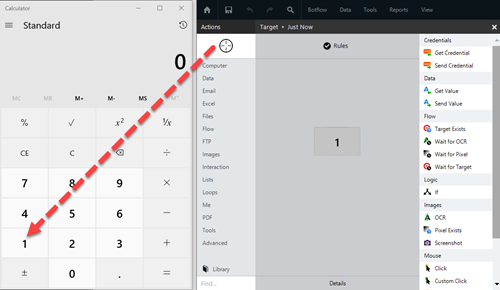
- Drag the Target Selector from the Build Pane Area to add new actions and edit existing actions. The Build Pane displays after you select a targeted element in a Windows application. The center of the Build Pane is referred to as the Task Editor Pane. and drop it onto an application to display the Target Preview.
- Select Wait for OCR from the Flow actions list.
- Set the Wait for OCR settings.
- Preview: Provides a preview of the target.
- Color/B&W (Slidbar): The Color/B&W toggle switches the Preview between color and black-and-white. Use the slide bar to adjust black-and-white contrast.
- Left, Top, Width, Height: Enter a numeric value to adjust the OCR capture box area.
- Preview: Click Refresh to refresh the Preview and populate the Preview Field. Provides the action with the text it is waiting for.
- Wait for: Select the Wait for setting from the drop-down list.
The Wait for OCR Action Builder window displays.
- If needed, adjust the Rule settings to modify how Nintex Bot finds the application target.
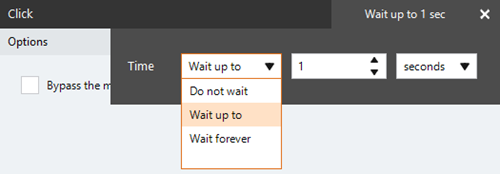
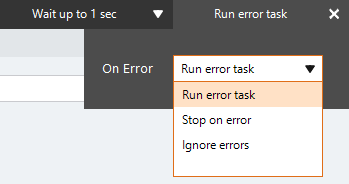
- If needed, adjust the Run Error Task settings and Timing settings to fine tune how the action runs.
- View the action Details settings.
- If needed, adjust the Run Switch setting to create the action without running it.
- Optionally, add an action note.
- Click OK to add the Wait for OCR action to the botflow.
 Black & White Mode versus Color Mode
Black & White Mode
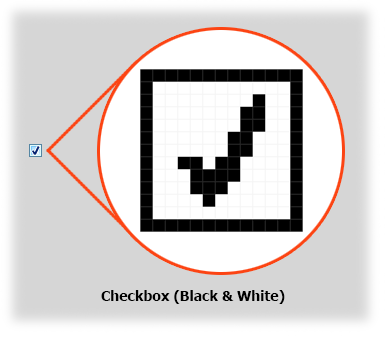
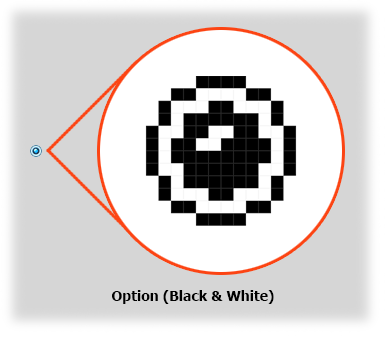
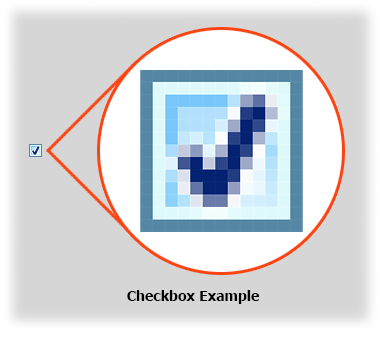
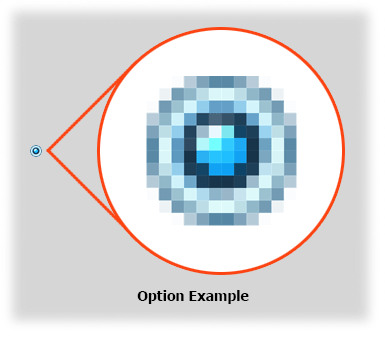
Use Black & White Mode when detecting control values such as a check box check or a radio button. Different colored pixels make up each of these controls and can change with different versions of selected Windows themes.
Black & White example
Color Mode
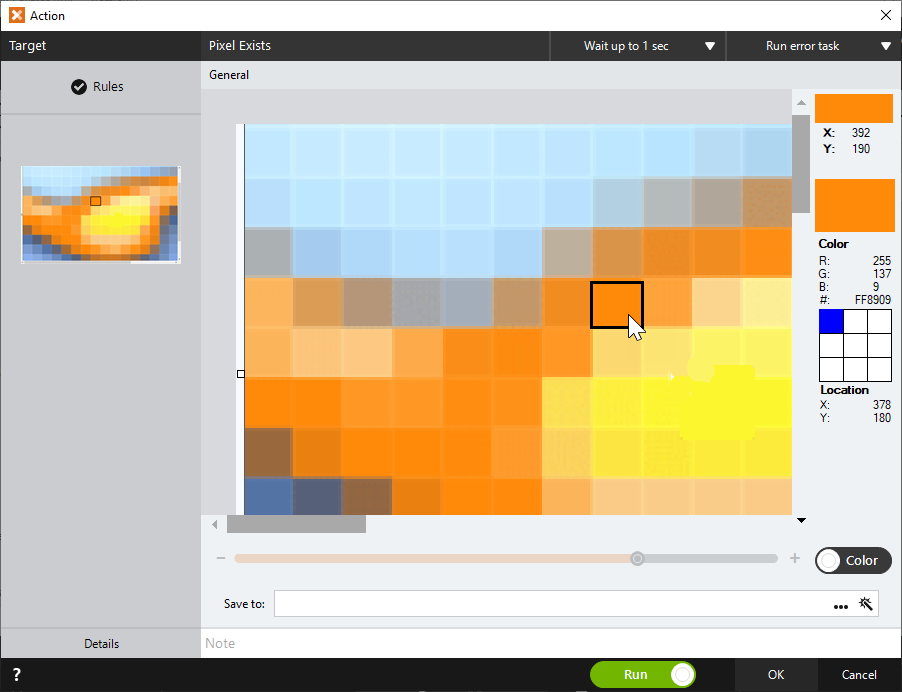
Use Color Mode when an exact pixel color is needed to make a specific determination such as determining if a target is enabled or disabled.
Color example
Toolbar button enabled (color) versus disabled


When selected, the pixel color and color information displays.
Wait for OCR Action field and button descriptions
Target Selector and Build Pane
| Field or button | Description |
|---|---|
| Target Selector |
The Target Selector allows you to choose the target element the botflow interacts with, such as a button, text field, or check box. Ensure that your machine's Windows Settings (Start Menu > Settings) are set as follows when using the Target Selector:
You can use the Target Selector to:
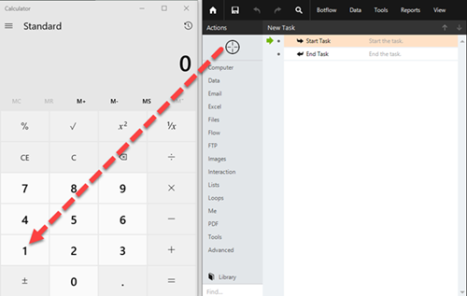
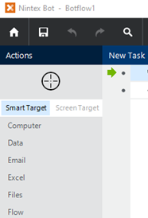
Drag the Target Selector from the Task Pane onto the desired application target An element within an application Nintex RPA LE interacts with, such as a button, text field, or checkbox. and select the appropriate action from the Build Pane Area to add new actions and edit existing actions. The Build Pane displays after you select a targeted element in a Windows application. The center of the Build Pane is referred to as the Task Editor Pane.. Smart Target and Screen Target options The Target Selector can be used with the Smart Target or Screen Target options. The options are displayed as shown in the image below. Smart Target is selected by default.
|
| Build Pane |
The Build Pane displays after you select a targeted element in a Windows application. In the Build Pane, you can:
Selected target elements display in the Build Pane with a list of actions supported by the targeted item. The Build Pane also displays how long the item has been targeted.
|
| Recent Target |
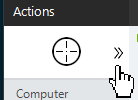
The most recent target may be accessed by clicking the Recent Target button to the right of the Target Selector.
This is useful when creating Excel, Emulator, and Web Table Targets allowing you to create new actions with existing targets. |
 Wait for OCR Action Builder window
| Field or button | Description |
|---|---|
| Wait for OCR Options/Settings | General
Tip: Click the capture box in Preview to manually move or reset the capture area.
Result
|
| Rules |
Some actions have rules required to locate a target and vary based on the targeted application. Rules of a targeted application element are configured and saved with the action. The rules are then used to locate the proper targeted element, such as a Microsoft Excel workbook. Other notes about rules:
To set up the most common rules:
The Rules window displays the rules available for the selected targeted application. |
| Preview | All actions created using the Target Selector include a preview of the targeted element. |
| Details |
When directed by Nintex Support, click Details from the Preview Panel of the Action Builder. If needed, Nintex Support will supply additional information. |
| Timing Settings |
Some actions have timing settings and vary based on the targeted application. The timing settings of a targeted application element are configured and saved with the action. The timing settings are then used to control when the action starts.
|
| Run error task |
|
| Note |
(Optional) Type a Note to document any special instructions or functionality.
|
| Run Switch |
The Run Switch toggle controls how Nintex Bot runs an action when adding or editing an action in a botflow.
|
| OK/Cancel | Click OK to save the action or click Cancel to discard the action or any changes. |