Process Manager MCP
Important: This feature is currently in open beta. There may be incorrect results returned. If something is not functioning correctly, please raise this with support@nintex.com
Process Manager MCP is an open-source Model Context Protocol (MCP) server that connects AI assistants/Agents (e.g. through Claude Desktop and Microsoft Copilot Studio) to your Nintex Process Manager instance. It enables you to ask questions about your processes, documents, and organizational structure in plain language, without needing to navigate within the Process Manager user interface.
Some examples of what you can do:
-
Search for processes by title, activities, tasks, objectives, notes, and keywords.
-
Find documents and policies stored in your Process Manager instance.
-
Retrieve the full details of a specific process.
-
Analyze a process to identify potential automation opportunities.
Setup steps
-
Your Promaster A Nintex Process Manager system administrator who administers a Nintex Promapp site and has rights to view and edit all areas of a Nintex Promapp site. will first need to enable the Process Manager MCP capability for your tenant by navigating to Configure > Admin > Enable Process Manager MCP.
-
Get your MCP URL for your Process Manager tenant.
-
This would take the following format: https://<region-identifier>-pmp.promapp.com/mcp/<tenant name>.
-
The corresponding regions are:
-
au -> prd-aue
-
ca -> prd-cac
-
eu -> prd-neu
-
us -> prd-wu3
-
demo -> dmo-wu3
-
-
For example, if the URL for your Process Manager tenant is https://au.promapp.com/mycompany, your MCP URL would be https://prd-aue-pmp.promapp.com/mcp/mycompany.
-
-
Go to your AI Assistant/Agent setup (e.g. Microsoft Copilot Studio) and follow your chosen instruction to connect an MCP server to your AI Assistant/Agent.
-
The general flow should be similar to the following:
-
Edit your AI Assistant/Agent.
-
Create a custom MCP connection for your agent. Here is an example of creating a custom MCP connection in Microsoft Copilot:
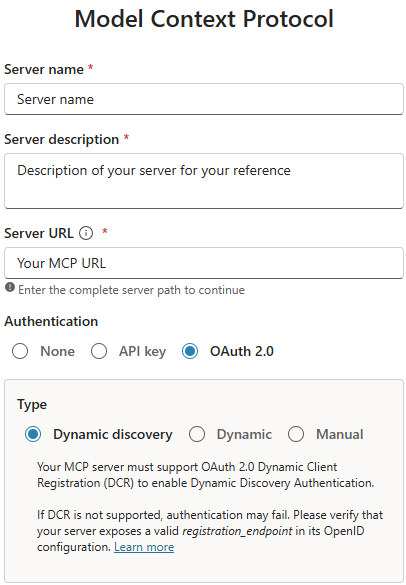
Note: Different providers may call the custom MCP connection differently.
-
Paste the MCP URL for your Process Manager tenant from the earlier step.
-
You will most likely be asked to log in to authenticate at this step.
-
Finish setting up your agent with additional instructions and tools.
-
-
Examples:
-
Microsoft Copilot Studio: Connect your agent to an existing Model Context Protocol (MCP) server.
-
Claude Desktop: Get started with custom connectors using remote MCP.
-
-
-
When you launch your agent, you may be asked to authenticate again either via providing your username and password or via Single Sign-On (SSO) if that is enabled for your Process Manager tenant.
Note: You may be asked to authenticate again if your use of the MCP server times out.
Step-by-step video examples
 Microsoft Copilot Studio
Watch this video walkthrough showing how to create a Microsoft Copilot Studio agent and connect it to the Process Manager MCP server.
Claude Desktop
Watch this video walkthrough showing how to connect Claude Desktop to the Process Manager MCP server.
Considerations
-
It’s advisable to instruct your AI Assistant/Agent that for any process related questions it should seek information from Process Manager rather than other sources, e.g. through the web. This should limit hallucinations where your agent pulls process information from other sources.
See the MCP FAQ.
-
For prompt ideas and suggestions see Suggested agent prompts for Process Manager MCP.
Available MCP tools
|
Tool |
What it does |
|---|---|
| ping | Returns a response to verify the MCP server is working. |
|
search_processes |
Search across process titles, activities, tasks, objectives, notes, and keywords. |
|
search_documents |
Find documents within your Process Manager instance. |
|
search_all |
Search across all content types: processes, documents, policies, and groups. |
|
get_process |
Retrieve complete process details for a specific process ID. |
|
get_group_hierarchy |
Browse the full organizational structure of process groups. |
|
list_processes |
Get a paginated list of all processes with metadata. |