Delete Selected Version
The selected version is the version of the process selected from the Process Version page i.e. the previous page.
 |
The version of the process selected for deletion is noted in brackets.If the wrong version number is listed in brackets, to correct this the user must close the user page, select the correct version designated for deletion and press Delete process again. There is no mechanism to alter the version number from this user page. |
 |
From the Process Versions list, select a version of the process (but not the default version) and then select Delete Process | ||
 |
The Delete Process options dialog will appear 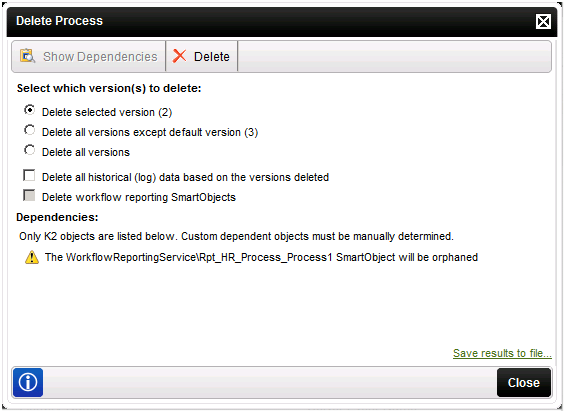 |
||
 |
Optional: Enable the option: Delete all historical (log) data based on the version deleted this will enable the option Delete workflow reporting SmartObjects at the same time. Note: The option to Delete workflow reporting SmartObject is only available when the option Delete all versions has been selected |
||
 |
|
||
 |
The following warning message will display: 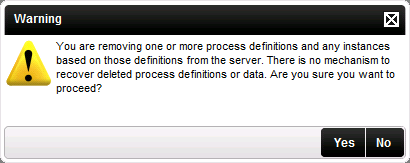
|
||
 |
Make a selection to proceed. | ||
 |
Optional Step : Click save results to file to export the dependencies to Excel (If Microsoft Office is available) or Notepad to save the items affected and dependencies |
