Using the K2 Package and Deployment Tool
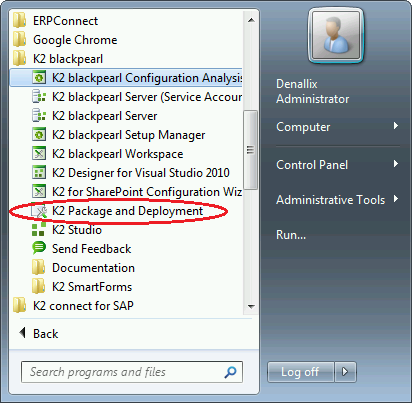
The K2 Package and Deployment tool can be launched by using the K2 blackpearl -> K2 Package and Deployment shortcut in the Windows Start menu, as shown below:
- The K2 Package and Deployment Tool presents two action menus. The first is located in the Actions column of the MMC console:
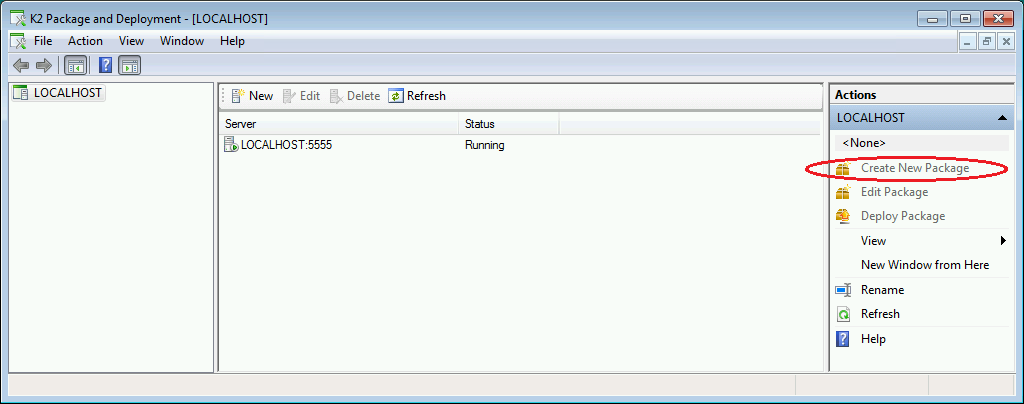
-
The second is shown by right-clicking on the K2 Package and Deployment Snap-in node under the MMC Console Root:
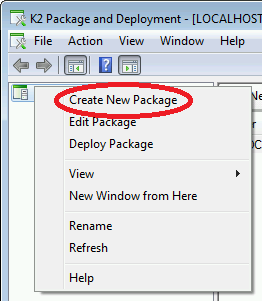
Possible Actions
| Action | What it does |
|---|---|
| Create New Package | Starts the Package Creation wizard used to select the K2 artifacts that will be included in a deployment package. See Creating a Package. |
| Edit Package | Starts the Package Editing wizard used to add or delete artifacts and dependencies within deployment packages. See Editing an Existing Package. |
| Deploy Package | Starts the Package Deployment wizard used to extract and deploy K2 artifacts from a K2 Package to a target K2 environment. See Deploying a Package. |
| View | Allows the administrator to customize the MMC toolbars and layout. |
| New Window from Here | Opens a new MMC Window. |
| Rename | Allows the administrator to rename the selected Snap-in. |
| Refresh | Refreshes the console screen. |
| Help | Opens Microsoft Management Console Help. |
See Also