Managing Permissions
As a K2 administrator, you will manage server rights and workflow rights. In this section, you will take a look at the more common permissions you are likely to assign, and the level of security those permissions grant. Most permissions can be assigned to individual users or groups.
There are three levels of permissions that you (as the K2 administrator) will work with. The following is a high-level overview:
- K2 Administrator: This user has full-control over the K2 environment. This user will likely interact with other system, network and database resources as well. If this user does not have access to these other resources, they will need to work with the individuals that do. Typically, there are very few K2 administrators within the organization (one or two perhaps). The K2 administrator assigns server rights and often workflow rights to other users. K2 administrators manage the entire K2 environment.
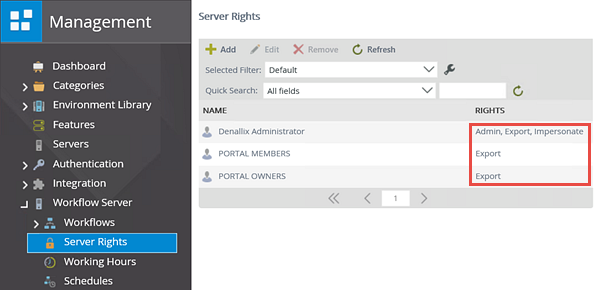
- Server Rights: There are three options for Server Rights permissions.
- Admin: Full control; this is the K2 administrator. Again, usually only one or two people are full K2 Admins.
- Export: Users with Export rights can publish (deploy) workflows. Assign this right to users that will be building workflows and will need to deploy them, or users that need to use the K2 Package and Deployment tool to deploy packages. Some organizations prefer to limit the number of users that actually build and deploy workflows as a quality control measure, while others grant export rights to all of their users.
- Impersonate: This is a system right that allows an account to impersonate another user after the initial connection is established. This is an advanced use case that is not covered in this tutorial.
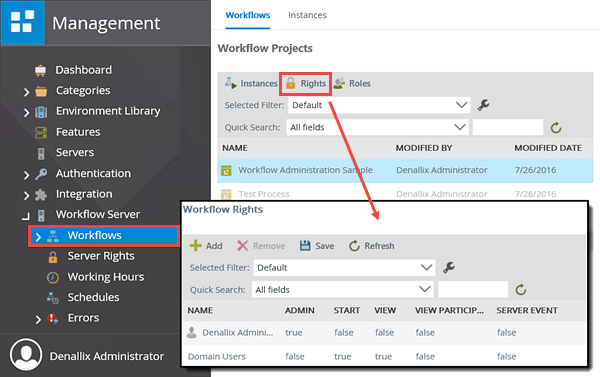
- Workflow Rights: Workflow Rights are permissions that are assigned to each individual process. At some point in time, you may build a workflow for a specific target group of users. To prevent other users from submitting the workflow, you can control the workflow access with workflow rights. Workflow rights consist of the following:
- Admin: Required to view, add and edit the rights for a deployed process, as well as administer active workflow instances.
- Start: Users with start rights can start process instances.
- View: Users with view rights can report on all instances of a workflow.
- View Participate: Users with view participate rights can report only on those workflow instances where they are the originator (submitted the original form), or where they actioned a user task.
- Server Event: This is a special type of permission used for asynchronous server tasks, where an external system completes a K2 server event. This is an advanced use case that is not covered in this tutorial.
 Step 1: Give a user export rights so that they can deploy (publish) workflows
In this Step, you will grant Anthony (export) rights so that he can deploy (or publish) workflows.
Step 1 Tasks
- Grant Anthony (export) rights.
Step 1 Walkthrough
- Launch the K2 Management site for Administrator (if it is not already). (Start > All Programs > K2 blackpearl > K2 Management)
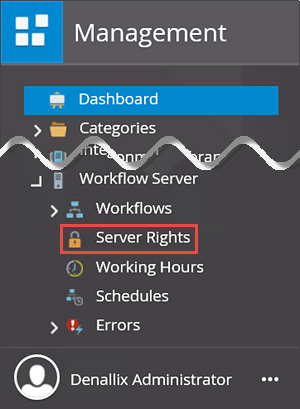
- Navigate to the Server Rights option found in the Workflow Server > Workflows node.
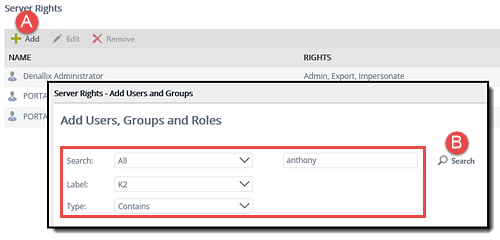
- When the Server Rights screen opens in the central pane, click Add. Confirm the Labelis set to K2, then enter
anthony
into the search text box. (Leave the other default values as is.) Click the spyglass or Search button. - Anthony's full name should appear in the search results pane. Click to highlight Anthony's name, then click Add. Click Next. (While this may appear to be a bit tedious, the reason behind the multiple steps is so you can search for, then add, several users at the same time, then click Next to assign the server rights all at once.)
- You should now see Anthony's name listed with the Server Rights options. CHECK the box in the Export column, then click Finish.
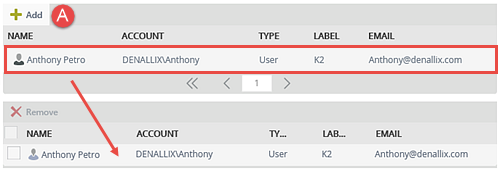
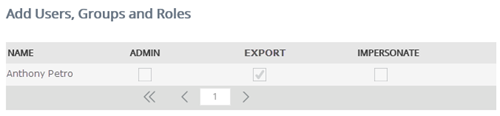
Anthony now has server rights to publish, or deploy, workflows.
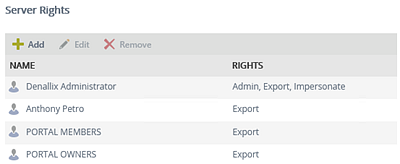
STEP 1 REVIEW
In this step, you granted Anthony (export) rights so that he can publish (deploy) workflows. In the image above, notice that all Portal Members and Owners also have export rights. Typically, you would not grant individual users rights if you have already granted all users export rights. (The assumption is that all users are included in the Portal Members group.) Some organizations may grant export rights to a handful of users as a quality control measure. Users in this scenario are most likely application designers and have had more advanced training than the typical user. Other organizations grant all users export rights and allow everyone to build and deploy workflows.
Step 2: Give one user admin rights and another start rights
Now you are going to work with Workflow Rights, or permissions assigned to a single process. In the following steps, you will grant Bob (admin) rights to the Workflow Administration Sample process. You want Bob to be able to manage the permissions for this process. You will then grant all other users (start) rights so that everyone can start this workflow.
Step 2 Tasks
- Grant Bob (admin) rights for the Workflow Administration Sample process.
- Grant Domain Users (start) rights on the same process.
Step 2 Walkthrough
- Still in the K2 Management site, expand the Workflow Server node (if it isn't already), then click Workflows. A list of workflow projects are displayed in the central pane. Click to highlight the Workflow Administration Sample process, then click the Rights button located in the navigation pane.
- In the Workflow Rights screen, click Add.
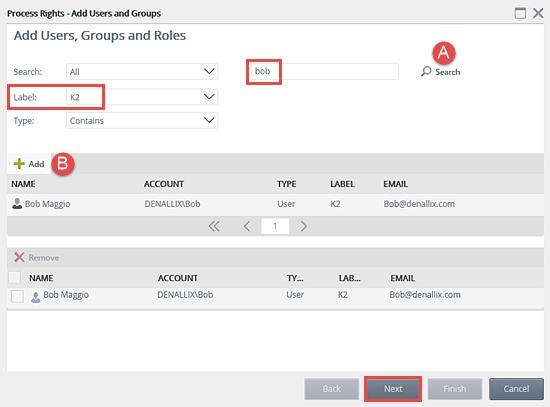
- Confirm the Label is set to K2, then search for and Add Bob. Click Next.
- You should now see a screen displaying Bob's name and the Workflow Rights options. CHECK the box for Admin, then click Finish.
- Click Add once again.
- On the Add User, Groups and Roles screen, confirm the Label is set to K2, then search for
domain users
then click Add when you see Domain Users in the results pane. Click Next. - CHECK the box in the Start column, then click Finish.
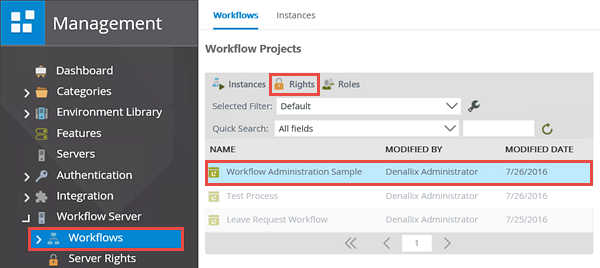
At this point, you should see that Administrator is the only user with workflow rights. (If on a K2-provided VM.) Now you are going to add Bob and give him admin rights. This will allow Bob to grant permissions to other users for this single workflow process as he needs to.
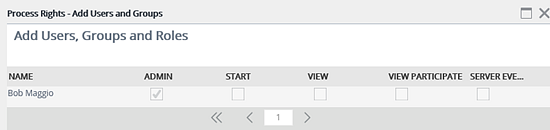
On the Workflow Rights screen, you should see that Bob has been added with admin rights to the Workflow Administration Sample process. Bob is now able to grant permissions to other users for this process.
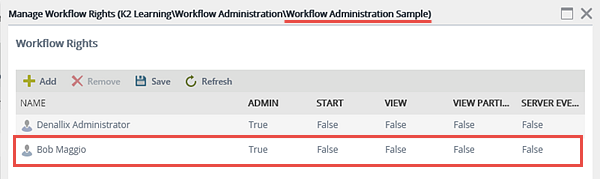
Now you will grant start rights to all users. This is allow anyone to submit the Workflow Administration Sample process.
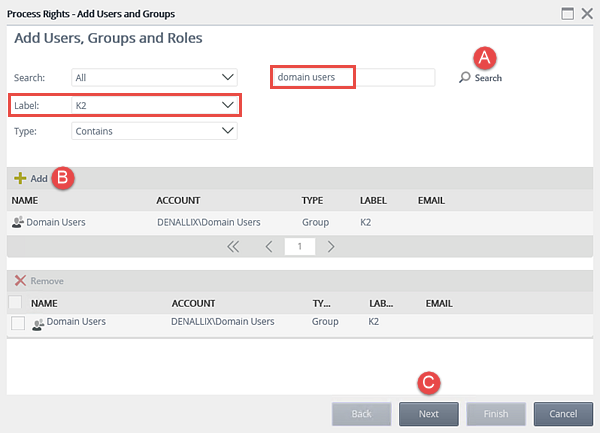
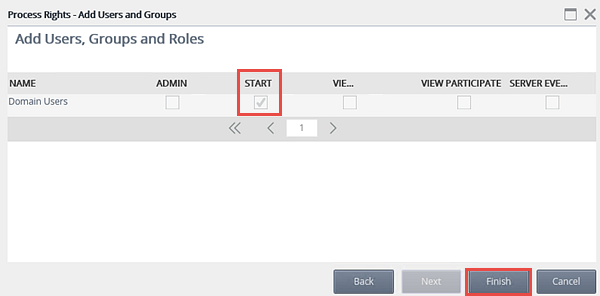
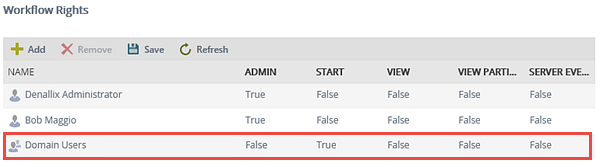
All domain users now have the necessary permissions to start the Workflow Administration Sample process.
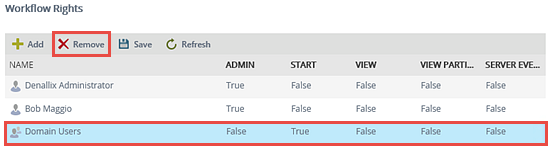
Workflow rights can be assigned to both individual users and groups of users. To delete the workflow rights for a user or group, click to highlight the name, then click Remove. Close the Workflow Rights screen.
STEP 2 REVIEW
In this final step, you granted permissions, or workflow rights, to the Workflow Administration Sample process. With admin level rights, Bob can now assign permissions for this process as he needs to. All domain users now have the ability to start this workflow. In this step, you observed how you can assign rights to both individuals and groups. To delete the rights for a user or group, simply highlight the name, then click Remove.
You have now completed the Administering K2 tutorial. If you would like to review the topics covered, or work through some challenge exercises, continue on to the Summary and Challenge Steps.