Package and Deployment Considerations
Before creating a package, or deploying a package, the following considerations must be understood.
 Permissions
All packaging and deployment actions take place using the K2 Server Service account. However, all calls to the target server are validated using the users credentials.
Included and Excluded Artifacts
The following table lists the K2 artifacts that are included or not included in deployment packages created with the K2 Package and Deployment tool. You can assume that anything not explicitly listed as included in this table will not be included in the deployment package and may need to be migrated from the source environment to the target environment separately using the appropriate tools or interfaces for that component.
Note that the actual artifacts included in the package are based on selections used when the package is created, and you may need to manually add or remove selected items from the package depending on the artifacts used in your application. K2 will attempt to do a “best guess” as to all of the K2 artifacts required for your application, but you should always double-check the artifacts identified by K2 for inclusion.
| K2 Artifact | Included in P and D Package? | Notes |
|---|---|---|
| Data - SmartObjects | Yes | Even SmartObjects used by the workflow will be included. |
| Workflows | Yes | When workflows are created outside of the SharePoint application designer environment (for example with K2 Designer |
| Forms and Views | Yes | Only SmartForms forms and views are included in the package. Custom user interfaces created with another technology are not included. |
| Custom SmartForms Controls | Yes | Custom controls are included in the package. K2 Server Administration rights are required when deploying custom controls. |
| Reports | Yes | Only the generated reports for the application are included by default. If you have created custom forms and views for reporting purposes, you may need to select those items manually. Any custom reports created with another technology (such as SSRS) will not be included in the K2 package. |
| SmartBox SmartObject Data | User Configurable | SmartBox SmartObject data is excluded by default. This can be manually configured during package creation. Packaged data can then be included or excluded when deploying the package. |
| Roles | Yes | Roles are deployed as empty. You will need to add role members after deployment. |
| Service Objects | Yes | |
| Categories | Yes | |
| Service Instances | Yes* | Some service instances, like the SharePoint, SAP, and SalesForce service instances, are included by reference only. The package contains the GUID or system name of the service instances required by the SmartObjects in the package. If a service instance is found on the target that matches by service instance name or GUID, it is automatically selected and you cannot select a different service instance. If no matching service instance is found, it will show up as a missing reference. |
| Custom Service Instances | Yes | Only custom service instances built using the SmartObject Service SDK can be included in the package. |
| Service Types and Service Brokers | By Reference Only* | Service types and the associated brokers must already exist in the target environment. |
| Environment Library Fields | By Reference Only* | Environment fields other than miscellaneous (Misc) need to exist on the target. Miscellaneous fields are included in the package. |
| Workflow Permissions | No | The deploying user account automatically gains admin rights on the workflow. After a workflow is deployed, use the K2 Management site or K2 Workspace to set workflow permissions for the deployed workflow definition. This only needs to happen the first time a workflow is deployed since workflow permissions are version-agnostic. |
| Custom Service Brokers | No | Any customizations must be copied over and installed on the target K2 environment using the appropriate deployment mechanisms for those customizations. |
| Custom SmartForm Themes | By Reference Only* | Any customizations must be copied over and installed on the target K2 environment using the appropriate deployment mechanisms for those customizations. |
| Custom Workflow Wizards | No | Any customizations must be copied over and installed on the target K2 environment using the appropriate deployment mechanisms for those customizations. |
*By Reference Only means the definition of the item is not included, only a reference to the item to ensure it exists on the target environment.
Artifacts Not Included
The following K2 artifacts are not included at this time:
- SharePoint lists or libraries
- SharePoint items (data in the list or libraries)
- SharePoint fields, columns or content types
- SmartObject data
- Report data
- Artifacts created using any Workflow Integration wizards (i.e. InfoPath Workflow Integration, SharePoint Workflow Integration).
- K2 SQL Server databases and tables
- Service instances (only custom service instances created using the SmartObject SDK can be packaged).
- Custom environment configurations (for example, changes to configuration files like 'K2HostServer.exe.config') cannot be packaged. These configurations must be manually applied to the target environment.
The following K2 Studio/K2 Designer for Visual Studio workflow events cannot be deployed with a Package and Deployment package at this time:
- SharePoint workflow-integrated events.
- Forms Generation client events.
- InfoPath integration events.
- InfoPath client events.
- InfoPath-form upload events.
Special Considerations
Some types of artifacts require special handling:
| Area | Consideration |
|---|---|
| K2 connect SmartObjects |
K2 connect SmartObjects can be packaged and deployed using K2 Package and Deployment. However, the K2 connect service objects associated with these SmartObjects must be manually pre-created on the target environment. For more information, refer to the Deployment of K2 connect Processes section of the Deploying a Package section. |
| SharePoint 2010 Events |
K2 Package and Deployment does not include SharePoint 2010 artifacts. |
| Processes containing ProjectReferences |
Processes containing ProjectReferences cannot be deployed to a target environment 'as is'. For a package containing ProjectReferences to be successfully deployed, the ProjectReferences within a process must first be deleted, then re-added as assembly references before the package is recreated and the process deployed. For more information, refer to the Deploying Processes which contain Project References section of the Deploying a Package topic. |
| K2 smartforms |
Environment fields are cached for K2 smartforms, so you must wait for the cache to refresh, or manually perform an IIS reset for the fields to apply after a deployment. If a package contains a custom theme, that theme must exist on the target environment before the package is deployed. If the custom theme does not exist on the target, the view or form that uses the theme will display a missing reference, and the developer must then rebind the view or form to an existing theme on the target environment. |
| Service Instances |
When packaging and deploying Oracle, SQL Server, CRM or SharePoint service instances, the associated Oracle databases/SQL Databases/Entities/lists and libraries must
before attempting to deploy the package. When using K2 Package and Deployment with SalesForce service instances, an associated SalesForce service instance must exist on the target environment. You must rebind your packaged service instance to the existing service instance on the target once the package has been deployed. When using the PowerShell snapin command to deploy service instances and environment fields, the generated XML configuration file properties will always default to "UseExisting" and must manually be changed to "Deploy" or "Default". |
| Custom Service Brokers |
When using a custom service broker, the broker must be registered on the target environment, using a tool such as BrokerManagement.exe or the SmartObject Services Tester utility. |
| SmartObject Data |
SmartObjectData allows the packaging of SmartBox data for the given SmartObject within the source K2 environment. Note that this functionality is only available to SmartBox SmartObject data: SmartObject data derived from other sources cannot be packaged at this time. SmartObjectData is deselected by default so that SmartObject data from one environment is not automatically deployed to a new environment. This is the default behavior in order to prevent deployment packages from becoming oversized (due to the potentially large amount of data stored within a SmartObject). If the data contained within a SmartObject must be packaged, the relevant SmartObject node must be opened and the required SmartObject data must be manually selected. For further information on this subject, please refer to the Creating a Package section. SmartObjectData can only be deployed as part of the parent SmartObject artifact. If a SmartObject definition has already been deployed to the target environment, you will need to configure the deployment action to either overwrite the existing SmartObject definition, or use the existing definition. Smartbox SmartObjects that do not have the general Create, Read, Update, and Delete (CRUD) methods, cannot be packaged with data. All CRUD methods must exist in order for SmartObject data to be packaged. The Data tab in the K2 Package and Deployment Create dialogue page will be blank for SmartObjects that do not have all CRUD methods. Smartbox SmartObjects must also contain at least one unique property, for example, a unique ID key field. |
| Multiple K2 Servers |
If multiple servers are added to the K2 Package and Deployment console, ensure that all the servers are running the same version of K2. |
SharePoint 2013 Considerations
- K2 for SharePoint 2013 has a much lighter footprint in SharePoint compared to previous SharePoint integrations. In prior SharePoint integrations, K2 had custom web services using SharePoint APIs to integrate with SharePoint. With K2 for SharePoint 2013, K2 only integrates with Microsoft CSOM brokers and presents the user interface using an iframe. Missing references in a deployment are purely due to this integration, as the service object is based on the names, internal names, GUID, etc. of the list columns. Some of these will never be the same on the target site. Package and Deployment is therefore used to remap them in order to deploy a working SmartObject.
- If custom views and forms are used, the term store and term set GUIDS must be manually set after deployment.
- If you package a K2 App where the SmartObject property is based on a taxonomy field (Managed Metadata) the term store and term set will not be included in the package. The user must ensure that the target environment is set up correctly with the necessary term store and term sets.
- If a Referenced Item in a package being deployed already exists on the target environment at a higher site level - i.e. you are deploying a package to a subsite where the main site already has that artifact with a 100% match, the auto-matching function will pre-select that artifact from the main site. If that artifact is not what your app needs to map to then change the artifact in the Items Packaged By Reference section of the Additional References page (double click on the artifact and select the correct artifact from the drop down list). This will only be necessary when dealing with same site collection deployment.
- Categories in SharePoint - when deploying across environments, renaming of categories will occur. For example:
On the source environment (http://portal.denallix.com/)
you iIntegrated K2 with a list called “Sales”,
your category structure will resemble the following:- SharePoint
- Portal.denallix.com
- Lists
- Sales
- Sales Smo1
- Sales Form1
- Etc.
- Sales
- Lists
- Portal.denallix.com
You deploy your package, and rebind your list to “SalesX”
Your category structure will resemble the following:- SharePoint
- sales.denallix.com
- Lists
- SalesX
- Sales Smo1
- Sales Form1
- Etc.
- SalesX
- Lists
- sales.denallix.com
- The artifact names will still contain the original lists name.
- When clicking on your list ‘SalesX’ and then the K2 application icon, the artifact page breadcrumb will still show as ‘Sales’ list as this is based on the category name.
- SharePoint
- In certain scenarios when remapping to a list or library that does not match the definition in the source environment the SharePoint field items will remain in conflict. You will need to cancel the package, fix the definition and then deploy the package again.
- If multiple servers are added to the K2 Package and Deployment console, ensure that all the servers are running the same version of K2.
Deployment Considerations
| Area | Consideration |
|---|---|
| Matching Artifacts |
K2 Package and Deployment uses the Secure Hash Algorithm 1 (SHA-1) protocol to determine whether artifacts on the target server are an exact match for artifacts in the package. When matches are found, the packaged artifact is not deployed. If an exact match is not found, the artifact from the package is deployed as a new version, or overwrites the artifact on the target server (depending on whether the artifact is versioned). |
| Data |
If you have generated data (SmartObjects) for a SharePoint list or lbrary and then subsequently make changes to that list or library (for example adding or removing a column), the generated SmartObject will be out of sync with the changed list/library. To fix this, you need to re-generate the SmartObject to sync the changes In practical terms, SmartObjects are not version-aware and any forms, workflows or other items that make use of a SmartObject will always use the latest deployed version of that SmartObject. While this is normally not a problem if you are adding properties or methods to a SmartObject, deleting or changing an existing SmartObject property or method might affect existing forms or workflows. |
| Forms |
While K2 retains an audit trail of form and view changes, in practical terms forms and views are not version-aware and the latest deployed version of the form/view will always be used. When forms are associated with a workflow (for example to start the workflow or in a user task), the workflow will always use the latest version of the deployed form. Workflow versions are not bound to form versions and existing workflow instances will use the latest deployed version of forms and views. |
| Workflows; |
When a workflow is deployed, a new version for the workflow is created and the new version will be set as the default workflow version when starting new instances of the workflow. Workflows are version-aware and any existing instances of the workflow are not automatically upgraded to the new version; they will continue to run on the version of the workflow that they were started against. When packaging and deploying service instance artifacts, ensure that the associated back-end entities exist on the target environment before attempting to deploy the package. See K2 Package and Deployment Overview for more information. For example, the following artifacts must be present on the target server before the package is deployed:
|
Setting the Default Target Environment
When a K2 Package is deployed, it is deployed to the current default environment on the target server. The default target environment can be set within K2 Workspace, as in the screenshot below:
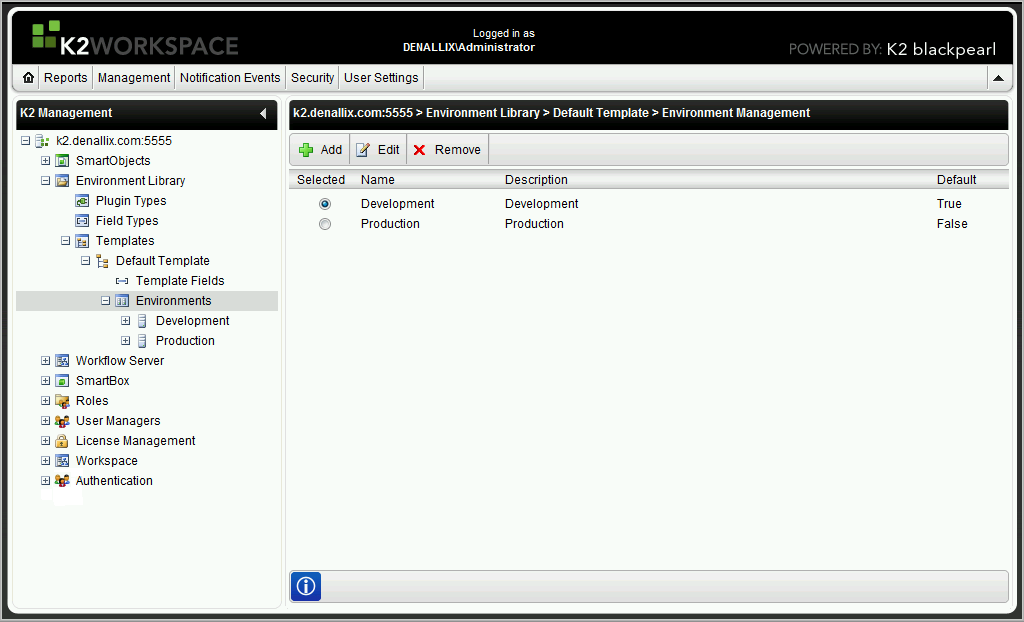
- Launch K2 Workspace on the target server. Open the Management Console.
- Use the server tree to navigate to Environment settings ([Target server] / Environment Library / Templates / Default Template / Environments.)
- The current default environment will be listed as True under the work space Default column. If you need to change the default environment, use the available radio buttons to select the new default environment from the list of available environments.
- Refer to the Templates - Environments section of the for more information about creating and editing K2 Environment settings.
Default Environment String Tables
The string tables of the default environment will be used to provide the environment settings used during deployment of the package. For further help and information on this topic, refer to the K2 Environment Library White Paper.