
Available only with Enterprise Edition
You can set a DocGen Package to pause its document delivery to allow a manual edit by the sender before Nintex Drawloop DocGen® for Salesforce delivers the final output document to a recipient. You enable the Pause-to-edit option on the DocGen Package.
Note: You can use pause to edit with Salesforce Files Sync feature.
This feature is currently not supported in the DocGen Lightning Component.
Pause template delivery to edit the file
Pause document delivery at run time to allow a manual edit to the template before an output file is generated.
To pause document deliver to edit
-
From the Force.com app menu, select Nintex DocGen, and then click DocGen Packages.
Tip: You can also select this from Lightning with the
 App Launcher.
-
In Select Files on a DocGen Package, click on the options icon (Gear shape), select the more tab, then select pause to edit.
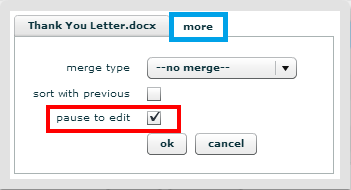
Tip: In Lightning, you have to click the play button each time you access the Select Files user interface.
-
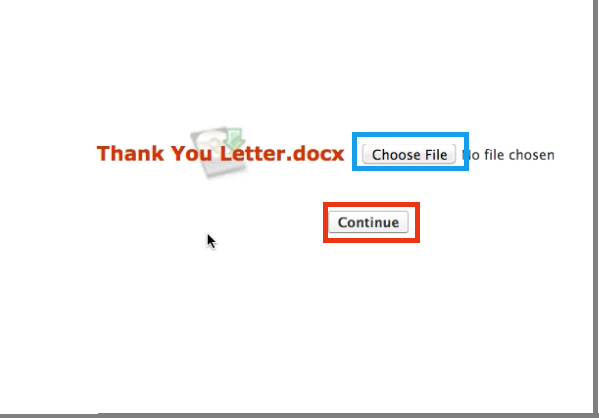
Navigate to a record on the object your DocGen Package was based on, select Generate Documents, complete all necessary steps and click Run. During the run process, the app prompts the user to download the document and make any changes to it.
-
Download the file and make edits.
-
In Salesforce, on the run page, click, Choose File, then click, Continue.
-
The DocGen Package will then continue running, and you will receive an output file reflecting the changes you made when you paused to edit your document.
Use Salesforce Files Sync with the Pause-to-Edit feature
You can use Salesforce Files Sync with Pause to Edit.
To pause document deliver to edit with Salesforce Files Sync
Note: To use Salesforce Files Sync with Pause to Edit, you must have the Salesforce Files Sync client installed and you must enable Nintex Drawloop DocGen® for Salesforce setting for Pause to Edit to use Salesforce Files Sync. For more information, see How do I turn on Salesforce Files Sync? and Enable Pause to Edit to use Salesforce Files Sync .
-
From the Force.com app menu, select Nintex DocGen, and then click DocGen Packages.
Tip: You can also select this from Lightning with the
App Launcher. -
In Select Files on a DocGen Package, click on the options icon (Gear shape), select the more tab, then select pause to edit.
Tip: In Lightning, you have to click the play button each time you access the Select Files user interface.
-
Navigate to a record on the object your DocGen Package was based on, select Generate Documents, complete all necessary steps and click Run. Part way through the load bar you’ll be stopped and prompted to synchronize your document with the Salesforce Files Sync. Click to sync: Document to open the document and make changes.
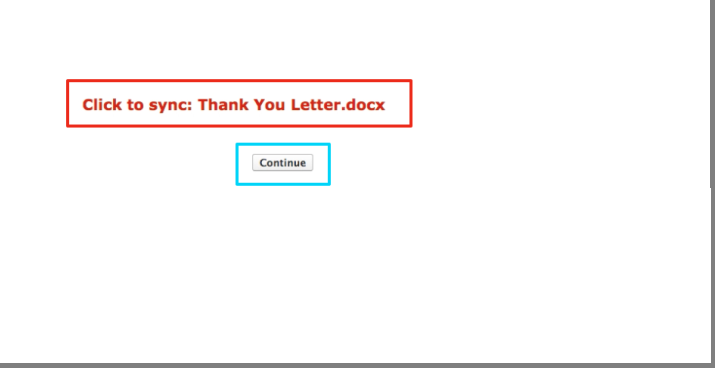
Where Document is the name of your document.
-
Save the document.
-
Click the refresh button to sync your changes. Salesforce updates the time the document was last modified. Confirm that the document was modified around that time then click Continue.
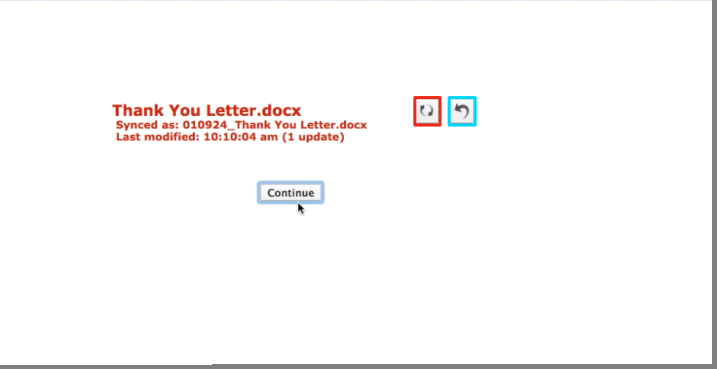
Tip: If you would like the document to finish processing without your changes click the undo button and then click Continue.
-
The DocGen Package will then combine the changes you made changes to the document with the other documents in your DocGen Package then provide you with your desired output.
Adding template files to DocGen Packages