Map
Important: This feature is currently in open beta. For more information, see the Nintex Beta terms document. If something is not functioning correctly, please raise this with support@nintex.com
After you Create a process , use the Map tab to Edit a process in the visual outline format.
This view presents the process canvas view of a process, where you see the activities and decisions in a process as a connected diagram and, in a draft, change them. An example of the details displayed on the map page are shown in the image below:
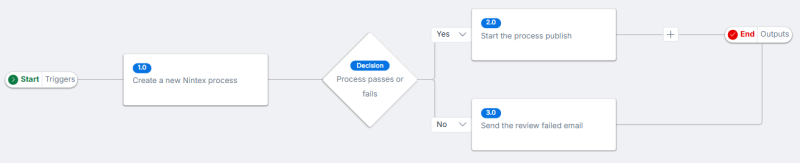
The map shows a visual representation of the steps in your process. Click a step to open the configuration panel. Hover over a connecting line to add a new step. Steps can be activities, decisions, or parallel activities. For more information see Edit a process.
Swimlanes
Each step in your process is assigned to a group, person, or system responsible for carrying it out. Turn on the Swimlane toggle to view the process organized by the participant responsible for each step. Turn off the swimlane view if you need to add, connect, or delete activities.
Note: The swimlane switch and the undo and redo buttons appear only when those features are enabled for your workspace. If you do not see them, ask your Nintex administrator whether they are enabled.
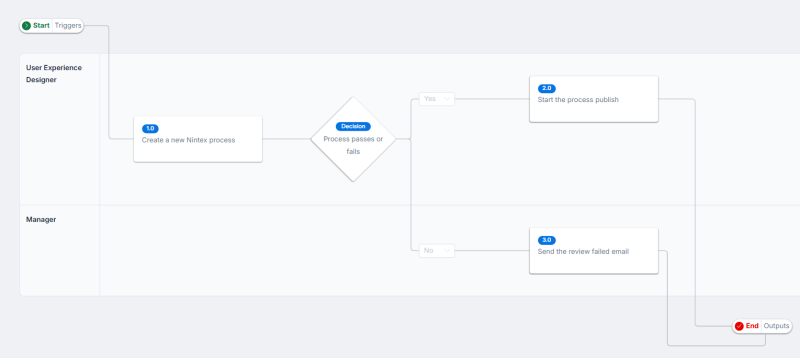
If an activity has more than one participant group or system, it appears in one lane that combines their names, for example Finance, Legal. The start of the process sits above the lanes and the end sits below them. Connections between activities in different lanes stay visible. The switch is dimmed until the process contains at least one activity.
 Change who is responsible by dragging an activity
Dragging an activity to another lane changes its participant group or system.
-
Open a draft in edit mode and turn on the Swimlane switch.
-
Drag an activity up or down into another lane and release it. Activities move only vertically.
-
Check that the activity now appears in the new lane. Drop it in the Unassigned lane to remove its assignment.
-
Click Save Draft to keep the change.
Note: If you drop an activity on its own lane, or outside any lane, it returns to where it was. If you drop it on a lane that combines several names, the activity is assigned to all of them. You cannot drag activities in view mode.
View and edit modes
The toolbar shows two buttons at the left: view mode and edit mode 
You can toggle between view and edit modes.
Use view mode to review the draft without any risk of changing it. You cannot drag, add, connect, or delete anything while you are in view mode.
Zoom the canvas
-
Click Zoom in or Zoom out on the toolbar. Each click changes the zoom by 10 percent.
-
To jump to a specific zoom level, select the zoom level list and select Fit to screen, 50%, 100%, 150%, or 200%.
Note: The zoom level can be between 25% and 200%. The list always shows the current zoom, even when it is not one of the options, and it updates when you zoom with your mouse wheel or a pinch gesture. A process opens at 100% zoom. The canvas also fits itself to the screen when you add an activity.
Undo and redo changes
-
Open a draft in edit mode and make a change on the canvas.
-
Click Undo on the toolbar to reverse your last change. Click Redo to apply a change you undid.
-
Or click an empty area of the canvas and use a keyboard shortcut. To undo, press Ctrl+Z (Windows) or Cmd+Z (Mac). To redo, press Ctrl+Y (Windows) or Shift+Cmd+Z (Mac).
Note: Undo and redo apply only to the draft you are editing in the current session.
Considerations
-
The editor remembers up to 50 changes and discards the oldest when you go beyond that.
-
The history is cleared when the draft reloads, and making a new change clears anything you could have redone.
-
Changes you make within a fraction of a second, such as typing, can be undone together.
-
The shortcuts do not work while you are typing in a text box. Undo and redo are not available on a published process.