Branch by stage
What are stages?
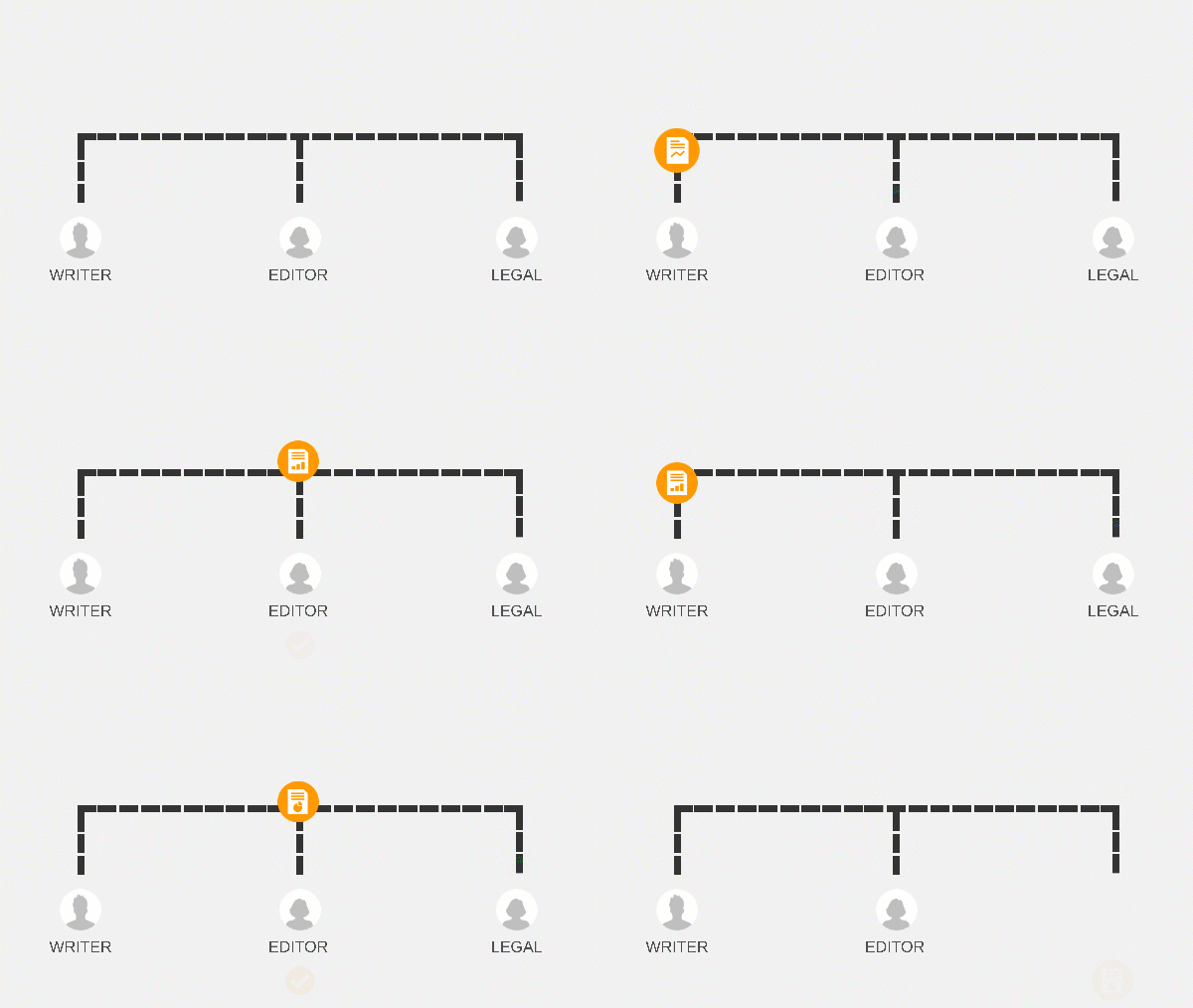
Stages structure your workflow or agentflow into repeatable paths that you can switch between at any point, creating back-and-forth interaction, rather than a strictly linear progression. Rules within the workflow or agentflow determine when to switch from one stage to another, allowing workflows or agentflows to return to earlier stages, repeat them or skip them altogether.
How do the Branch by stage and Change stage actions work together?
When you are designing a workflow or agentflow:
- The Branch by stage action creates the stages of the workflow or agentflow.
- The Change stage action controls when one stage changes to another.
When there are multiple Change stage actions in a branch, only the last one is executed.
If a branch doesn’t return to another stage, add an Exit stage action to end the path.
Before you begin:
Understand Variables
Understand container actions. You can add actions to create branches such as Branch by stage or to contain other actions such as Action Set that can be collapsed down into a single action high-level view.
Jump to:
Add and configure the Branch by stage action
See the Branch by stage fields, buttons, and settings table for all the configuration fields.
After you add the Branch by stage action to your design, two branches and stages are created by default: Branch 1 and Branch 2.
Open the designer canvas, add the action to the designer canvas, and open the action configuration panel. For more information, see Designer canvas.
- Select an Initial stage.
- Type the names of the Branches.
- To add another branch, click Add branch.
Note: The maximum number of branches you can add is 100.
 Branch by stage fields, buttons, and settings
 Field | Description |
|---|---|
Initial stage | |
Branches | Type to change a branch name. The workflow or agentflow ignores case when comparing variable values from the Initial stage to branch names. For example, if the next stage is determined by a variable and the value of that variable is "yes," then the workflow or agentflow detects the "Yes" branch as a match. Note: The character limit for branch names is 150. |
Add new branch | Click to create a new branch. Note: The maximum number of branches you can add is 100. |
| Click to delete branch. |
 (Remove)