Upload Document
What does it do?
The Upload Document wizard uploads a document to any SharePoint Site Collection in the organization.
How is it used?
A business application may upload documents provided for archival, editing, or review purposes.
-
A reference to a SharePoint List or Library must be created so that the reference can be used in the move, upload or copy document wizards. To create a reference the Get List Reference or Get Library Reference wizards can be used.
-
A reference to the SharePoint Document or List item can be created through the Get Document Reference and Get List Item Reference wizards. When using a document or list item reference to specify the document or list item in either the move, copy or upload wizards, you will not see a grid of properties for the destination when the reference is selected.
- Wizards can be edited. For more information see Edit Wizards.
 Select Source
Select the source of the document to be uploaded. This could be the document reference created earlier in the workflow or content that is located in a specific location.
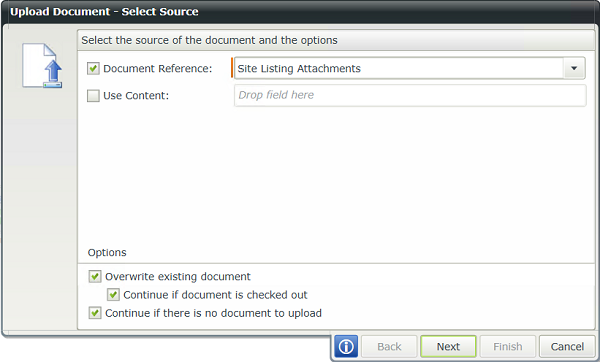
| Field | Description | Sample Value |
|---|---|---|
| Document Reference: |
Use this option if a reference was created earlier in this workflow. |
Select the reference from the drop down list. |
| Use Content: |
Use a Content Field and drag a pre-configured field from the Context Browser such as an Item Reference or SmartObject Load method property. |
Type the value of the field, or drag a value from the Context Browser such as a pre-configured Data Field, Item Reference or a SmartObject Load method. Note that when a SmartObject Load method is used, an input property is required for the correct data to load. |
| Overwrite existing document | Select to overwrite any existing document in the library. | Select the option if required. |
| Continue if document is checked out | Select to continue the workflow if even if the document is checked out. | Select the option if required. |
| Continue if there is no document to upload | Select to continue the workflow even if the document to upload is not found. | Select the option if required. |
Select Destination
Select the destination collection and folder for the uploaded document.

| Field | Description | Sample Value |
|---|---|---|
| Use a library that is referenced in this workflow |
Use this option if a reference was created earlier in this workflow. |
Select the reference from the drop down list. |
| Template | Select the SharePoint Document template. | Click on the drop-down and select the required template. |
| Browse to library |
This property is populated with the default SharePoint Site Collection. |
Choose a site collection from the available site collections that have the K2 for SharePoint app registered. If there is only one it is auto-selected. |
Specify Destination Library
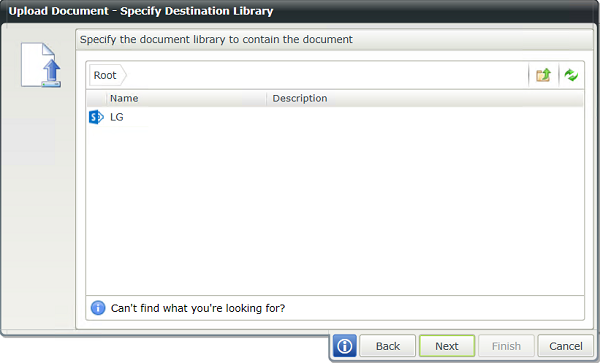
On the Specify Destination Library screen of the wizard, specify the Document Library that the document will be uploaded to .
Specify Values
On the Specify Values screen of the wizard, specify the document properties to update.

| Field | Description | Sample Value |
|---|---|---|
| Search: |
Use search criteria to minimize the fields displayed. It is useful to search for a specific field using the search criteria when having lots of fields to select from. The list of fields automatically refreshes when text is entered. |
Type text to filter the number of fields displayed in the grid |
| Show: | All fields - Displays all fields linked to the itemRequired fields - Displays only fields marked as required |
Select the required option. |
| Filter Fields: |
To update fields:
The selected fields are updated with new values when running the workflow. |
|
| Create Document Reference: |
Specify a unique name which can be Referenced later in this workflow. This reference can be used to identify the document. |
Type the value of the field, or drag a value from the Context Browser such as a pre-configured Data Field, Item Reference or a SmartObject Load method. Note that when a SmartObject Load method is used, an input property is required for the correct data to load. |