Create Group
This content applies to legacy design tools (such as K2 Studio, K2 for Visual Studio, or the Silverlight-based K2 workflow design tool). If you have upgraded from K2 blackpearl 4.7 to K2 Five , these tools may still be available in your environment. These legacy tools may not be available in new installations of K2 Five . These legacy tools may also not be available, supported, or behave as described, in future updates or versions of K2. Please see the legacy component support policy for more information about support for these components.
What does it do?
The Create Group wizard creates a user group in Active Directory.
How is it used?
User groups are used to organize users in Active Directory. In a business workflow, an example use would be adding the users from the financial department to one group and name the group Finance.
The K2 Service account executes this wizard in a workflow step at runtime, therefor the service account must have Domain rights to add a user to a group.
 Set Group Details
Enter information about the group to be created in Active Directory.
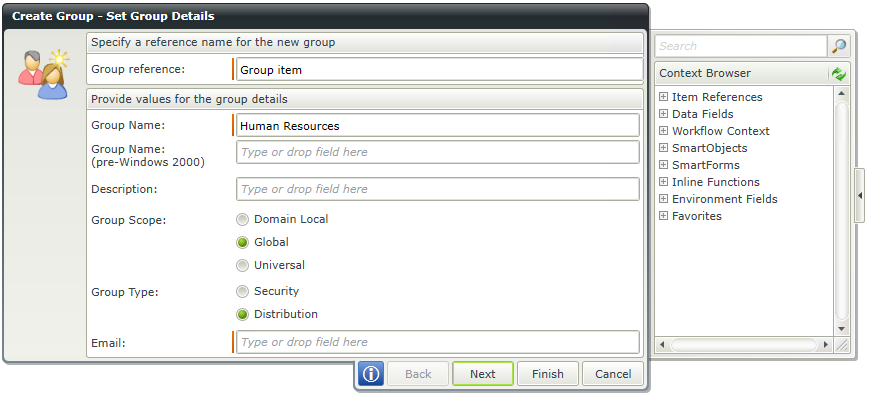
| Field | Description | Sample Value |
|---|---|---|
| Group Reference | The Group reference can be used in later steps in the workflow to identify the new group instead of having to specify the group again. It is important that this reference is unique within the workflow. | Type a value, or drag a value from the Context Browser such as a pre-configured Data Field, Item Reference or a SmartObject Load method. Note that when a SmartObject Load method is used, an input property is required for the correct data to load. |
| Group Name | The new group can be identified in Active Directory with the Group Name. | Type a value, or drag a value from the Context Browser such as a pre-configured Data Field, Item Reference or a SmartObject Load method. Note that when a SmartObject Load method is used, an input property is required for the correct data to load. |
| Group Name: (pre-Windows 2000) | The pre-Windows 2000 Group Name is the compatibility access group name and a value can be entered if required. The pre-Windows 2000 Compatible Access group is used for backward compatibility for computers that are running Microsoft Windows NT 4.0 and earlier. Members of this group have Read access on all users and groups in the domain. | Type a value, or drag a value from the Context Browser such as a pre-configured Data Field, Item Reference or a SmartObject Load method. Note that when a SmartObject Load method is used, an input property is required for the correct data to load. |
| Group Description | The Group Description will explain the purpose of the new Active Directory group and a value can be entered if required. | Type a value, or drag a value from the Context Browser such as a pre-configured Data Field, Item Reference or a SmartObject Load method. Note that when a SmartObject Load method is used, an input property is required for the correct data to load. |
| Group Scope | The Group Scope is the intended security level of the group to be created. |
Select the relevant option by clicking the check-box in front of the scope name:
|
| Group Type | The group type determines the type of task that is managed with the group. |
Select the relevant option by clicking the check-box in front of the Group Type.
|
| If the Distribution option is selected, an Email field becomes available. This allows for mailing lists to be configured. | Type a value, or drag a value from the Context Browser such as a pre-configured Data Field, Item Reference or a SmartObject Load method. Note that when a SmartObject Load method is used, an input property is required for the correct data to load. |
Group Management
Select a user to manage the group.
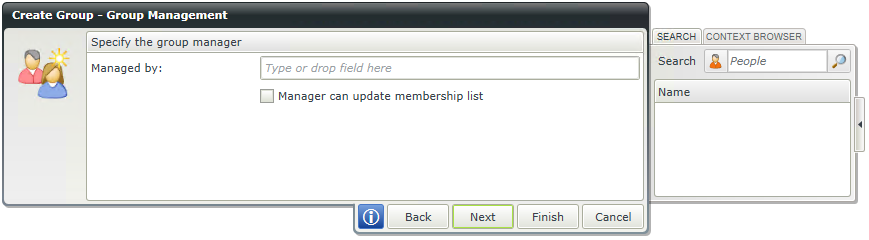
| Field | Description | Sample Value |
|---|---|---|
| Managed by | A group manager can be specified if required to manage the new Active Directory user group. The manager can also be able to update the new group membership list. To enable the manager to update the group membership list, select the check-box. | Enter a user name or search for a user from the User Browser. Type a value, or drag a value from the Context Browser such as a pre-configured Data Field, Item Reference or a SmartObject Load method. Note that when a SmartObject Load method is used, an input property is required for the correct data to load. |
Domain And Location
Enter the domain and location of the group.
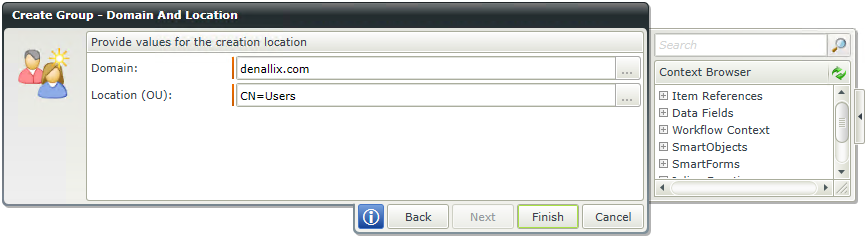
| Field | Description | Sample Value |
|---|---|---|
| Domain | The domain is used to identify the user logging on to the system. | Type a value, or drag a value from the Context Browser such as a pre-configured Data Field, Item Reference or a SmartObject Load method. Note that when a SmartObject Load method is used, an input property is required for the correct data to load. |
| Location (OU) | The organizational unit location is similar to a folder in a file system, for example: Finance. Each account created in Active Directory for users that is part of the finance department is stored in the Finance folder in Active Directory. It is important to specify this information, especially in a multiple domain environment in order for the account to be created in the correct domain. | Type a value, or drag a value from the Context Browser such as a pre-configured Data Field, Item Reference or a SmartObject Load method. Note that when a SmartObject Load method is used, an input property is required for the correct data to load. |