K2 Designer for SharePoint - Save as Workflow Template
A Workflow can be saved as a template for later use when building other Workflows. The Workflow Template can be dropped on any part of a Workflow being designed. To access this functionality select the Workflow Template option from the Main Menu.
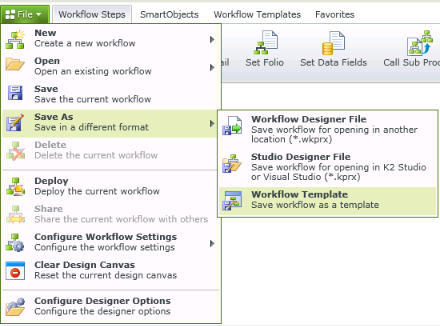
Fig. 1. Main Menu - Save as Workflow Template
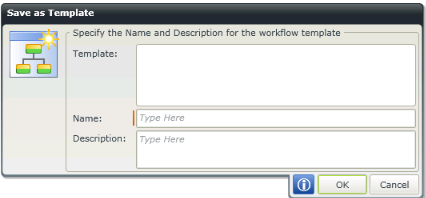
Fig. 2. Save as Template
| Feature | What it is |
|---|---|
| Template | Previously saved Workflow templates will be displayed in this field. This allows a user to select an existing template and replace it whit the new template name. |
| Name | Type a name for the new Workflow template in the Name text box. The Red line at the beginning of the text box indicates that the Name text box is mandatory. |
| Description | Type a description for the new Workflow template in the Description text box. |
After saving the new template, the template will be displayed under the Workflow Templates section of the Navigation Bar. The template can then be dropped on any open step in the current Workflow.

Fig. 3. Workflow Templates screen
 |
Watch a short video on how to save a workflow as a template in K2 Designer for SharePoint. (Length 2 minutes). |
