SQL Connection Settings for SharePoint 2010
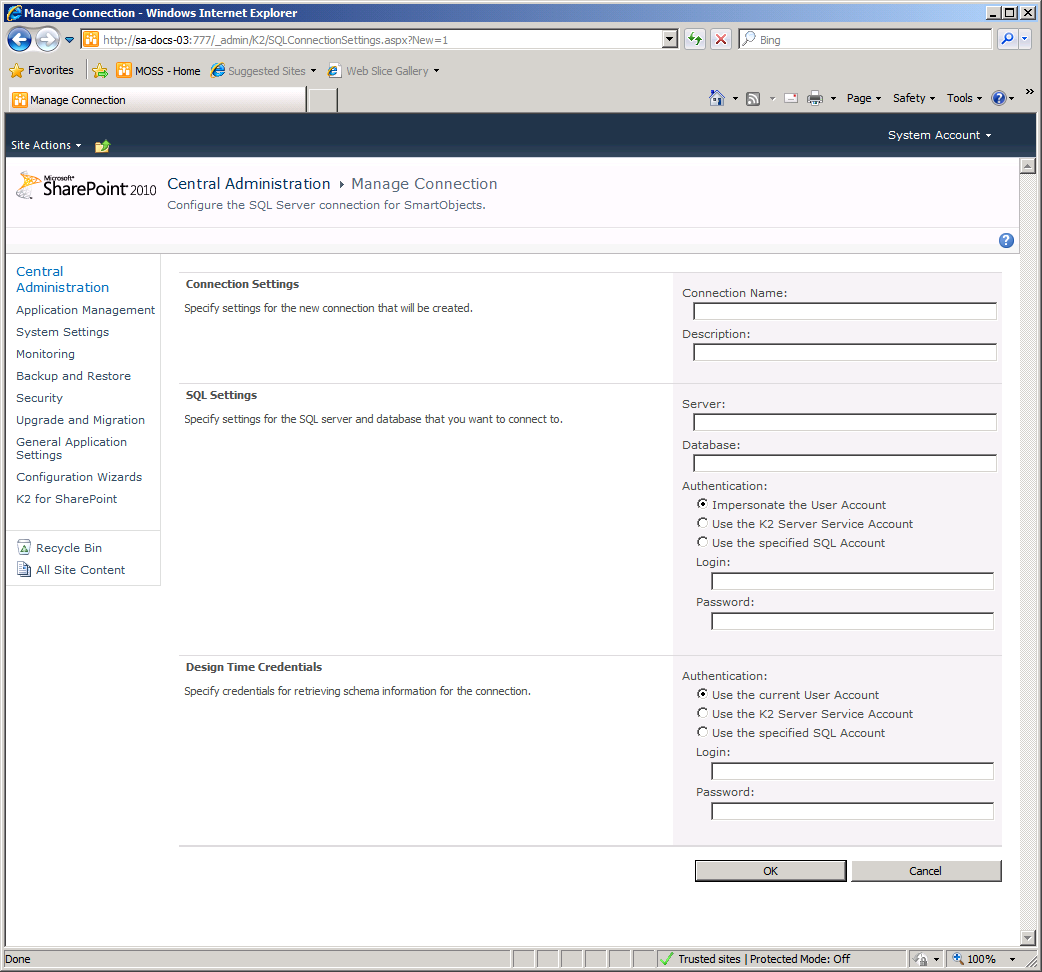
The connection settings to create a connection to a SQL Server and the respective database are entered using the page below. The user is required to provide the following details:
- A name for the connection, which will be displayed in the connection listing ie the previous page
- The name and location of the SQL Server
- The Authentication method must also be specified along with credentials, if required
Authentication Method |
| Connection Settings | |
|---|---|
| Connection Name | Display name for the SharePoint SQL SmartObject Connection |
| Description | Text description that will accompany the Name of the SharePoint SQL SmartObject connection |
| SQL Settings | |
| Server | Enter the name of the SQL Server Instance or the location of the SQL Server |
| Database | Enter the name of the database hosted by the SQL Server identified in the above field |
| Authentication Method | Depending on the source used for the SQL SmartObject the Authentication method can be selected |
| Design Time Credentials | |
| The design time credentials refer to the same SQL Server instance listed under SQL Settings. This set of credentials however, are intended to provide the developer with greater access to the SQL Database ie to extract the XML Schema for example. | |
 |
Windows Authentication requires that the user account has the required permissions |
What to do ?
This step requires the user to enter the connection settings for the SQL Server.
 |
Enter a name for the SQL connection and a description for it |
||
 |
Enter the name of the SQL Server and the name of the Database
|
||
 |
Select the Authentication Method for SQL Settings, specify credentials if necessary ie when "Use the specified SQL Account" has been selected. |
||
 |
Select the Authentication Method for Design Time Credentials, specify credentials if necessary ie when "Use the specified SQL Account" has been selected |
||
 |
Click Ok |
||

