K2 for SharePoint - Solution Deployment
Once the solutions have been installed, the next step is to deploy them. As shown in the screen shot below the status of the solution indicates that deployment is required. The next step is to schedule the deployment by clicking Next for the following user page.
 |
The SharePoint page may at times appear to be unresponsive, seemed to have timed out or a "503 : Service Unavailable" error may display. Manually refresh the page when this takes place. |
This step spans across more than one user page, and this topic discusses the pages that apply directly to each other for ease of use.
Once the Solutions have been installed, the deployment schedule can be created.
Solutions Not Deployed
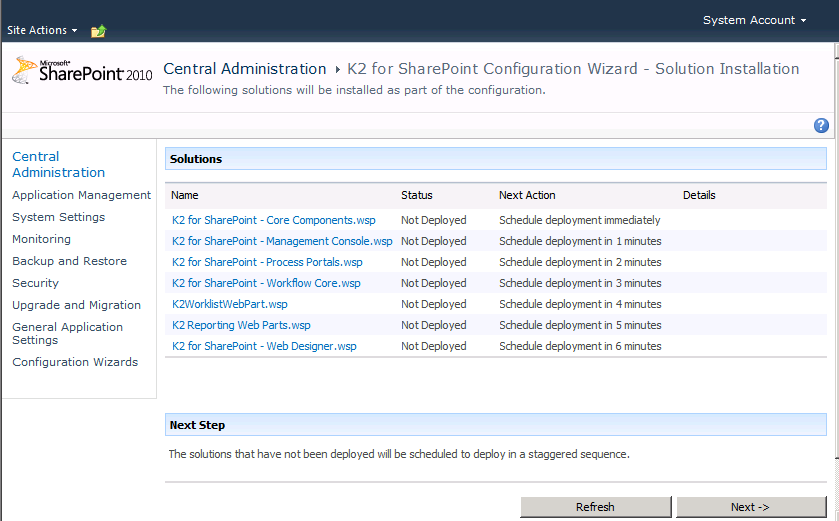
The deployment schedule lists each item and the time at which the deployment may take place.
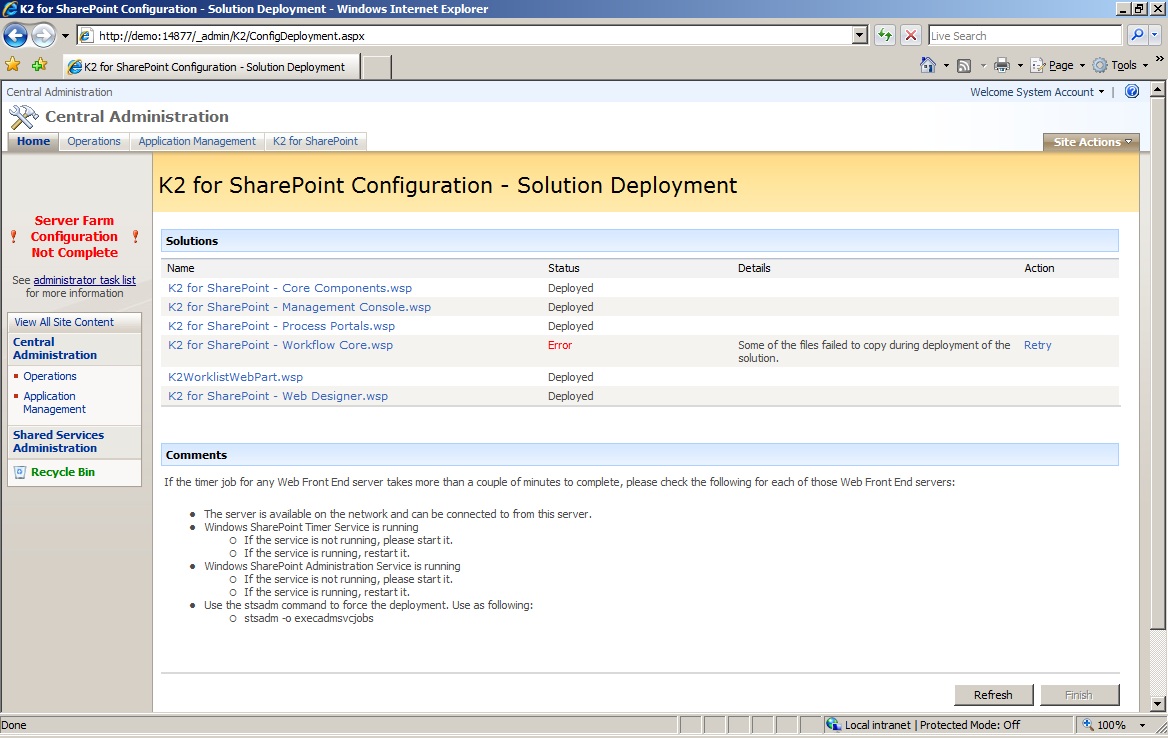
When or if there are errors, the SharePoint page will provide the user with tooling to retry the deployment process and repair the error
Error Repair
Shown below, the solution deployment failed and the status has been set to Error. Details are provided and the user can attempt a Retry.
What to do?
To deploy the solutions do the following
 |
Click Next, to proceed to the deployment scheduling Click Next
|
 |
Select an item to set a specific time for when the solution will be deployed. If left as is, the deployment will take place immediately a minute between each deployment. |
 |
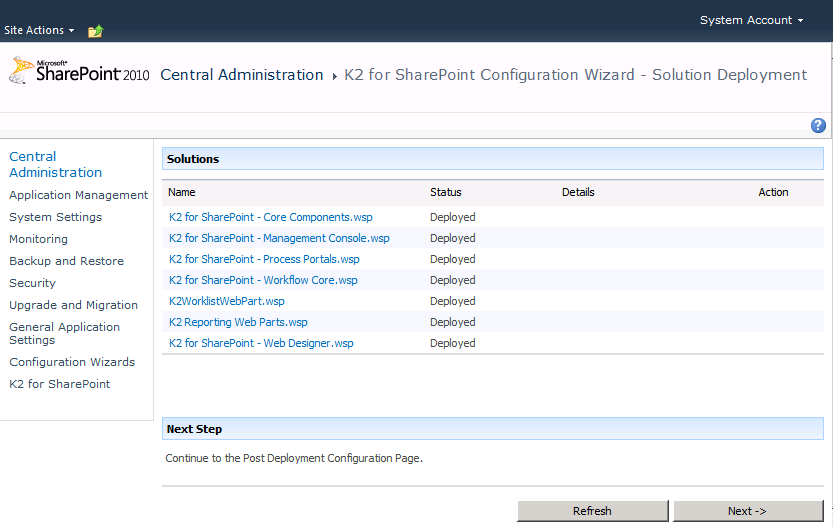
When deployed, the solutions Status will display as Deployed, click Next to proceed to the Post Deployment Configuration page. Click Next
|