Exchange Service
The Exchange Service SmartObject Service has been superseded by the Exchange Administration and the Exchange Management SmartObject Services. This change was implemented so that it would be possible to use the SmartObjects outside of a workflow. A clean installation of K2 will only have the two new SmartObject Services and not this Exchange Service SmartObject.
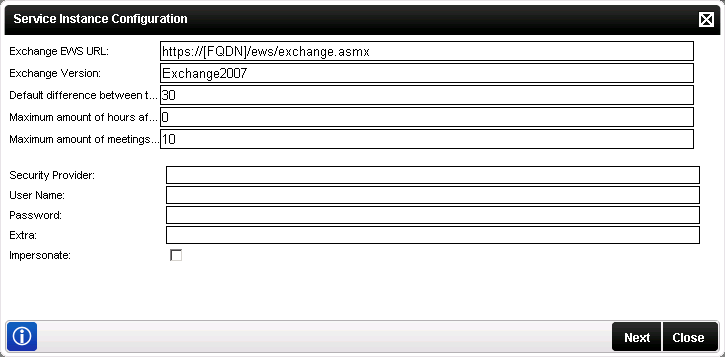
| Option | What to do | ||
|---|---|---|---|
| Exchange EWS URL |
Enter the URL of the Exchange Servers Web Service
|
||
| Exchange Version | Enter the version of the Exchange Server (currently only Exchange2007 is supported) | ||
|
Default difference between two successive slots in the free/busy information field |
Enter the default amount required | ||
| Maximum amount of hours after work to consider | Enter the maximum number of hours required | ||
| Maximum amount of meetings per day | Enter the maximum number of meetings allowed | ||
| Security Provider | Enter the Security Provider - e.g. SourceCode.Hosting.SecurityProviders.SmartBox | ||
| User Name | Enter the user Name - e.g. Administrator | ||
| Password | Enter the associated password - e.g. K2pass | ||
| Extra | Provides additional information, for example dll paths needed. (Optional) | ||
| Impersonate | Select this check box to enable impersonation rights. The impersonate option allows the K2HostServer service account to impersonate the user. |

When configuring the rights the following applies:
- If the User Name and password is configured and the Impersonate checkbox is selected (set to True) the service will ignore the User Name and password and use Impersonate.
- If the User Name and password is configured and the Impersonate checkbox is not selected (set to False) the service will use SQL Authentication.
- If the User Name and password is not configured and the Impersonate checkbox is not selected (set to False) the service will use the K2 Service Account.
- If only the User Name and password is configured the service will use SQL Authentication.
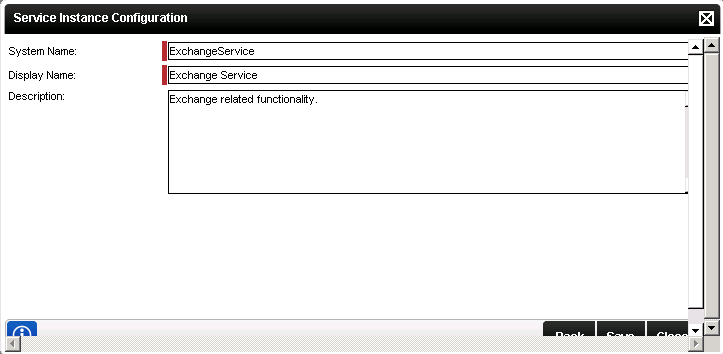
| Option | What it is | How to use it |
|---|---|---|
| System Name | The name of the SmartObject Service | Enter the name of the SmartObject Service |
| Display Name | A user friendly name for the SmartObject SmartBox Service | Enter a user friendly name for the SmartObject Service |
| Description | A description for the SmartObject Service | Enter a description for the SmartObject Service |
Edit Exchange Service
To edit a Service Instance, select the Service Instance, then click Edit. The Edit Service Instance screen will be loaded with the information as provided previously. Edit the information as required and click Save.
See Also
