Configure SharePoint
This section provides instructions for creating SharePoint lists used for the cascading lookups.
The following lists are used in this example.
- Country - to define countries
- Store - to define stores by city and indicate related countries, using the Country list
- Store Feedback - to store data from form selections
 Why do I need to do this?
The SharePoint lists form the basis for the cascading lookups, enabling the form to limit the list of stores according to the selected country.
What does it look like?
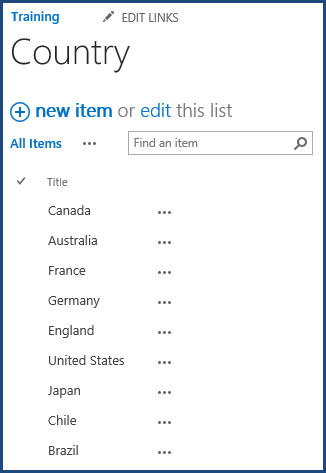
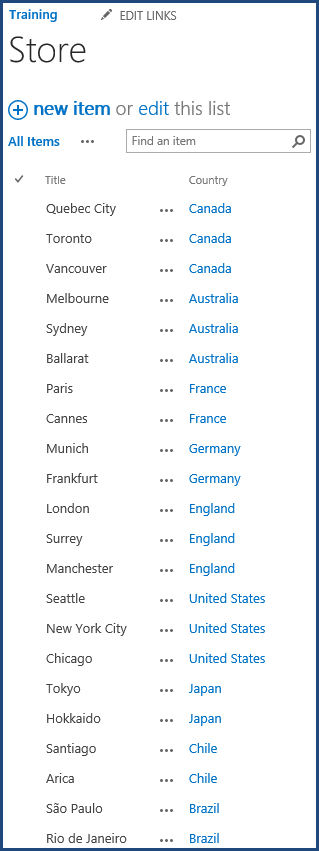

Example of lists used for cascaded lookups
How do I do it?
Follow the instructions below to create the SharePoint lists.
Note: For detailed instructions on adding lists and other SharePoint apps, see the Microsoft Office Online article "Add an app to a site." For information on creating columns, see the Microsoft Office Online article "Create, change, or delete a column in a list or library."
To create the Country list
- On your site, click Settings and then click Add an app.
- On the Your Apps page, click Custom List.
-
When prompted to provide a name, specify the following.
Country
-
In the Country list, for each country in the following list, create a list item and update the title of the list item to match the country name.
- Australia
- Brazil
- Canada
- Chile
- England
- France
- Germany
- Japan
- United States
To create the Store list
- On your site, click Settings and then click Add an app.
- On the Your Apps page, click Custom List.
-
When prompted to provide a name, specify the following.
Store
The new list appears.
- Add a Country column to the Store list.
- On the List tab, select List Settings.
- On the List Settings page, under Columns, click Create column.
On the Create Column page, set property values as follows, and then click OK.
Property name Property value Column name Country The type of information in this column is Lookup (information already on this site) Require that this column contains information Yes Get information from Country In this column Title
-
In the Store list, create the following list items.
Title Country Melbourne Australia Sydney Australia Ballarat Australia São Paulo Brazil Rio de Janeiro Brazil Quebec City Canada Toronto Canada Vancouver Canada Santiago Chile Arica Chile London England Surrey England Manchester England Paris France Cannes France Munich Germany Frankfurt Germany Tokyo Japan Hokkaido Japan Seattle United States New York City United States Chicago United States
To create the Store Feedback list
- On your site, click Settings and then click Add an app.
- On the Your Apps page, click Custom List.
-
When prompted to provide a name, specify the following.
Store Feedback
Now that the SharePoint lists exist, the next step is to create the form. See Create the form.