Troubleshoot SAML
Jump to:
Forbidden access message when accessing Nintex Workflow
When an account is automatically created, such as when sharing a SharePoint list with an external user, you may encounter issues when the user tries to access Nintex Workflow.
Cause
This issue typically occurs because the user account created may be missing essential profile information, such as the First Name, Last Name, and Email Address. Without these fields, Nintex Workflow cannot correctly process or validate the user profile during authentication.
Resolution
-
Open the Admin Center of the identity provider and sign in with the appropriate admin credentials.
-
Search for the user account that is having the issue and open the profile.
-
Ensure that the First Name, Last Name, and Email Address fields are populated.
-
If changes are made, click Save to apply the changes.
Note: If the issue persists, verify that your SAML attribute mappings in your identity provider are configured correctly. Ensure that the First name, Last name, Email attributes are mapped to the correct values and are passing non-empty values. You can compare your configuration with the recommended attribute mappings shown in your SSO connection details in the Organization portal. If you are using custom mappings, ensure they are configured correctly for your identity provider.
Find the SSO application in your identity provider
You may need to locate the SSO application configured in your identity provider, for example, to update an expiring certificate or modify the SSO configuration.
To locate the application:
-
In the Nintex Organization portal, open the SSO connection and locate Service Provider data in the connection details.
-
Copy the value from the first field and note the field name. The field name varies depending on the identity provider configured for the connection.
-
In your identity provider, search or filter the applications using the copied value, if supported.
For example, in MicrosoftEntra ID, open Enterprise applications, add the Identifier (Entity ID) filter, and use the copied value to locate the corresponding application. -
If your identity provider does not support searching by this value, filter the applications by name, such as Nintex. Open the application and compare the copied value with the corresponding field in the application details to confirm that you have the correct application.
User provisioning and identity issues
Duplicate or new user created after UPN or email change
Changing a user’s UPN or email address can result in the system treating the user as a new identity during the next login. A user’s identity is determined by the SAML Subject Identifier configured in the Identity Provider (IdP). In most cases, this is the UPN (User Principal Name) and the UPN often matches the user’s email address.
If a user’s UPN changes, they will be onboarded as a new user in Nintex Workflow in the next login. If the value in the Email field remains the same, the new profile is automatically linked to the existing user profile. After the profiles are linked, you can safely update the email address if needed.
Resolution
-
Ensure the email attribute remains consistent where possible
-
Add the new domain as a verified domain before transition
-
Contact your Nintex Account Manager to coordinate identity mapping before next login.
If a duplicate user profile has already been created, you can either:
-
Accept the duplicate profile and treat the new profile as the user's profile going forward. You will then need to manually reassign workflows, forms, and other resources to the new profile.
-
Contact Nintex Support and request that the old and new user profiles are manually linked.
The available options may be limited depending on whether the old and new email domains are verified for the organization. An email address can only be changed for users whose current email domain is verified in the organization. If you encounter a duplicate profile contact Nintex Support for guidance.
Entity ID and ACS URL configuration errors
Entity ID and Assertion Consumer Service (ACS) URL mismatches are two of the most common causes of SAML SSO configuration failures. These issues typically occur during initial setup or when updating identity provider settings.
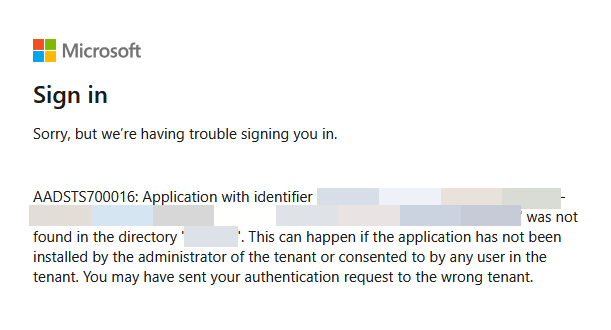
Issue
The Entity ID or ACS URL configured in the identity provider does not match the Entity ID expected by Nintex Workflow.
Resolution
-
Copy the Entity ID and ACS URL from the Nintex Workflow SAML configuration. For instructions, see 1. Get the Identity Provider data from Nintex Workflow
-
In the identity provider update the Entity ID and ACS URL to match the Nintex Workflow value.
-
Save changes and retry login.