Troubleshooting
This topic describes potential issues that you may experience and troubleshooting steps when working with
 Google Chrome third-party cookie phaseout
Issue:
Authentication or redirect errors when navigating to SharePoint Online
Cause:
Google is rolling out changes to block third-party cookies in the Google Chrome browser. This affects Nintex K2 for SharePoint
See Prepare for the third-party cookie phaseout for more information about timelines.
Errors:
When third-party cookies are blocked, any of the following errors may occur when navigating to a Nintex K2 for SharePoint
| Description | Error |
|---|---|
| Third-party cookies blocked browser notification. | 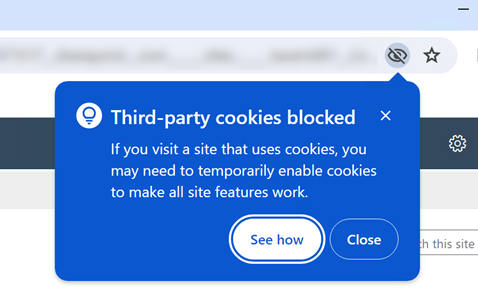
|
| HTTP Error 401.2 - Unauthorized. | 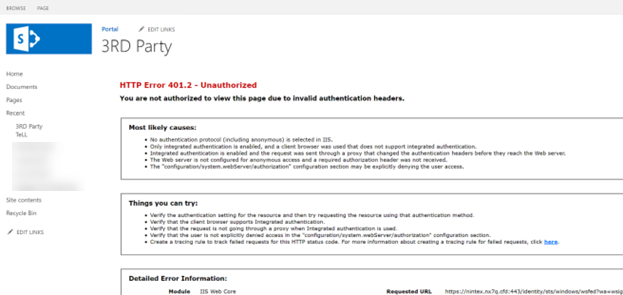
|
| Active Directory Federation Services (ADFS) Login loop - Nintex K2 URL redirected you too many times. | 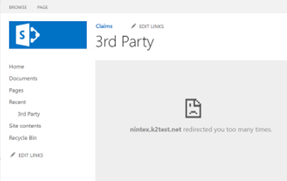
|
| Nintex K2 Five SharePoint Online: - Login loop: login.microsoftonline.com refused to connect. | 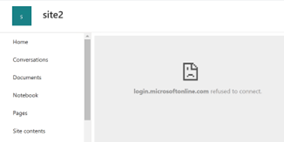
|
Resolution:
Configure Google Chrome to allow third-party cookies exception for Nintex K2 and SharePoint sites. Depending on whether Chrome Enterprise or mainstream version is deployed, it can either be configured manually or using Group Policies.
Allow third-party cookies exception manually
Follow the steps below to allow or restrict third-party cookies manually:
- On your computer, open your Google Chrome browser.
- At the top right, click More
 , and then Settings.
- Click Privacy and security and then Third-party cookies.If you are part of the Tracking Protection test group, select Tracking Protection instead.
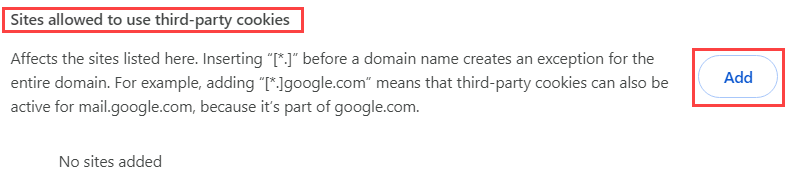
- Next to Sites allowed to use third party cookies, click Add.
- Enter the Nintex K2 and SharePoint domains for example https://nintex.k2test.net and https://[tenant].sharepoint.com. Click Add after adding each domain.
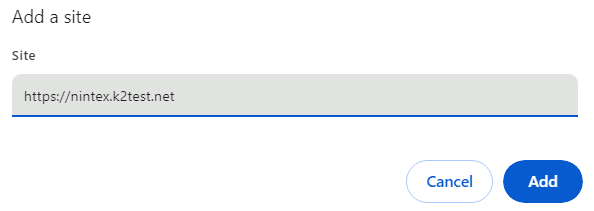 To create an exception for an entire domain, insert [*.] before the domain name. For example, [*.]k2test.net means that third-party cookies can also be active for nintex.k2test.net and workspace.k2test.net.
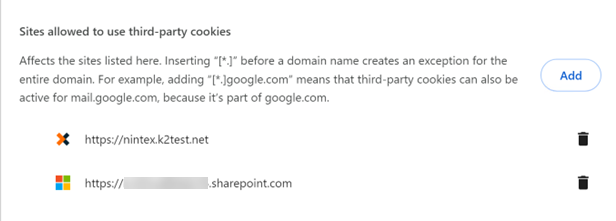
- Your sites are now added to the sites that are allowed to use third-party cookies.
Allow third-party cookies exception using Group Policies
Follow the steps below to allow third-party cookies exception using Group Policies. See Allow third-party cookies from specific URLs for more information.
- Set the BlockThirdPartyCookies policy to true to restrict all third-party cookies.
- Set specific top-level sites to allow third-party cookies by adding each of them with a comma-separated third-party/top-level site pair to the CookiesAllowedForUrls policy. You can allow all third-party cookies on a particular site by using a wildcard, *, instead of a third-party URL.
For example, to allow cookies on nintex.k2test.net, add https://nintex.k2test.net,https://[tenant].sharepoint.com to the CookiesAllowedForUrls policy.
SharePoint certificate expired
Issue:
When you get 401 unauthorized errors or you no longer have access to your SharePoint environment, your SharePoint certificate may have expired.
Cause:
Some errors may include:
- SharePoint broker methods failed due to 401 unauthorized error.
- "A certificate chain processed, but terminated in a root certificate which is not trusted by the trust provider. NotTimeValid: A required certificate is not within its validity period when verifying against the current system clock or the timestamp in the signed file..."
Resolution:
Test SharePoint certificate
To test if your certificate has expired do the following:
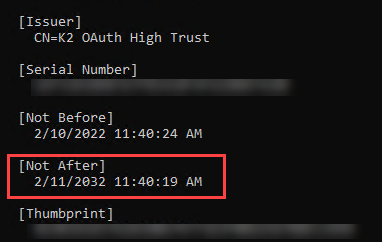
- In SharePoint Online Management Shell, run the following command:Copy
Get-SPTrustedSecurityTokenIssuer - Check the [Not after] section as shown in the image below to see if your certificate has expired.
Create and apply new SharePoint certificate
To generate a new certificate and apply it to the environment, follow the steps below:
-
In Microsoft SQL Server Management Studio, run the script below. This script deletes three rows.
CopyDELETE FROM [K2].[HostServer].[Configuration] WHERE VariableToken like '[[]K2_SIGN%' - Truncate the app only table by running the following script:Copy
TRUNCATE TABLE [K2].[Authorization].[OAuthAppOnlyToken] - Run Configure in the Setup Manager. This generates a new certificate in the K2 database.
- Run the AppManager.exe file in the following location "%ProgramFiles%\K2\Setup". This replaces the certificate in SharePoint.
- Confirm if the certificate has updated by running the Get-SPTrustedSecurityTokenIssuer command in SharePoint Online Management Shell again and checking the [Not after] section.
Add the Nintex K2 For SharePoint app to the App Catalog site
-
Issue:
After running the registration wizard and trying to access the Manage App Activation page, you may get a "- 500 Session is invalid" error.
Cause:
Google Chrome Incognito mode does not retain the session required to access the Manage App Activation page.
Resolution:
Do not use Google Chrome Incognito mode to access the Manage App Activation page. Access the page using Google Chrome in normal mode.
Unique SharePoint group provider naming
-
Issue:
Activating a site with the UseUrlBasedGroupProviderName setting enabled creates a URL-derived group provider name. However, the previously existing title-based provider for the same site remains in the K2 database, resulting in duplicate providers for the site.Cause:
The UseUrlBasedGroupProviderName setting is enabled after the site is activated using title-based naming. The system then creates a new provider with the URL-derived name without removing or renaming the existing provider. Provider names are identity keys and cannot be safely changed automatically.Resolution:
This is a known system constraint. The system does not automatically rename or remove the existing provider. -
Issue:
After enabling the UseUrlBasedGroupProviderName setting, the App Catalog site (/sites/AppCatalog) still has a title-based group provider name (Portal Apps) in the K2 database.Cause:
This is intentional. The App Catalog is an infrastructure site, and its provider always uses title-based naming regardless of the UseUrlBasedGroupProviderName setting. This prevents the system from creating a misleading URL-derived name for a site that is not a standard site collection registration target.Resolution:
No action is required. This is expected behavior.The default value of the UseUrlBasedGroupProviderName setting is false, which preserves the existing title-based naming behavior
SharePoint Event Type context browser menu item
-
Issue:
The SharePoint Event Type context browser menu item returns Manual if the workflow is triggered manually via SharePoint.
Cause:
The workflow is not associated with a SharePoint list through the K2 SharePoint integration wizard, or the start event is not configured correctly.
Resolution:
Verify that the workflow is properly published and that at least one SharePoint start event is configured. Also, confirm that the workflow is being triggered by SharePoint rather than being started manually.
-
Issue:
The SharePoint Event type context item is not visible in the workflow context browser.Cause:
The workflow context browser may require a refresh, or the workflow was not saved after SharePoint association.Resolution:
Save the workflow and reopen the workflow context browser.