Complex functions
Complex functions let you read, validate, and update JSON data directly in a JSON string. Business processes often receive JSON from REST services, integrations, SmartObjects, controls, and workflow data fields. Instead of deserializing the JSON into a SmartObject, and again for every nested level, you can use a Complex function to get or set a value at a path.
Find the Complex functions in the Context Browser > Functions tab > Complex section and drag a function into any Type/Drop field. Then, in the Smartfield Composer, type or drag Functions, Fields, SmartObjects and Workflow related properties from the Context Browser to configure the function.
In SmartForms, find the same functions on the Add Expression page, in the Context Browser > Operators tab > Complex section. See Expressions.
You can use this, for example, when an approval workflow receives an order as JSON. The workflow uses Is Valid JSON to check the order, Path Exists to check whether customer.contact.email exists, and Get Value to read the email address. It then uses Set Value to update the order status, and Add Key Value to add audit details before it sends the updated JSON to another system.
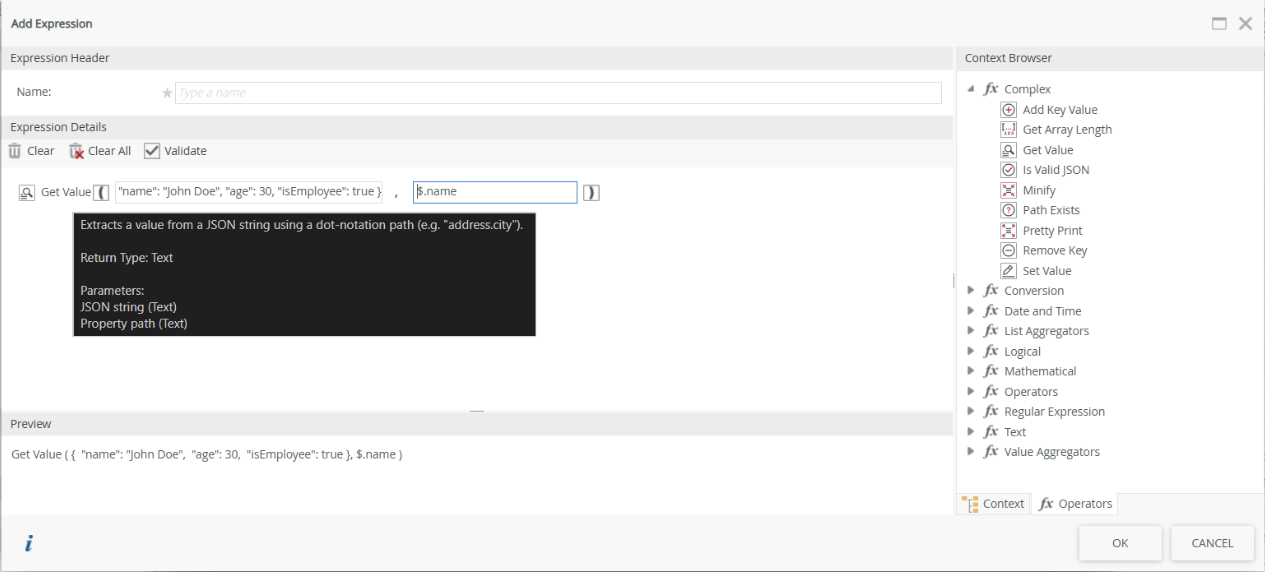
 Configuring a Complex function
-
Expand the Context Browser and select the Functions tab. From the Complex section, click and drag a function, such as Get Value, into a Type/Drop field.
-
The Smartfield Composer opens. Configure the function's parameters. The following table explains the parameters:
Parameter Used by Required How to use JSON string
All functions Yes
The JSON to check, read, or update. Type the JSON or drag a field, SmartObject property, or variable that contains it. Property path
Get Value Yes
The path to the value to return. See JSON path syntax. JSON path
Set Value, Add Key Value, Remove Key,
Path Exists,
Get Array Length
Yes
The path to the value to replace, the object to add a property to, the property to remove, the path to check, or the array to count. Key
Add Key Value Yes
The name of the property to add or replace. Value
Set Value, Add Key Value Yes, unless Value Type is Null
The new value. Value Type
Set Value, Add Key Value No
The method to convert the Value before it's added. See Value Type conversion. -
Click X to close the Smartfield Composer.
-
To keep the result of Set Value, Add Key Value, or Remove Key, save it to a field or variable. These functions return the updated JSON and don't change the JSON string you pass in.
-
To make more than one change, use the result of one function as the JSON string of the next. For example, drag Set Value into the JSON string parameter of Add Key Value.
Using Complex functions in SmartForms
-
On the Add Expression page, select the Operators tab in the Context Browser.
-
From the Complex section, drag a function onto the Expression Details canvas.
-
Type values, or drag fields and control values from the Context tab, into the function's parameters.
-
Check the result in the Preview panel.
Sample JSON
The examples in this topic use the following JSON:
Sample JSON
{

  "customer": {

     "name": "Ava",

     "nickname": null,

     "addresses": [

        {

          "type": "home",

          "city": "Cape Town"

        }

      ]

   },

   "active": true,

   "orderTotal": 1250.50

}
Complex functions use a path to find a value, property, or array item in the JSON. The leading $ is optional, except that $ on its own refers to the root of the JSON. Paths and property names are case-sensitive, so $.Customer.Name and $.customer.name are different paths.
| Purpose | Example | Meaning |
|---|---|---|
|
Root |
$ |
The entire JSON root. |
|
Dot notation |
$.customer.name |
The name property inside customer. |
|
Rootless dot notation |
customer.name |
The same as $.customer.name. |
|
Array index |
$.customer.addresses[0].city |
The city property in the first address. Array indexes start at 0. |
|
Single-quoted bracket notation |
$['key with spaces'] |
A property whose value contains spaces. |
|
Double-quoted bracket notation |
$["key.with.dots"] |
A property whose value contains dots. |
|
Escaped quote |
$['customer\'s key'] |
A property whose value contains a quote. |
|
Escaped backslash |
$["folder\\name"] |
A property whose value contains a backslash. |
Value Type conversion
Set Value and Add Key Value have an optional Value Type parameter (optional on workflows but required on forms) that controls how the Value is added to the JSON. Use a value type when the type could be unclear. For example, use String to keep 00123 as text, or Bool to change 1 to true.
| Value Type | Accepted input | Result |
|---|---|---|
|
(blank) |
Any value |
Valid JSON values keep their JSON type. Other values that do not fall into any category are added as a JSON string. For example, 00123 stays a string because it isn't a valid JSON number. |
|
Int |
A whole number, for example 42 or -7 |
A JSON integer. Don't use Int for values that must keep leading zeros. |
|
Float |
A decimal number or exponent notation, for example 1250.50 or 1.2E3 |
A JSON number. |
|
String |
Any text, or a quoted JSON string |
A JSON string. A quoted JSON string is decoded before it's added. |
|
Bool |
true, false, 1, or 0 |
A JSON Boolean (true or false). |
|
Null |
Any value, or blank |
JSON null. The value parameter is ignored. |
|
Array |
A valid JSON array, for example [1,2,3] |
A JSON array. Objects and single values are rejected. |
|
Object |
A valid JSON object, for example {"source":"portal"} |
A JSON object. Arrays and single values are rejected. |
Functions
Add Key Value
Adds a property to the object at the specified path, or replaces the property if it already exists, and returns the updated JSON string. If parent objects in the path don't already exist, Add Key Value creates them. See examples below:
| Example | Parameters | Result |
|---|---|---|
|
Add at the root |
JSON path: $ Key: source Value: portal Value Type: String |
Adds source to the root object. |
|
Add to a nested object |
JSON path: $.customer Key: vip Value: true Value Type: Bool |
Adds vip with the value true to customer. |
|
Create parent objects |
JSON path: $.metadata.audit Key: createdBy Value: workflow Value Type: String |
Creates the metadata and audit objects, then adds createdBy. |
|
Object inside an array |
JSON path: $.customer.addresses[0] Key: postalCode Value: 8001 Value Type: String |
Adds postalCode to the first address. |
|
Replace a property |
JSON path: $.customer Key: name Value: Lebo Value Type: String |
Replaces the value of customer.name. |
|
Path is an array |
JSON path: $.customer.addresses Key: count Value: 1 Value Type: Int |
Fails, because addresses is an array, not an object. |
Get Array Length
Returns the number of items in the array at the specified path. Only the items in that array are counted, not items nested inside them. The JSON string isn't changed. See examples below:
| JSON string | JSON path | Result |
|---|---|---|
|
{"items":["a","b","c"]} |
items |
3 |
|
{"items":["a","b","c"]} |
$.items |
3 |
|
[1,2,3,4,5] |
$ |
5 |
|
[] |
$ |
0 |
|
{"customer":{"addresses":[{"type":"home"}]}} |
$.customer.addresses |
1 |
|
{"active":true} |
$.active |
Workflow: error. SmartForms: null. active isn't an array. |
Get Value
Returns the value at the specified path. Objects and arrays are returned as JSON strings. The JSON string isn't changed. The following examples use the sample JSON:
| Property path | Workflow result | SmartForms result |
|---|---|---|
|
$.customer.name |
Ava |
Ava |
|
customer.addresses[0].city |
Cape Town |
Cape Town |
|
$.customer |
The customer object, as a JSON string |
The customer object, as a JSON string |
|
$.customer.nickname |
An empty string |
null |
|
$.customer.phone |
null, because the path doesn't exist |
null, because the path doesn't exist |
|
$ |
The whole JSON, as a JSON string |
The whole JSON, as a JSON string |
Is Valid JSON
Returns True if the text is valid JSON, and False if the text is blank or isn't valid JSON. Is Valid JSON checks JSON syntax only. It doesn't check for required properties, data types at a path, or business rules. See examples below:
Workflows use lenient validation by default, which accepts some JSON that isn't standards compliant. SmartForms always uses strict validation.
| JSON string | Strict (Workflow with StrictJSONValidation, and SmartForms) | Lenient (Workflow default) |
|---|---|---|
|
{"name":"Ava"} |
True |
True |
|
[1,2,3] |
True |
True |
|
"Ava" |
True |
True |
|
1250.50 |
True |
True |
|
true |
True |
True |
|
null |
True |
True |
| {"name":"Ava",} | False (trailing comma) | True |
| {name:"Ava"} | False (property name isn't in quotes) | True |
| {'name':'Ava'} | False (single quotes) | True |
| Blank text | False | False |
Minify
Removes line breaks, indentation, and extra spaces from a JSON string and returns it on a single line. Objects, arrays, and single values are supported. See examples below:
| JSON string | Result | Notes |
|---|---|---|
|
Indented JSON with the property name and the value Ava |
{"name":"Ava"} |
Line breaks and indentation are removed. |
|
{"name":"Ava"} |
{"name":"Ava"} |
JSON that's already on one line doesn't change. |
|
An indented array [1,2,3] |
[1,2,3] |
Arrays are handled the same way as objects. |
|
Blank text or invalid JSON |
Workflow: error. SmartForms: null, and an error is logged. |
The same as the other Complex functions. |
Path Exists
Returns True if the path exists in the JSON, even when its value is null and False if it doesn't. Path Exists doesn't return or change the value. Use it to tell a missing property from a property whose value is null, and to check a path before you use Get Value, Set Value, or Remove Key. The following examples use the sample JSON:
| JSON path | Result | Reason |
|---|---|---|
|
$.customer.name |
True |
The property exists. |
|
$.customer.nickname |
True |
The property exists, even though its value is null. |
|
$.customer.phone |
False |
The property doesn't exist. |
|
$.customer.addresses[0] |
True |
The first array item exists. |
|
$.customer.addresses[5] |
False |
There's no array item at index 5. |
|
$.active.value |
False |
active is a Boolean, so it has no properties. |
| $ | True | The JSON is valid, so the root exists. |
Pretty Print
Formats a JSON string with line breaks and two-space indentation so that it's easier to read. Objects, arrays, and single values are supported. See examples below:
| JSON string | Result | Notes |
|---|---|---|
|
{"name":"Ava","age":30} |
The object over several lines, with two-space indentation |
Single-line JSON is expanded. |
|
JSON that's already indented |
The same layout |
The layout is the same each time you run it. |
|
[1,2,3] |
The array over several lines, with two-space indentation |
Arrays are handled the same way as objects. |
|
"Ava" |
"Ava" |
Single values (text, numbers, Booleans, and null) don't change. |
Remove Key
Removes a property (the key and its value) from the object at the specified path and returns the updated JSON string. The following examples use the sample JSON:
| Example | JSON path | Result |
|---|---|---|
|
Remove a property at the root |
$.active |
Removes active and its value. |
|
Remove a property whose value is null |
$.customer.nickname |
Removes nickname, even though its value is null. |
|
Remove an object |
$.customer |
Removes customer and everything in it. |
|
Remove an array |
$.customer.addresses |
Removes addresses and all of its items. |
|
Remove a property inside an array item |
$.customer.addresses[0].type |
Removes type from the first address. The address itself stays in the array. |
|
Property doesn't exist |
$.customer.phone |
Workflow: error. SmartForms: null, and an error is logged. |
| Root | $ | Not allowed. You can't remove the whole JSON. |
| Array item | $.customer.addresses[0] | Not allowed. You can't remove an array item. |
Set Value
Replaces the value at an existing path and returns the updated JSON string. Set Value doesn't add a path that doesn't exist. To add a property, use Add Key Value. The following examples use the sample JSON:
| Example | Parameters | Result |
|---|---|---|
|
Replace text |
JSON path: $.customer.addresses[0].city; Value: Johannesburg; Value Type: String |
city changes to Johannesburg. |
|
Replace a Boolean |
JSON path: $.active; Value: false; Value Type: Bool |
active changes to false. |
|
Set to null |
JSON path: $.customer.nickname; Value: Null |
nickname stays in the JSON, with the value null. |
|
Replace an object |
JSON path: $.customer; Value: {"name":"Lebo"}; Value Type: Object |
customer changes to the new object. |
|
Replace the root |
JSON path: $; Value: [1,2,3]; Value Type: Array |
The result is [1,2,3]. |
|
Path doesn't exist |
JSON path: $.customer.phone |
Workflow: error. SmartForms: null, and an error is logged. |
Troubleshooting
Complex functions don't show in the Context Browser
Issue
Complex functions don't show in the Context Browser
Cause
The designer is using cached information, or the update isn't installed.
Resolution
Clear the browser cache and refresh the designer in your browser. If they still don't show, check that the release with Complex functions is installed.
Is Valid JSON returns False for text that looks like JSON
Issue
Is Valid JSON returns False for text that looks like JSON
Cause
The text is using single quotes, property names without quotes, comments, or a trailing comma in error.
Resolution
Use double quotes around property names and text values, and remove comments and trailing commas.
A workflow accepts JSON that SmartForms rejects
Issue
A workflow accepts JSON that SmartForms rejects
Cause
The workflow uses lenient validation, but SmartForms always uses strict validation.
Resolution
Use standards-compliant JSON, or turn on StrictJSONValidation so that workflows use strict validation too.
Get Value returns null
Issue
Get Value returns null
Cause
The path doesn't exist, the JSON string is blank, the JSON isn't valid (SmartForms), or the value is null.
Resolution
Use Is Valid JSON, then Path Exists. Check the case of the path, bracket notation, and array indexes.
Set Value can't find the path
Issue
Set Value can't find the path
Cause
Set Value doesn't add paths that don't exist.
Resolution
Check the path with Path Exists, or use Add Key Value to add the property.
Add Key Value fails because the path isn't an object
Issue
Add Key Value fails because the path isn't an object
Cause
The path points to an array, a single value, or null.
Resolution
Change the path so that it points to an object. To add a property to an object in an array, include the array index, for example $.items[0].
A property name with dots or spaces isn't found
Issue
A property name with dots or spaces isn't found
Cause
Dot notation treats each dot as a separator.
Resolution
Use bracket notation to group the property name, for example $["contact.email"] or $['first name'].
A number is added as text
Issue
A number is added as text
Cause
The Value isn't a valid JSON number, or the Value Type is String.
Resolution
Choose Int or Float. Don't use a number type if you need to keep leading zeros.
A large number changes in SmartForms
Issue
A large number changes in SmartForms
Cause
JavaScript can't store integer values larger than 9,007,199,254,740,991 exactly.
Resolution
Use the String value type for large identifiers.
Set Value, Add Key Value, or Remove Key returns null in SmartForms
Issue
Set Value, Add Key Value, or Remove Key returns null in SmartForms
Cause
The JSON or path isn't valid, the path doesn't exist, the path is the root or an array item, or the value can't be converted.
Resolution
Check the error in the browser console. Use Is Valid JSON and Path Exists to find the problem.
The updated JSON has no indentation
Issue
The updated JSON has no indentation
Cause
Set Value, Add Key Value, and Remove Key return compact JSON.
Resolution
Use Pretty Print when you need readable JSON.
Remove Key can't find the path
Issue
Remove Key can't find the path
Cause
A property in the path doesn't exist, the case is different, the array index is out of range, or the path goes through a value that isn't an object.
Resolution
Use Path Exists before Remove Key. Check the full path, the case, quotes, and array indexes.
Remove Key rejects the root path ($)
Issue
Remove Key rejects the root path ($)
Cause
$ is the whole JSON, not a property. You cannot remove the whole JSON.
Resolution
Specify the property to remove, for example $.active.
Remove Key rejects an array item path
Issue
Remove Key rejects an array item path, such as $.items[0]
Cause
Remove Key removes properties, not array items.
Resolution
Specify a property inside the array item, for example $.items[0].name.
Considerations
-
JSON property names and paths are case-sensitive.
-
Each function works on one JSON string and one path. To make more than one change, use the result of one function as the JSON string of the next.
-
Set Value, Add Key Value, and Remove Key read and rewrite the whole JSON, so indentation, spacing, and some number formats may change.
-
Set Value can't add a path that doesn't exist. Use Add Key Value instead.
-
Add Key Value replaces a property that already exists. It adds objects, but doesn't add arrays or array items.
-
Use Path Exists to distinguish between a property that doesn't exist and a property whose value is null.
-
Wildcards, recursive descent, filters, selecting more than one value, and negative array indexes aren't supported.
-
Is Valid JSON checks JSON syntax only. It isn't JSON Schema validation.
-
The whole JSON string is processed in memory, so the size of JSON you can use depends on the field it's stored in and on the server or browser resources.