Advanced SmartObjects: Query method
A query method is a SmartObject method that runs a SQL SELECT query and returns the results as a list. Use a query method when a view, form, or control needs a summary or a subset of SmartObject data, instead of every record. For example, a query method can return the number of open requests for a metric tile. It can also return a total for each category for a chart or the distinct values for a drop-down list.
You add query methods to an advanced SmartObject on the Methods tab. Each query reads data from one SmartObject, which you name in the query's FROM clause. This can be the SmartObject you add the method to, or a different SmartObject. For example, you can create an advanced SmartObject named Ticket Reports that holds only query methods, and have each method read from a Ticket SmartObject.
The query runs on the server, so the data is filtered, grouped, and sorted before it reaches the view or form at runtime. The columns the query returns become properties of the SmartObject that holds the method. Each has a data type, so you can use them like any other SmartObject property.
Before you begin
- The query method is saved on an advanced SmartObject. You can create a new advanced SmartObject or change an existing SmartBox SmartObject to an advanced SmartObject. If you change a SmartBox SmartObject, save it first. See Advanced SmartObjects.
- The SmartObject the query reads from must have at least one List method. It can be any SmartObject, whatever its data source.
- You can't change an existing method into a query method. Instead, create a query method that reads from the existing List method, for example
FROM [Ticket].[GetList]. The existing method doesn't change, so the views, forms and workflows that use it aren't affected. - The query can use only the properties that the List method returns. You can't select or filter on a property that the List method doesn't return. To give a value to one of the List method's input properties or parameters, use HAVING. See Write a query.
- Use system names in the query, not display names. A system name is the display name with each space replaced by an underscore. For example, a SmartObject named Ticket Reports is [Ticket_Reports], and a property named Logged By is [Logged_By]. To check a SmartObject's system name, select it in the category tree in the Designer: the System Name shows in its details.
 How query methods work
- Two SmartObjects can be involved. The SmartObject you're editing holds the query method. The SmartObject in the query's FROM clause provides the data. They can be the same SmartObject.
- A query method only reads data. It can't create, update or delete records.
- The query is checked, not run, when you validate it. Validate Query at design time checks the query's syntax and the rules in Write a query, and works out the returned properties. It doesn't run the query, so always test the method at runtime.
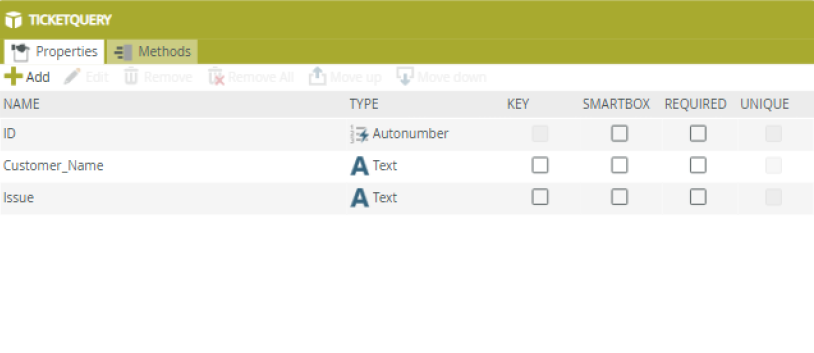
- Returned columns become properties. When you click Finish in the SmartObject Query Method dialog, each column the query returns is added to the Properties tab of the SmartObject you're editing, unless a property with the same name and data type already exists. These properties aren't stored in SmartBox. They're filled only when the query method runs at runtime.
- A query method is a list method. Select it in the List method drop-down when you create a list view, or as the method in a control's data source, such as a Drop-Down List control or Dynamic Chart control. You can also use it in workflows. You can filter and sort its results in a list view or a rule, like any other list method.
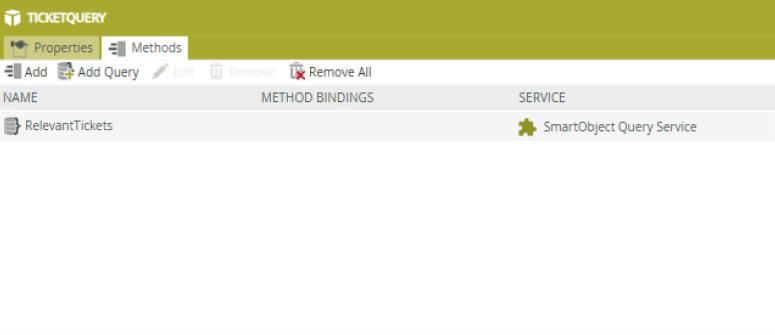
- The SmartObject Query Service runs the method. For each SmartObject that has query methods, the product creates a service object under the SmartObject Query Service service type, with a service object method for each query method. You can see them in the Service Object Explorer. On the Methods tab, the Service column shows SmartObject Query Service for each query method.
When to use query methods
| Scenario | When to use it | Example |
|---|---|---|
| Show a single number (metric tiles and gauges) | You need one value calculated from many records, such as a count, total, or average, instead of the records themselves. | Show the number of open tickets on a dashboard, or the average satisfaction score as a gauge. |
| Show totals for a chart | You need one value for each group of records, to draw a bar, column or pie chart. | Show how many tickets there are for each status in a Dynamic Chart control: one bar for Open, one for In Progress, and one for Resolved. |
| Filter and sort on the server | You want the server to return only the records that match a condition, already sorted, instead of loading everything and filtering in the view at runtime. Users can provide the filter value, for example from a drop-down list. | Show the open tickets for the month a user selects, oldest first. |
| Show only the first few records (Top N) | You want a fixed number of records from the top of a sorted list, such as the highest, lowest, newest, or oldest. "N" is the number you choose, for example TOP 10. | Show the 10 oldest open tickets, or the five customers with the highest total cost. |
| List each value once (distinct values) | You want the unique values of a property, with no repeats, usually to fill a drop-down list or a filter. | Fill a drop-down list with Open, In Progress, and Resolved, even though many tickets share each status. |
| Show a summary list with totals (grouping) | You want one row for each group, with calculated columns such as a count, total, and average. | Show one row for each region, with its number of tickets, total cost, and average cost. |
| Match several values at once (IN and NOT IN) | You want the records that match, or don't match, any value in a short list. You pass each value separately, for example the items a user selected. | Show the tickets with IDs 1, 4, and 7, or every ticket except those in the South and West regions. |
| Hide or mask sensitive data (data redaction) | You want users to see that a value exists without seeing all of it, or to leave personal information out of the results entirely. | Show account numbers as ****0101, so that only the last four digits are visible. |
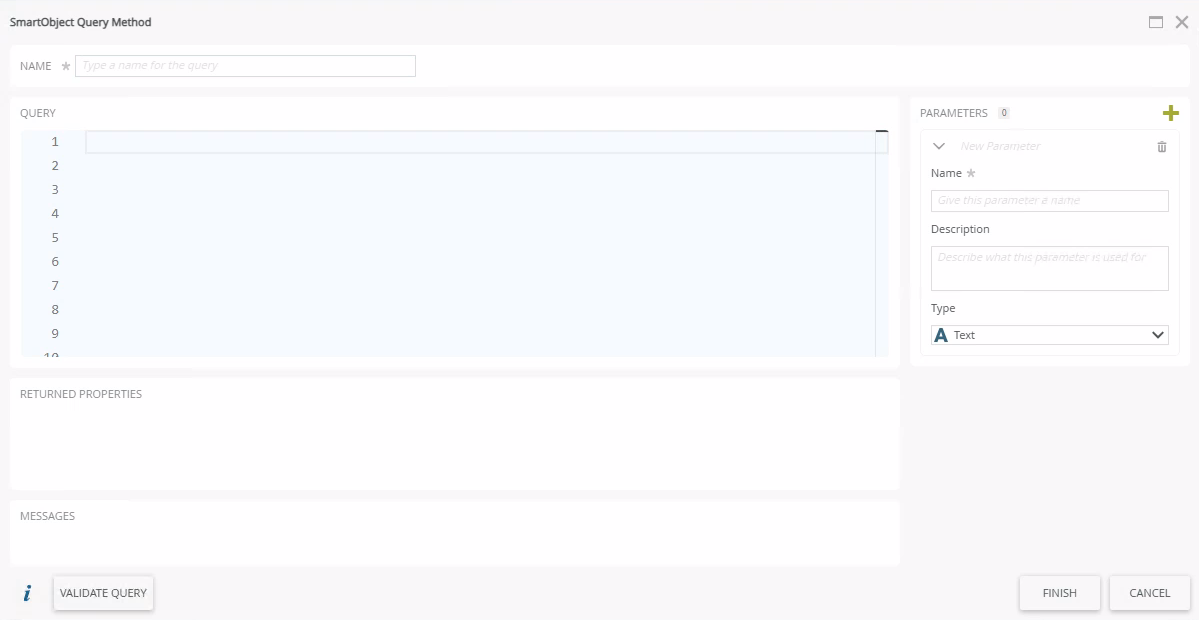
SmartObject Query Method dialog
| Field | Description |
|---|---|
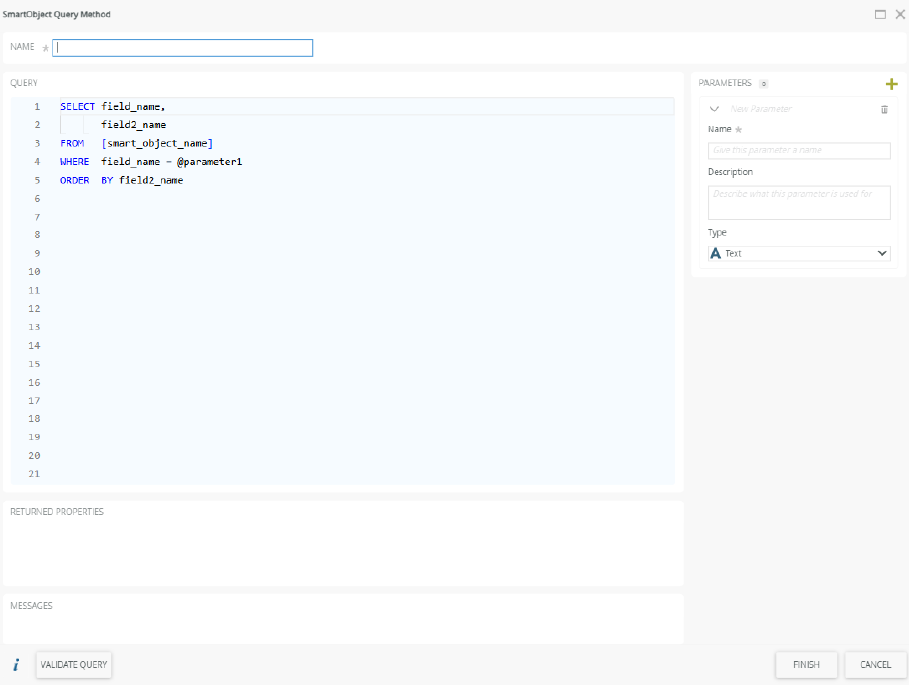
| Name | Required. The name of the method. You select the method by this name. |
| Query |
Required. The SELECT statement. The editor numbers the lines and highlights SQL keywords. When you add a query method, the box shows this sample query, which you replace with your query details:
|
| Parameters | The parameters the query uses. The number next to Parameters shows how many there are. Click + to add a parameter. Click the arrow next to a parameter's name to expand or collapse it, and click the delete icon to remove it. |
| Parameter: Name | Required. The name you use in the query, without the @ sign. Names aren't case-sensitive, so @Region and @region are the same parameter. |
| Parameter: Description | Optional. What the parameter is for, so that people who use the method know which value to pass. |
| Parameter: Type | The data type of the parameter: Date, Date/Time, Decimal, GUID, Hyperlink, Memo, Number, Text (the default), Time or Yes/No. Select the type that matches the property you compare the parameter with. Validation doesn't check this, and a type that doesn't match can cause errors or unexpected results at runtime. |
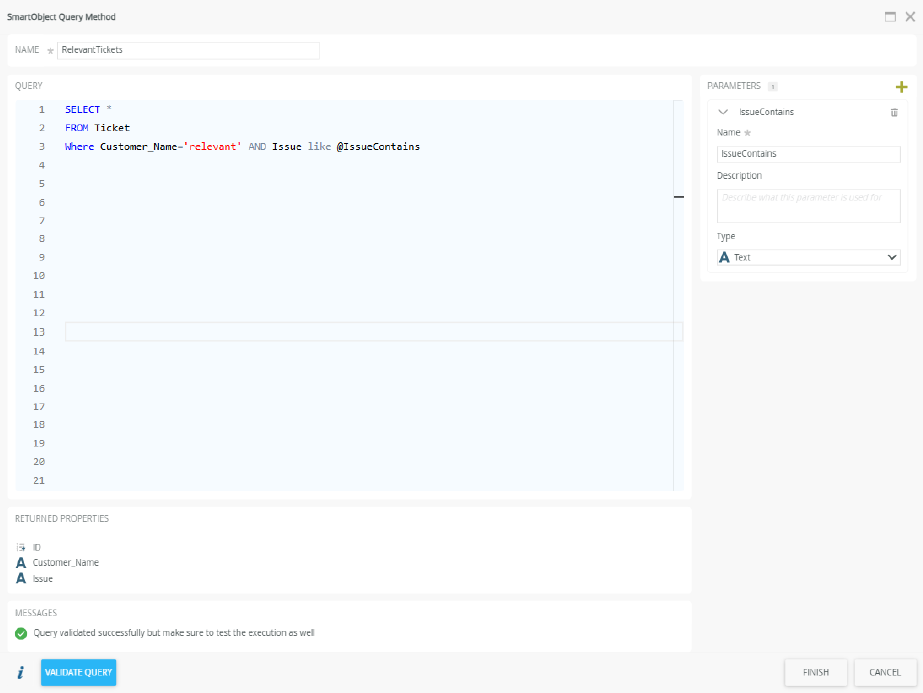
| Returned Properties | After you validate the query, the columns it returns, each with an icon for its data type. A column that comes straight from a property keeps that property's name and type. A column with an alias uses the alias as its name. A calculated column gets its type from the expression, for example, COUNT(*) returns a Number, and AVG(CAST(… AS FLOAT)) returns a Decimal. See Returned properties. |
| Messages | The result of the validation in design time: the success message, or one message for each problem. |
| Validate Query | Checks the query against the rules in Write a query, and fills in Returned Properties. It doesn't run the query. |
| Finish | Adds the method to the Methods tab and creates properties for each column the query returns, or saves your changes to it. You still need to save the SmartObject. |
| Cancel | Closes the dialog without saving your changes. |
Write a query
A query method runs one SQL SELECT statement, and checked with a Microsoft SQL Server parser. You can use WHERE, GROUP BY, HAVING, ORDER BY, TOP, DISTINCT, LIKE, BETWEEN, IN, EXISTS, ALL and ANY, subqueries, CASE, and aggregate functions such as COUNT, SUM, AVG, MIN and MAX. Only SELECT and FROM are required, and the parts must be in this order:
The parts of a query
SELECT   <the columns you want>
                        FROM     <one SmartObject>
                        WHERE    <filter the rows>
                        GROUP BY <group rows together>
                        HAVING   <filter the groups, or give values to the List method's inputs>
                    ORDER BY <sort the results>
Follow these rules so that the query validates successfully in design time and executes at runtime:
| Rule | Example |
|---|---|
| Read from one SmartObject, and use its system name in FROM. Put the name in square brackets. FROM uses the SmartObject's default List method, or its first List method if none is set as the default. | FROM [Ticket]
|
| Use system names for the SmartObject and its properties. Each space in a display name becomes an underscore. | SELECT [Logged_By] FROM [Ticket_Reports]
|
| To read from a specific List method, add the method's system name after the SmartObject. The method must be a List method. | FROM [Ticket].[GetList]
|
| To use a short name for the SmartObject in the rest of the query, add an alias after it, with or without AS. | FROM [Ticket] t
|
| Use square brackets around names, not double quotes. | SELECT [Issue], not SELECT "Issue" |
Give every column that isn't a property an alias with AS. This includes functions, literal values, parameters, and calculations. Use AS, not alias = expression. |
COUNT(*) AS TicketCount, 'Open' AS Label
|
| Keep column names unique. If you return the same property twice, give the second one its own alias. | SELECT [ID], [ID] AS TicketNumber
|
| Declare every parameter you use in the Parameters list, and use every parameter you declare. Use named parameters that start with @, not ?. A parameter inside quotes, such as '@Region', is plain text. | WHERE [Region] = @Region
|
| Wrap calculations in CAST, so that the column gets the right data type. This includes a minus sign in front of a column. Don't put brackets around a column on its own. | CAST([Cost] * 1.15 AS DECIMAL(18,2)) AS CostWithTax
|
| Write DISTINCT without brackets. | SELECT DISTINCT [Status]
|
| Use subqueries and derived tables only on the same SmartObject. Give a subquery in FROM an alias. | WHERE [ID] IN (SELECT [ID] FROM [Ticket] WHERE [Cost] > 100)
|
| Use WHERE to filter the rows that the List method returns. Use HAVING with GROUP BY to filter groups. Use HAVING without GROUP BY to give values to the List method's input properties or parameters. | HAVING COUNT(*) > 5
|
| Sort only by columns or aliases that are in the SELECT list. | ORDER BY TicketCount DESC
|
| Use TOP only with a fixed number, not a parameter. Let the list view or control handle paging. | SELECT TOP 10 [ID]
|
| Use CASE instead of IIF. | CASE WHEN [Cost] > 100 THEN 'High' ELSE 'Low' END AS CostBand
|
| Don't end the statement with a semicolon (;), and don't add comments (-- or /* */). | SELECT [Status] FROM [Ticket]
|
| Don't use a common table expression (WITH … AS). The product already wraps your query in one. | — |
Supported functions
Query methods support these SQL Server functions. Function names aren't checked when you validate the query, so check the spelling and the number of values. For example, use LEN, not LENGTH.
| Type | Functions |
|---|---|
| Text | CONCAT, LEFT, RIGHT, SUBSTRING, UPPER, LOWER, REPLACE, LEN, CHARINDEX, FORMAT, LTRIM, RTRIM, TRIM |
| Date | GETDATE, SYSDATETIME, DATEADD, DATEDIFF, DATEPART, DATENAME, YEAR, MONTH, DAY, EOMONTH, DATEFROMPARTS |
| Number | ABS, ROUND, CEILING, FLOOR, POWER, SQRT, LOG, SIGN, PI, RAND |
| Conversion | CAST, CONVERT, TRY_CAST, TRY_CONVERT, PARSE, TRY_PARSE |
| Logic | CASE, COALESCE, ISNULL, NULLIF |
| Aggregate | COUNT(*), COUNT(column), COUNT(DISTINCT column), SUM, AVG, MIN, MAX |
Add a query method
Follow these steps to add a query method:
-
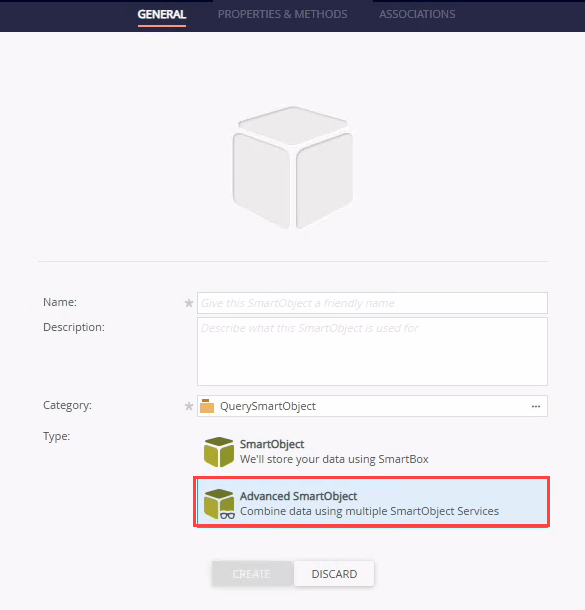
In the Designer, create a SmartObject and select Advanced SmartObject as the type on the General tab, then click Create. To add the method to an existing SmartObject, edit it instead. If it's a SmartBox SmartObject, save it, then select Advanced SmartObject on the General tab of the SmartObject designer. You can't save a new advanced SmartObject until it has a method, so add the query method before you save.
-
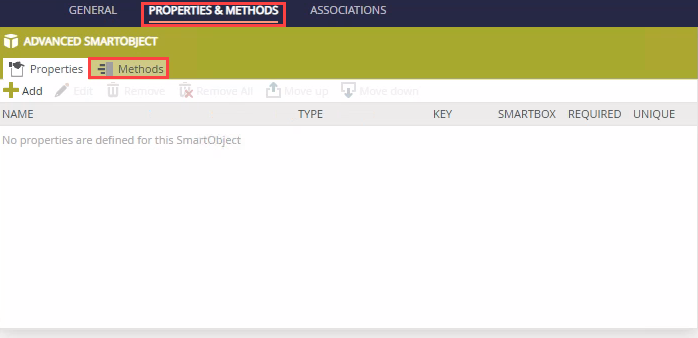
Click the Properties & Methods tab in the SmartObject designer, then click the Methods tab.
-
Click Add Query.
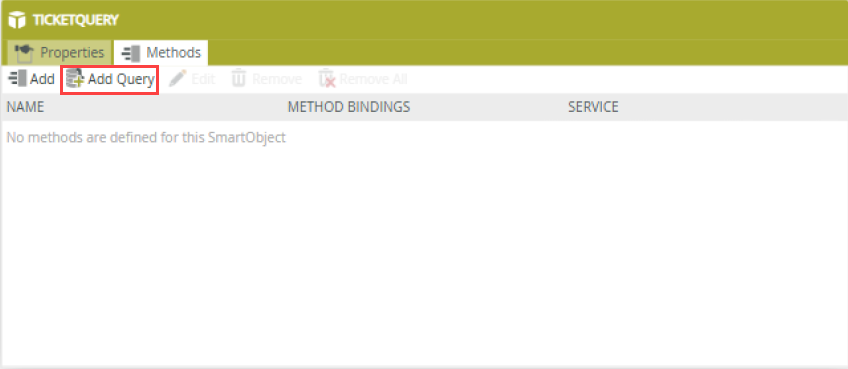
The SmartObject Query Method dialog opens, with a sample query in the Query box.
-
In Name, type a name for the method. Use a name that says what the method returns, such as Tickets By Status, because people select the method by this name in views and forms.
-
In Query, replace the sample query with your SELECT statement. In FROM, use the system name of the SmartObject the query reads from. For example, this query counts the tickets for each status:
CopyCount the tickets for each status
SELECT [Status], COUNT(*) AS TicketCount
                                FROM [Ticket]
                                GROUP BY [Status]
ORDER BY TicketCount DESC -
If the query uses parameters, add each one. Fill in the parameter card under Parameters: type the parameter's Name without the @ sign, add a description if required, and select its Type. Click + to add each extra parameter. In the query, put @ before the name of the parameter. For example, a parameter named ReportingMonth is @ReportingMonth in the query.
-
Click Validate Query. If Messages shows an error, fix the query and validate it again. When the query is valid, check that Returned Properties lists the columns and data types you expect.
-
Click Finish. The method is added to the Methods tab, with SmartObject Query Service in the Service column.
Any new returned properties are added to the Properties tab of the SmartObject designer.
-
Click Finish at the top right of the Designer to save the SmartObject.
-
Test the method at runtime. See Test a query method.
Edit a query method
- To change a query, select the method on the Methods tab and click Edit. The SmartObject Query Method dialog opens with the method's name, query and parameters. Returned Properties stays empty until you click Validate Query. Make your changes, validate the query again, click Finish, and save the SmartObject.
- To remove a query method, select it on the Methods tab and click Remove, then confirm. The method is deleted when you save the SmartObject. You can then create a new query method with the same name.
- Editing a SmartObject creates a new version. If a view uses new returned properties, edit the view to add them. See SmartObject Considerations and Best Practices.
Use a query method in a view or form
You use a query method like any other list method. A query method follows the category security of the SmartObject that holds it and of the SmartObject the query reads from, so the people who run the view or form need rights to both.
Show the results in a list view
-
Create a List view. On the General tab, select the SmartObject that holds the query method as the Data Source, and select the query method in List method. You can also generate a list view from the SmartObject that holds the query method. The generated view uses the first query method, so change List method if you need a different one. See List views.
-
If the query method has parameters, clear Call this method when the View loads, and pass the parameter values with a rule. See Pass parameter values.
-
Add the returned properties to the view as columns, and run the view.
Use the results in a control
Select the SmartObject that holds the query method, and the query method, in the control's data source. For example, use a query that returns distinct values to fill a Drop-Down List control, or a query that groups and counts records as the data source of a Dynamic Chart control. In the chart, set the Category Axis to the grouped column and the Value Axis to the calculated column.
Pass parameter values
Every parameter needs a value when the query method runs. Follow these steps to pass values from a form:
-
Add the List view that uses the query method to the form, and add the control that provides the value, such as a drop-down list.
-
Add a rule that runs when the control's value changes, with the Execute a View method action. Select the query method, and on the Input Mappings page, map the control to the parameter. See Configuring rule actions.
-
If the method also runs when the form loads, make sure the control has a value first. For example, load the drop-down list before the List view runs its method, and don't allow an empty selection in the drop-down list.
Query method parameters show in the same places as other SmartObject method parameters. If you call the method with a SmartObject method action in a rule, map them on the Mapping Destinations screen. In the workflow designer, map them in the Input Mappings section.
Test a query method
A query that validates in design time can still fail at runtime, or return different results. Test every query method at runtime, and test again after each change:
-
In one browser tab, edit and save the query method in the Designer.
-
In a second tab, run a List view that uses the method. Refresh it after each change to see what the query returns.
Validation doesn't check that the query makes sense for the data. These mistakes show only when the method runs:
| Mistake | Example | Fix |
|---|---|---|
| Comparing values of different types | WHERE [ID] = 'abc'
|
Compare with a value of the same type, and select a parameter Type that matches the property. |
| A misspelt function, or the wrong number of values | LENGTH([Issue])
|
Use the correct SQL Server function: LEN([Issue]) |
| A column that isn't grouped or totalled | SELECT [Region], [Issue], COUNT(*) AS Tickets FROM [Ticket] GROUP BY [Region]
|
Add the column to GROUP BY, or remove it. |
| A total inside WHERE | WHERE COUNT(*) > 5
|
Use HAVING with GROUP BY. |
| Averaging whole numbers | AVG([Satisfaction_score]) returns a whole number |
AVG(CAST([Satisfaction_score] AS FLOAT))
|
A query that takes longer than 30 seconds stops with a timeout error. Administrators can change the timeout with the commandtimeout attribute in the SmartObjects runtime configuration section.
Example queries
The examples use a sample SmartObject named Ticket, which stores support tickets. Its system name is Ticket, and it has these properties:
| Property | Type |
|---|---|
| ID | Autonumber |
| CustomerName | Text |
| AccountNumber | Text |
| Region | Text |
| Issue | Memo |
| Status | Text |
| SensitiveText | Text |
| CreatedDate | Date/Time |
| SLA_compliant | Yes/No |
| Satisfaction_score | Number |
| Cost | Decimal |
| Use | Query | Returns |
|---|---|---|
| Metric tile | SELECT COUNT(*) AS TotalTickets FROM [Ticket]
|
The number of tickets |
| Count of different values | SELECT COUNT(DISTINCT [CustomerName]) AS CustomerCount FROM [Ticket]
|
The number of different customers |
| Gauge | SELECT AVG(CAST([Satisfaction_score] AS FLOAT)) AS AvgSatisfaction FROM [Ticket]
|
The average satisfaction score, with decimals |
| Bar chart | SELECT [Status], COUNT(*) AS TicketCount FROM [Ticket] GROUP BY [Status] ORDER BY TicketCount DESC
|
One row for each status, with the number of tickets |
| Several values for each category | SELECT [Region], COUNT(*) AS Tickets, SUM([Cost]) AS TotalCost, AVG([Cost]) AS AverageCost FROM [Ticket] GROUP BY [Region] ORDER BY TotalCost DESC
|
One row for each region, with the number of tickets, the total cost and the average cost |
| Top N | SELECT TOP 10 [ID], [Issue], [CreatedDate] FROM [Ticket] WHERE [Status] != 'Resolved' ORDER BY [CreatedDate]
|
The 10 oldest tickets that aren't resolved |
| Distinct values | SELECT DISTINCT [Status] FROM [Ticket] ORDER BY [Status]
|
Each status once, for a drop-down list |
| Filter and sort | SELECT [ID], [Region], [Cost] AS TicketCost FROM [Ticket] WHERE [Cost] >= 10 AND [Region] LIKE 'North%' ORDER BY TicketCost DESC, [ID] ASC
|
Tickets in regions that start with North and cost 10 or more, most expensive first |
| Contains text | SELECT [ID], [Issue] FROM [Ticket] WHERE [Issue] LIKE @IssueContains
|
Tickets whose issue contains the value of the IssueContains parameter (Text). The value includes the wildcards, for example %printer%. |
| Optional filter | SELECT [ID], [Issue] FROM [Ticket] WHERE (@Region IS NULL OR [Region] = @Region)
|
Tickets in the region you pass in the Region parameter (Text), or every ticket when the value is empty |
| Parameter in the results | SELECT [ID], [Issue], @Region AS RequestedRegion FROM [Ticket] WHERE [Region] = @Region
|
The tickets for one region, with the region you asked for in each row |
| Group with a total | SELECT [Region], SUM([Cost]) AS TotalCost FROM [Ticket] GROUP BY [Region] HAVING SUM([Cost]) > @MinTotal
|
Regions whose total cost is more than the value of the MinTotal parameter (Decimal) |
| IN list | SELECT [ID], [CustomerName], [Status] FROM [Ticket] WHERE [ID] IN (@Id0, @Id1, @Id2)
|
The tickets whose IDs you pass in the Id0, Id1 and Id2 parameters (Number) |
| Subquery on the same SmartObject | SELECT t.[ID], t.[Status] FROM [Ticket] t WHERE t.[ID] IN (SELECT [ID] FROM [Ticket] WHERE [Cost] > 100)
|
Tickets that cost more than 100 |
| Derived table | SELECT * FROM (SELECT [ID], [CustomerName] FROM [Ticket]) AS sub
|
The ID and customer name of every ticket |
| A specific List method | SELECT * FROM [Ticket].[GetList]
|
Every column that the GetList method returns |
| Values for the List method's inputs | SELECT * FROM [UMGroup].[GetGroups] HAVING [Label_Name] = 'K2'
|
The groups that the GetGroups method of the UMGroup system SmartObject returns for the K2 label. HAVING without GROUP BY gives the value to the method's Label_Name input. |
| Redaction | SELECT [ID], [CustomerName], CONCAT('****', RIGHT([AccountNumber], 4)) AS AccountMasked, CONCAT(LEFT([SensitiveText], 1), '***') AS Redacted FROM [Ticket]
|
Each ticket with the account number masked except its last four digits, and the sensitive text reduced to its first letter |
| Redaction for everyone except one customer | SELECT [ID], [CustomerName], CASE WHEN [CustomerName] = @Customer THEN [Issue] ELSE 'Hidden' END AS VisibleIssue FROM [Ticket]
|
Every ticket, with the issue shown only for the customer you pass in the Customer parameter (Text) |
Example: filter by a month that the user selects
This query returns the open tickets that were logged in one month, with the age of each ticket in days. It has one parameter, ReportingMonth, of type Text, in the format yyyy-MM, for example 2026-11.
Open tickets for one month
SELECT TOP 10
                        [Issue],
                        [Status],
                        [CreatedDate],
                        DATEDIFF(DAY, [CreatedDate], GETDATE()) AS AgeDays,
                        [SLA_compliant],
                        [Satisfaction_score],
                        [Cost]
                        FROM [Ticket]
                        WHERE [Status] != 'Resolved' AND FORMAT([CreatedDate], 'yyyy-MM') = @ReportingMonth
                    ORDER BY [CreatedDate] ASC
To let users pick the month, create a second query method that returns the months, use it to fill a drop-down list on a form, and pass the selected value to ReportingMonth with a rule. See Pass parameter values.
Considerations
Validation and runtime
Validate Query checks the query details when you save it in design time. The query is only executed at runtime. Some queries may pass validation but fail or return different results at runtime:
| Query pattern | What can happen at runtime |
|---|---|
| ORDER BY a column that isn't in the SELECT list | An "Invalid column name" error when the view uses paging |
| TOP with a parameter, such as TOP (@Count) | An error. Use a fixed number, such as TOP 10. |
| OFFSET … FETCH NEXT … | An error. Let the list view or control handle paging. |
| IIF inside another function | An error. Use CASE. |
| Window functions, such as ROW_NUMBER() OVER (…) or RANK() | An error. Remove the window function. |
| A function that doesn't exist, such as LENGTH() instead of LEN() | A SQL error. Function names aren't checked when you validate the query in design time. |
| NOT IN (@a, @b) when one of the parameters is empty (NULL) | No rows are returned |
| The value before the column in LIKE, such as '%printer%' LIKE [Issue] | No rows are returned. Put the column first: [Issue] LIKE '%printer%'. |
| CONTAINS or FREETEXT | An error, unless the database column has a full-text index. Use LIKE. |
| An IN list with more than 99 values | An error, when the SmartObject's data source doesn't run the query directly (see How queries get their data) |
| Very deeply nested subqueries with many functions | An error. Keep subqueries simple, and test them in a list view. |
How queries get their data
- A query method runs against the SmartObject the query reads from, not against a database or service instance that you choose. That SmartObject's own service instance provides the data.
- For SmartObjects that use SQL-based data, such as SmartBox and SQL Server SmartObjects, the query runs at the data source. The product wraps it in a common table expression (CTE), so you can't use a CTE in your own query.
- For other data sources, the product first runs the List method of the SmartObject the query reads from, and then applies the query to the results. This can be slow when the List method returns a lot of data, so test the performance with realistic data.
- When paging is turned on in a list view or control, the product wraps the query in a larger query. This is why columns without a name, duplicate column names, and sorting by a column that isn't returned can fail.
Returned properties
- Each column the query returns becomes a property of the SmartObject that holds the method. If a property with the same name and data type already exists, the method uses it.
- If you edit a query so that a column keeps its name but gets a different data type, the system treats it as a new property with the same name, and shows an error. See Troubleshooting.
- Returned properties aren't stored in SmartBox. They have values only when the query method runs, so the other methods of the SmartObject that holds the query method return them empty.
- A calculated column gets its data type from the function or values it uses:
| Column | Returned type |
|---|---|
| COUNT, LEN, CHARINDEX, DATEDIFF, DATEPART, YEAR, MONTH, DAY, CEILING, FLOOR, SIGN | Number |
| CONCAT, FORMAT, UPPER, SUBSTRING, REPLACE, DATENAME, LEFT, RIGHT | Text |
| ABS, ROUND, POWER, SQRT, LOG, PI, RAND | Decimal |
| GETDATE, SYSDATETIME, DATEADD | Date/Time |
| EOMONTH, DATEFROMPARTS | Date |
| NEWID | GUID |
| SUM, AVG, MIN, MAX | The same type as the column used. A mix of Number and Decimal gives Decimal. AVG of a Number column is rounded to a whole number, so use CAST to get decimals. |
| ISNULL, NULLIF | The same type as the first value |
| CASE, COALESCE | The type that the possible results share |
| Other functions | Based on the values used, otherwise Text |
To set the type yourself, use CAST or CONVERT. For example, CAST([ID] AS DECIMAL(18,2)) AS IDValue returns a Decimal.
| CAST or CONVERT to | Returned type |
|---|---|
| nvarchar, ntext, text | Memo |
| varchar, char, nchar | Text |
| int, bigint, smallint, tinyint | Number |
| bit | Yes/No |
| decimal, numeric, float, real, money | Decimal |
| datetime, datetime2, smalldatetime | Date/Time |
| date | Date |
| time | Time |
| uniqueidentifier | GUID |
Parameters
- Map a value to every parameter when the method runs. To make a filter optional, write the query so that an empty value returns all rows, for example
WHERE (@Region IS NULL OR [Region] = @Region). - You can use parameters in WHERE, HAVING, the SELECT list, CASE expressions, function values and subqueries.
- There's no list parameter, so you can't pass a comma-separated list of values into one parameter. For a multi-select filter, declare one parameter for each value (@Id0, @Id1, @Id2 and so on) and pass each value separately. You can also type fixed values in the query, such as IN (5, 10, 25).
SmartBox and system SmartObjects
- To add a query method to a SmartBox SmartObject, save the SmartObject, then change it to an advanced SmartObject. The SmartBox methods stay on the Methods tab, and you add query methods next to them.
- You can't change system SmartObjects. To query one, create an advanced SmartObject and add a query method that reads from the system SmartObject. See Standard SmartObjects reference.
- Queries use system names. When you rename a SmartObject, only its display name changes, so the queries that read from it keep working.
Security
- A query method follows the category security of the SmartObject that holds it and of the SmartObject the query reads from. The user who runs the method needs rights to both.
- Because a query can read any SmartObject its author has access to, only give Designer rights to people you trust to write queries.
Service objects behind query methods
- The product creates and updates the service objects under SmartObject Query Service when you save query methods. Don't bind these service objects to other SmartObjects. If you need the same data in another SmartObject, add a query method to that SmartObject instead.
Packaging and deployment
- You package and deploy SmartObjects with query methods like other SmartObjects. Package and Deployment tracks the SmartObjects that each query reads from, and checks that they're in the package. See Package and Deployment.
Limitations
- Only SELECT statements are supported. UPDATE, INSERT, DELETE and EXEC aren't supported. To create, update, or delete data, use the SmartObject's other methods.
- A query can read from only one SmartObject. Joins of any type (including CROSS APPLY and OUTER APPLY), unions (UNION, INTERSECT and EXCEPT), and queries that read from more than one SmartObject aren't supported. A subquery must use the same SmartObject.
- The query must read from a List method.
- A query method can't run more than one statement, and semicolons aren't supported.
- Comments (-- and /* */) aren't supported.
- Common table expressions (WITH … AS) aren't supported.
- Table-valued functions, OPENROWSET and table variables aren't supported.
- Calculations at the top level of a column, such as [Satisfaction_score] + 1 or -[Cost], aren't supported. Wrap them in CAST, for example CAST([Satisfaction_score] + 1 AS INT) AS AdjustedScore.
- DISTINCT with brackets, such as SELECT DISTINCT([Status]), isn't supported. Use SELECT DISTINCT [Status].
- IIF and window functions, such as ROW_NUMBER() OVER (…), aren't supported. Use CASE instead of IIF.
- TOP with a parameter, and OFFSET … FETCH, aren't supported. Use TOP with a fixed number.
- Global variables and system variables, such as @@VERSION and @@ROWCOUNT, aren't supported.
- Double quotes around names, and ? parameter placeholders, aren't supported. Use square brackets and @ parameters.
- The List method's input properties and parameters can't be used in WHERE. Use HAVING without GROUP BY.
- There's no list parameter. Declare one parameter for each value.
Troubleshooting
Function "COUNT" in SELECT list must have an alias.
Cause: A function in the SELECT list, such as COUNT(*), has no alias. The message names the function.
Resolution: Add an alias, for example COUNT(*) AS TicketCount.
Please enter a valid query name.
Cause: The Name box is empty.
Resolution: Type a name for the method.
Parameter "@<name>" is used in the query but was not provided.
Cause: The query uses a parameter that isn't in the Parameters list, or the parameter name in the list doesn't match the name in the query.
Resolution: Click + next to Parameters, type the name without the @ sign, and select its type. Check that the spelling matches the query.
Parameter "@<name>" was provided but is not used in the query.
Cause: The Parameters list has a parameter that the query doesn't use.
Resolution: Remove the parameter with its delete icon, or use it in the query.
Unsupported SELECT element type: GlobalVariableExpression
Cause: The query uses a global or system variable, such as @@VERSION or @@ROWCOUNT.
Resolution: Remove the variable.
Property "<name>" could not be resolved.
Cause: The query uses a property's display name instead of its system name, for example [Logged By] instead of [Logged_By]. The message also shows when:
- the property doesn't exist on the SmartObject, or isn't returned by the List method in FROM
- the query uses one of the List method's input properties in WHERE
- the name is in double quotes, such as "Issue"
- a subquery uses a column from the outer query without the outer query's alias, such as ID instead of t.ID
Resolution: Use the property's system name in square brackets: replace each space in the display name with an underscore. Check that the List method the query reads from returns the property. To give a value to an input property, use HAVING without GROUP BY. In a subquery, refer to the outer query's columns by its alias.
Multiple SmartObjects are not supported in this release, (<n> found).
Cause: The query reads from more than one SmartObject, in FROM or in a subquery. This includes a comma-separated list in FROM, even of the same SmartObject, such as FROM [Ticket] a, [Ticket] b. The message also shows when the query uses a common table expression (WITH … AS), because the CTE name is counted as a SmartObject.
Resolution: Read from one SmartObject. To combine data from several SmartObjects, create a separate query method for each one. If the query uses WITH … AS, remove it and use a subquery or a derived table on the same SmartObject.
JOIN clauses are not supported in this release.
Cause: The query uses a join of any type, such as JOIN, INNER JOIN, LEFT JOIN, CROSS JOIN or CROSS APPLY, including a join of a SmartObject to itself.
Resolution: Remove the join. To filter by other rows of the same SmartObject, use a subquery on that SmartObject. To combine data from different SmartObjects, use a composite SmartObject.
SmartObject property <name> is a required property for selected method <method>. Value must be set.
Cause: A parameter has no value. This happens when a view calls the method when it loads, or when the control that provides the value loads after the method runs.
Resolution: Clear Call this method when the View loads, and pass the value with a rule. Load the control that provides the value first, and don't allow an empty selection.
An "Invalid column name" error when a list view pages the results
Cause: The query sorts by a column that isn't in the SELECT list.
Resolution: Add the column to the SELECT list, or sort by a column that's already in it.
A SQL error about a function name at runtime
Cause: The query uses a function that doesn't exist in SQL Server, such as LENGTH(), or gives it the wrong number of values. Function names aren't checked when you validate.
Resolution: Use the right function name, such as LEN(), and test the method again. See Supported functions.
A NOT IN query returns no rows
Cause: One of the parameters in the NOT IN list is empty (NULL).
Resolution: Pass a value for every parameter in the list.
A property already exists when you edit a query method
Cause: The edited query returns a column with the same name as an existing property, but a different data type.
Resolution: Give the column a new alias, or remove the existing property from the Properties tab first.
The SmartObject's methods are missing after you change it to an advanced SmartObject
Cause: The SmartBox SmartObject wasn't saved before you changed it.
Resolution: Save the SmartObject, then change it to an advanced SmartObject.
A query that reads a lot of data is slow
Cause: The SmartObject the query reads from doesn't use SQL-based data, so the product runs its List method and then applies the query to all the results.
Resolution: Filter the data in the List method if you can, and test the performance with realistic data. For SQL-based data, such as SmartBox and SQL Server SmartObjects, the query runs at the data source.
A query method stops with a timeout error
Cause: The query took longer than 30 seconds, the default timeout.
Resolution: Return less data, for example with WHERE or TOP, and test the performance with realistic data. Administrators can change the timeout with the commandtimeout attribute in the SmartObjects runtime configuration section.
See the following resources for more information: