Authenticating with AAD
To authenticate K2 Mobile app users with Azure Active Directory (AAD) follow these steps:
- Open the AAD portal (https://portal.azure.com) and login.
- Open User Settings. Click Manage how end users launch and view their applications.
- Enable the Users can consent to apps accessing company data on their behalf option to Yes.
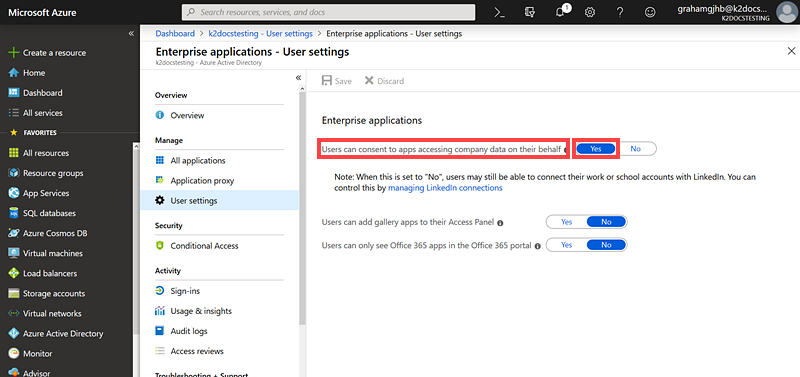
- Open the web.config of the K2Api located at the following path:
%ProgramFiles%\ K2\ WebServices\ K2Api
- In the <connectionStrings> section, add your impersonated username and password in place of the bracketed values:Enter a user who has impersonation rights, in the K2Api.web.config file. See the Server Rights topic for more information.<connectionStrings>
<add name="K2.Workflow" connectionString="UserID={username};Password={password};Integrated=False;IsPrimaryLogin=True;Authenticate=True;EncryptedPassword=False;Host=servername;Port=5252" />
<add name="K2.HostServer" connectionString="UserID={username};Password={password};Integrated=False;IsPrimaryLogin=True;Authenticate=True;EncryptedPassword=False;Host=servername;Port=5555" />
</connectionStrings> - Set the Integrated= values to False. If the Integrated= value is set to True, the specified user name and password is ignored.
- In the <appSettings> section add the K2.Workflow.DefaultImpersonationLabel, AADAuthorizationURL and tenantDomain and values.
<add key="K2.Workflow.DefaultImpersonationLabel" value="AAD" />
<add key="useAAD" value="true" />
<add key="AADAuthorizationURL" value="https://login.windows.net/{realmID}" />
<add key="tenantDomain" value="{realmID}" />
<add key="AADAudienceURI" value="https://graph.windows.net/" />You must change the default impersonation label when configuring AAD authentication for on-premises installs of K2 Five. K2 uses security labels to authenticate with different providers, such as AD, AAD, and SQL usually represented by the labels K2, AAD, and K2SQL respectively. The K2API connects using the default security label, which for on-premises installs is Active Directory (K2) by default. Set the K2.Workflow.DefaultImpersonationLabel to AAD. Set the AADAuthorizationURL and tenantDomain value to your {realmID}. Using the realm ID (tenant GUID) allows your AAD users and guests to sign in to the K2 Workspace app.
The {realmID} value is the directory ID (GUID) of your tenant, for example:
<add key="AADAuthorizationURL" value="https://login.windows.net/bb19cdf2-861f-49f5-b6bd-b7b1f7b0f1f3" />
<add key="tenantDomain" value="bb19cdf2-861f-49f5-b6bd-b7b1f7b0f1f3" /> - Save and close the web.config file.
- Using an account with administrative rights, go to K2 Management > Integration > APIs and click the Setup AAD Consent button to enable AAD authorization.
- Sign in to the