Update Azure Active Directory User
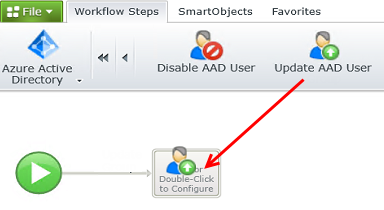
This wizard is found in the Azure Active Directory Workflow Steps category in the K2 Designer.
What does it do?
The Update AAD User wizard updates an existing user account in Azure Active Directory.
Use Case Examples
- Change of employee address.
- Enable or disable a user.
Permissions
In order for this wizard to function correctly at runtime, the K2
How is it used?
Any contact details can change for an employee, for example the employee changes his/her address. This wizard can be used to update the user details Azure Active Directory with the new information. Any of the available properties can be updated using this wizard in a workflow. Drag the wizard to a workflow step on the design canvas.
The only validation done in the wizard configuration is to ensure that required fields are populated. The field format validation will only occur at runtime. This means that if any of the field formats are incorrect, the workflow will go into an error state and the user might not be updated, dependent on the step the validation error occurred on. Click here for more information on Azure Active Directory user property values.
 Specify User
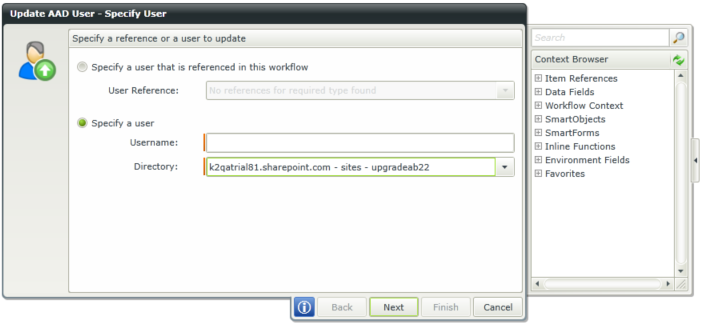
Specify the user that will be updated in AAD.
| Field | Description | Sample Value |
|---|---|---|
| User Reference | Use this option if a reference was created earlier in this workflow for the user. | Click the drop-down list to select the reference name. |
| Username | The value of this field must be the User Principle Name (UPN). | Type a value, or drag a value from the Context Browser such as a pre-configured Data Field, Item Reference or a SmartObject Load method. Note that when a SmartObject Load method is used, an input property is required for the correct data to load. |
| Directory | This is the Azure Active Directory instance. If more than one instance exists they will be listed in the drop down list. | Select the correct directory from the drop-down list. |
Update User
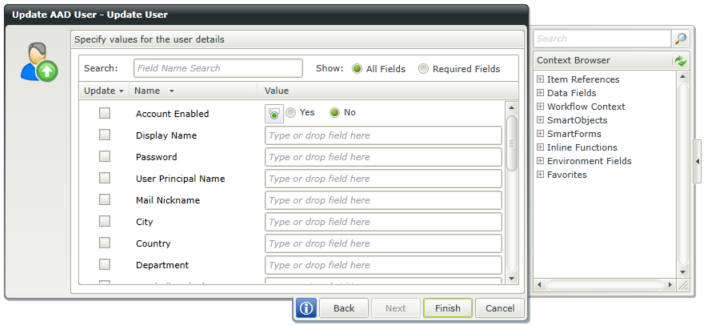
Specify the details that will be updated for the user in AAD.
| Field | Description | Sample Value |
|---|---|---|
| Search |
Use the Search functionality to find fields to set values for:
|
N/A |
| Account Enabled | Specify whether the user's account is enabled or not. |
Select Yes or No OR Click the toggle button. Type a value, or drag a value from the Context Browser such as a pre-configured Data Field, Item Reference or a SmartObject Load method. Note that when a SmartObject Load method is used, an input property is required for the correct data to load. |
| Display Name | The user's display name information. | Type a value, or drag a value from the Context Browser such as a pre-configured Data Field, Item Reference or a SmartObject Load method. Note that when a SmartObject Load method is used, an input property is required for the correct data to load. |
| Password | The user's password information. | Type a value, or drag a value from the Context Browser such as a pre-configured Data Field, Item Reference or a SmartObject Load method. Note that when a SmartObject Load method is used, an input property is required for the correct data to load. |
| User Principle Name | The user's user principle name information. | Type a value, or drag a value from the Context Browser such as a pre-configured Data Field, Item Reference or a SmartObject Load method. Note that when a SmartObject Load method is used, an input property is required for the correct data to load. |
| Mail Nickname | The user's mail nickname | Type a value, or drag a value from the Context Browser such as a pre-configured Data Field, Item Reference or a SmartObject Load method. Note that when a SmartObject Load method is used, an input property is required for the correct data to load. |
| City | The user's city information. | Type a value, or drag a value from the Context Browser such as a pre-configured Data Field, Item Reference or a SmartObject Load method. Note that when a SmartObject Load method is used, an input property is required for the correct data to load. |
| Country | The user's country of residence. | Type a value, or drag a value from the Context Browser such as a pre-configured Data Field, Item Reference or a SmartObject Load method. Note that when a SmartObject Load method is used, an input property is required for the correct data to load. |
| Department | The user's department information. | Type a value, or drag a value from the Context Browser such as a pre-configured Data Field, Item Reference or a SmartObject Load method. Note that when a SmartObject Load method is used, an input property is required for the correct data to load. |
| Facsimile Telephone Number | The user's facsimile telephone number information. | Type a value, or drag a value from the Context Browser such as a pre-configured Data Field, Item Reference or a SmartObject Load method. Note that when a SmartObject Load method is used, an input property is required for the correct data to load. |
| Given Name | The user's given name information. | Type a value, or drag a value from the Context Browser such as a pre-configured Data Field, Item Reference or a SmartObject Load method. Note that when a SmartObject Load method is used, an input property is required for the correct data to load. |
| Job Title | The user's job title information. | Type a value, or drag a value from the Context Browser such as a pre-configured Data Field, Item Reference or a SmartObject Load method. Note that when a SmartObject Load method is used, an input property is required for the correct data to load. |
| Manager Id | the user's manager id information. | Type a value, or drag a value from the Context Browser such as a pre-configured Data Field, Item Reference or a SmartObject Load method. Note that when a SmartObject Load method is used, an input property is required for the correct data to load. |
| Mobile | The user's mobile number information. | Type a value, or drag a value from the Context Browser such as a pre-configured Data Field, Item Reference or a SmartObject Load method. Note that when a SmartObject Load method is used, an input property is required for the correct data to load. |
| Other Mails | The user's other email information. | Type a value, or drag a value from the Context Browser such as a pre-configured Data Field, Item Reference or a SmartObject Load method. Note that when a SmartObject Load method is used, an input property is required for the correct data to load. |
| Force Change Password | Specify whether the user is required to change their password. |
Select Yes or No OR Click the toggle button. Type a value, or drag a value from the Context Browser such as a pre-configured Data Field, Item Reference or a SmartObject Load method. Note that when a SmartObject Load method is used, an input property is required for the correct data to load. |
| Password Policies | The user's password policies information. | Type a value, or drag a value from the Context Browser such as a pre-configured Data Field, Item Reference or a SmartObject Load method. Note that when a SmartObject Load method is used, an input property is required for the correct data to load. |
| Physical Delivery Office | The user's physical delivery office information. | Type a value, or drag a value from the Context Browser such as a pre-configured Data Field, Item Reference or a SmartObject Load method. Note that when a SmartObject Load method is used, an input property is required for the correct data to load. |
| Postal Code | The user's postal code information. | Type a value, or drag a value from the Context Browser such as a pre-configured Data Field, Item Reference or a SmartObject Load method. Note that when a SmartObject Load method is used, an input property is required for the correct data to load. |
| Preferred Language | The user's preferred language information. | Type a value, or drag a value from the Context Browser such as a pre-configured Data Field, Item Reference or a SmartObject Load method. Note that when a SmartObject Load method is used, an input property is required for the correct data to load. |
| State | The user's state of residence. | Type a value, or drag a value from the Context Browser such as a pre-configured Data Field, Item Reference or a SmartObject Load method. Note that when a SmartObject Load method is used, an input property is required for the correct data to load. |
| Street Address | The user's street address information. | Type a value, or drag a value from the Context Browser such as a pre-configured Data Field, Item Reference or a SmartObject Load method. Note that when a SmartObject Load method is used, an input property is required for the correct data to load. |
| Surname | The user's surname information. | Type a value, or drag a value from the Context Browser such as a pre-configured Data Field, Item Reference or a SmartObject Load method. Note that when a SmartObject Load method is used, an input property is required for the correct data to load. |
| Telephone Number | The user's telephone number information. | Type a value, or drag a value from the Context Browser such as a pre-configured Data Field, Item Reference or a SmartObject Load method. Note that when a SmartObject Load method is used, an input property is required for the correct data to load. |