Managing Recorded Sessions via Admin CLI
Exporting (uploading) recorded sessions data
Importing (downloading) recorded sessions data
Getting the Team (Tenant) ID
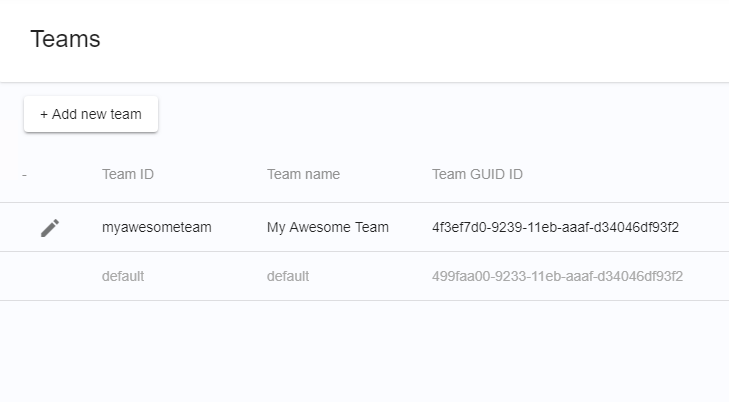
Exporting/Importing recoded session is executed per Team ('tenant') only. To perform an export/import, you need to get the ID of the relevant Team first:
-
From the Process Discovery Console, go to Settings
-
Click Teams
-
Copy the Team ID
Exporting (uploading) recorded sessions data
-
Open CMD
-
Run and set the below:
cd C:\Nintex\PDServer\Support\Nintex-admin-cli
set CONFIG_DIR=C:\Nintex\config
set NODE_ENV=prod
set Nintex_ENC_CFG=C:\Nintex\config\prod\general\Nintex-decrypt.json
set NODE_PATH=C:\Nintex\PDServer\MicroServices\node_modules -
Run 'node bin\cli.js' with the following parameters:
-
For
--tenant, update the relevant Team ID (tenant ID) -
For
--path, update the uploaded raw data location in the machineEXAMPLE :
node bin\cli.js --tenant=714e6950-9518-11eb-85dc-ff8896fdb21c --provider=rawData --command=uploadRawDataToGW --vaultAuthPath='C:/Kryon/PDServer/Support/pddr.keys' --path='C:/kryon/data'
If you have a space in the folder-name from where you’re copying the raw data, you might encounter an error in the command line.
-
Optional parameters to modify and/or to add to the command:
EXAMPLE:
--sendDelay=2000Parameter
Default value
Description
Alternative value
sendBatch
10
Batch actions size sent to RobotsGW
1-100
sendDelay
500
Delay in mill seconds for sending each batch
for actions more than 60k, use the value 2000
authProtocol
'http'
Authentication protocol
'https'
authHost
file:
config/keycloak-token-client.json{ “keycloakHost“ }
Aerobase Host
FQDN
authPort
file: config/keycloak-token-client.json
{ “keycloakPort“ }
Aerobase Port
80
authRealm
file: config/keycloak-token-client.json
{ “keycloakRealmId“ }
Aerobase Realm
Nintex
authClientId
pd-robot
Aerobase Client Id
pd-robot
authUser
pddr
Aerobase User
pddr
robotsGwQlPath
file: config/discovery.json
{ “robots-gw”: { “pathname” }}
robots Gateway Service GraphQL
/pddr/robotsgw/graphql
robotsGwHost
file: config/discovery.json
{ “robots-gw”: { “hostname” }}
robots Gateway Service Host
FQDN
robotsGwPort
file: config/discovery.json
{ “robots-gw”: { “port” }}
robots Gateway Service Port
80
robotsGwProtocol
http
Robots Gateway Service Protocol
https
-
-
Importing (downloading) recorded sessions data
-
Open CMD.
-
Run and set the below:
cd C:\Nintex\PDServer\Support\Nintex-admin-cli
set CONFIG_DIR=C:\Nintex\config
set NODE_ENV=prod
set Nintex_ENC_CFG=C:\Nintex\config\prod\general\Nintex-decrypt.json
set NODE_PATH=C:\Nintex\PDServer\MicroServices\node_modules -
Run '
node bin\sli.js' with the following parameters:-
For
--tenant, update the relevant Team ID (tenant ID) -
For
--path, update the location to which you want to save the downloaded dataIf you have a space in the folder-name from where you’re copying the raw data, you might encounter an error in the command line.
EXAMPLE:
node bin\cli.js --tenant=86b6a8e0-67a3-11eb-a999-23eb75c380fb --provider=rawData --command=downloadRawData --dbProviderName=mongodb --path='C:/Temp'
-