Use variables in your agentflow
In the Action configuration panel, you can insert a variable into a field that accepts variables. Each field that accepts variables accommodates one or more methods for inserting variables. Not all methods are available for all fields. Some fields allow you to type ahead and select from a filtered list of existing variables while others require selection from a drop-down list or from the Insert variables dialog box.
You can also resolve, remove, replace, view, edit, and delete variables in the Variables panel or from the configuration panel of an action.
Jump to:
Insert a variable using a filtered list
-
Go to Agents > All agentflows.
-
Open the Agent designer:
-
New agentflow: Click Create agentflow.
-
Existing agentflow: Select the agentflow you want from the agentflows page.
-
-
On the designer canvas, click the action you want to configure.
You can also click
 to the right of the action and then select Configure.
- In a field that accepts variables, type [[.
-
If you know the name of the variable you're looking for, continue typing to filter the list of displayed variables. Alternatively, scroll the list to find the variable you want to insert.
-
Click the variable you want to use.
A list of variables that can be inserted into the field is displayed.
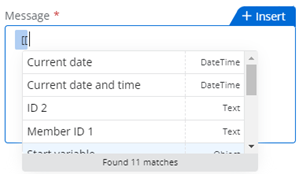
Note: To type two opening square bracket characters instead of displaying existing variables from a filtered list, press Esc. The variables list opens.
Select a variable from a drop-down list
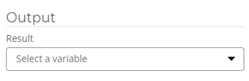
Some fields provide a drop-down list of all the existing variables that can be inserted into that field. Open the drop-down and select the variable you want to insert.
Tip: If you want to create and insert a new variable, select Add a variable from the drop-down list.
Select or create a variable in the Insert variables panel
Some fields that accept variables have + displayed on the top right of the field. This means you can use the Insert variables panel.
Important: File type variables are not supported in agentflows.
-
Go to Agents > All agentflows.
-
Open the Agent designer:
-
New agentflow: Click Create agentflow.
-
Existing agentflow: Select the agentflow you want from the agentflows page.
-
-
On the designer canvas, click the action you want to configure.
You can also click
 to the right of the action and then select Configure.
- Hover over the field until +Insert is displayed.
-
Click + Insert or click Add variable from the drop-down list.

The Insert variables panel is displayed.
- Click the tab of the variable type you want to use.
For example:- To see agentflow variables you have created, click the Agentflow tab.
- To see start event variables, click the Start event tab.
- Click the variable you want to use.
- Click Insert.
You can also create a new variable. See Create a variable from the toolbar.
Remove all variables from actions using it
If a variable or object is no longer needed or it is invalid, you can remove it from all actions using it. This cannot be undone. You can remove active and deleted variables. Removing an object also removes its nested variables in the input of actions using it; the output field of actions using the object is not impacted.
-
Open the Agent designer:
-
New agentflow: Click Create agentflow.
-
Existing agentflow: Select the agentflow you want from the agentflows page.
-
-
On the toolbar, click Variables to open the Variables panel or click +Insert from the configuration panel of an action.
-
Next to the variable or object you want to remove from all actions, click
 and select Replace/Remove.
 -
Click Remove all.
If you are removing all objects, its nested variables are displayed.
-
Click Remove.
All variables or objects are removed from actions using it. This cannot be undone.
Replace all variables in actions using it
You can replace all instances of a variable or object in all actions using it with a different variable or object of the same data type. You can replace active and deleted variables. This cannot be undone. Replacing an object also replaces its nested variables.
Replacing all variables in actions using it is helpful when a variable or object or has been superseded by another variable or object in agentflow actions or an invalid variable is being used in actions.
-
Open the Agent designer:
-
New agentflow: Click Create agentflow.
-
Existing agentflow: Select the agentflow you want from the agentflows page.
-
-
On the toolbar, click Variables to open the Variables panel or click +Insert from the configuration panel of an action.
-
Next to the variable you want to replace in all actions, click
and select Replace/Remove. -
Click Replace all.
Variables and objects with the same data type as the one that you are replacing are displayed. If you are replacing an object, only objects that have the same nested variables as the one you are replacing are displayed.
-
Select a variable or object to use as a replacement.
-
Click Replace.
All instances of the variable or object are replaced in the actions using it. This cannot be undone.
View variable usage
You can view the number of agentflow actions in which a variable is used and the exact actions where it is used. Click on an action to go to the location of that action in the Agent designer. The action configuration panel will open and you can view and edit the action, as necessary. This makes it easy to edit a variable in a specific action without having to remove or replace the variable in all actions using it.
-
Open the Agent designer:
-
New agentflow: Click Create agentflow.
-
Existing agentflow: Select the agentflow you want from the agentflows page.
-
-
On the toolbar, click Variables to open the Variables panel or click +Insert from the configuration panel of an action.
-
Next to the variable for which you want to view usage, click
and select Usage.Actions in which the variable is used are displayed.
-
(Optional) Click an action to open it on the designer canvas in the Agent designer.
Edit variable
You can view the details of a variable, such as name, default value, type, and the number of agentflow actions in which it is used. You can also edit the name and default value of the variable.
-
Open the Agent designer:
-
New agentflow: Click Create agentflow.
-
Existing agentflow: Select the agentflow you want from the agentflows page.
-
-
On the toolbar, click Variables to open the Variables panel or click +Insert from the configuration panel of an action.
-
Next to the variable that you want to view and edit, click
and select Details. -
Click Edit.
-
Edit the Name and Default value of the variable, as necessary. To edit the Default value, click
 and select a new value.
 -
Click Save.
Delete variable
You can only delete a variable if it is not being used in any actions. You can manually remove or replace a variable in actions using it so that you can then delete it (see View variable usage to help you find a variable in actions and delete it). If you want to remove a variable from all actions using it, see Remove all variables from actions using it. If you want to replace a variable in all actions using it, see Replace all variables in actions using it.
-
Open the Agent designer:
-
New agentflow: Click Create agentflow.
-
Existing agentflow: Select the agentflow you want from the agentflows page.
-
-
On the toolbar, click Variables to open the Variables panel or click +Insert from the configuration panel of an action.
-
Next to the variable that you want to delete, click
and select Details. -
Click Edit.
- Click the delete icon.