Properties page
Right-clicking an existing style profile allows you to perform actions on the style profile, such as Edit, Save As,Check In / Check Out, Move To and Delete. You can also see these actions by selecting a style profile and using actions on the style profile properties page, both of which are shown here.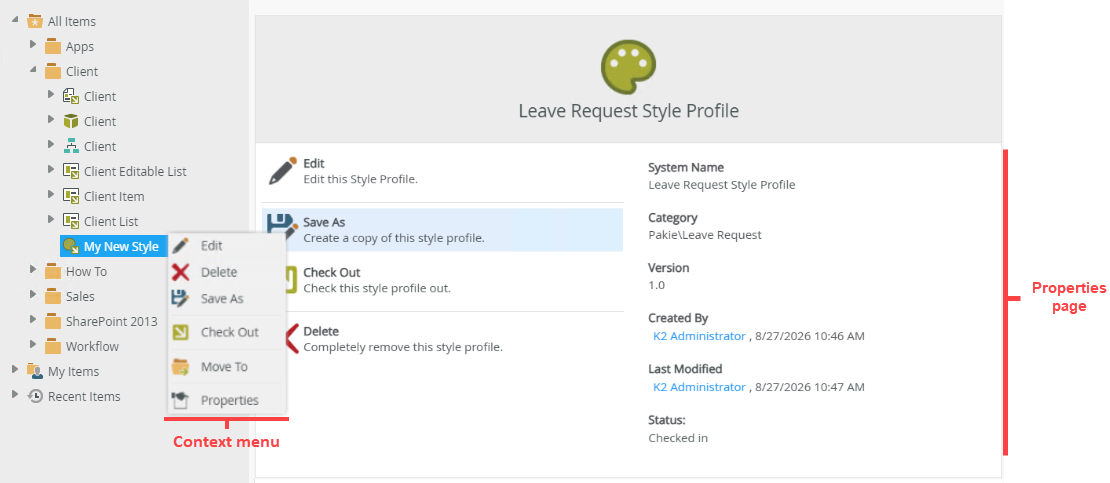
| Feature | Description | How to use it |
|---|---|---|
| Edit | Allows you to edit the style profile. If you don't see this option you don't have modify rights. For more information on the different rights, see the Authorization topic | Click Edit |
| Save As | Allows you to quickly and easily create a copy of your style profile in the Designer. Provide a name and category for your new style profile in the dialog box | Click Save as |
| Check In | Makes the style profile available to other people | Click Check In |
| Check Out | Checks the style profile out for you to edit | Click Check Out |
| Delete | Deletes the style profile. If you don't see this option you don't have delete rights. For more information on the different rights, see the Authorization topic | Click Delete |
| Cancel Check Out | Cancels the check out action and reverts the style profile back to its previous state | Click Cancel Check Out |
| Move To | Allows you to move your style profile to another category in the Designer. Select the new category to which you want to move your style profile in the dialog box | Click Move to |
| Properties | Opens the Properties page where you can see the style profile details and actions | Click Properties |
To make changes to a style profile you must check out the style profile first. A checked-out style profile is not available for editing by other people and you must check it back in for other people to see the changes you made.