Migrate Exchange Web Services (EWS) for Exchange Online to Microsoft Graph (MSGraph)
Microsoft is deprecating and gradually disabling Exchange Web Services (EWS) for Exchange Online in favor of MSGraph. This change directly impacts Nintex Automation K2 environments that rely on Exchange Online EWS to send emails and interact with mailboxes through SmartObjects and workflows. This change does not affect Exchange on-premises environments.
Prerequisites
Nintex Automation K2 (5.8.1) or later.
 What is impacted in the product?
Workflow emails
- Workflow task notification emails
- Workflow email events
- SmartActions replies
Forms Emails
- Email action on rules
Exchange Online SmartObjects (Exchange Online Feature)
- Any workflows or forms calling Exchange Online SmartObjects directly
- Mail folder SmartObjects
- Email-related SmartObjects
- Appointment SmartObjects
SmartObject differences
Moving from EWS to MSGraph is a behavioral shift, not just a technical upgrade. You must revalidate workflows, redesign edge cases, and adjust to a stricter, more modern API model.
See Exchange Service to learn about the behavioral differences between EWS and MSGraph that affect how SmartObjects interact with Exchange data.
Key differences:
- MSGraph enforces stricter permissions.
- Some mail folder and message properties behave differently.
- Pagination, filtering, and throttling rules differ.
- Not all EWS features or fields exist in, or map directly to, Microsoft Graph.
Impact:
- Existing workflows may behave differently.
- Forms retrieving email metadata may require adjustment.
- “Send On Behalf” behavior can change.
- Some scenarios may require redesign rather than simple fixes, especially where EWS-specific fields or flags were used.
For more information see: mail api overview and ews-graph comparison.
Migrate
There are three options available when you migrate from EWS Exchange Online to MSGraph.
Migration options
Option 1 : Use this option to migrate data using the existing Exchange Online (EWS) feature. The system will manage the OAuth setup and SmartActions connection string.
Option 2 : Use this option to create a new Exchange Online (MSGraph) feature alongside the existing EWS configuration.
Option 3 : Use this option to manually configure OAuth and MSGraph resources for advanced scenarios.
Option 1: Migrate data using the existing Exchange Online (EWS) feature
- Recommended when EWS was previously configured using the Features node in Management.
- Quickest option if no customization is required.
- Preserves existing service instance references and SmartObjects for workflows and forms.
- Sets up the new Microsoft Graph connection string in the database when the Enable SmartActions and Workflow Emails check box is checked.
- There is no longer a need to configure connection strings using the K2 Connection String Editor tool.
- If using the Enable SmartActions and Workflow Emails check box, the email address specified in the feature (and the user logging in to generate the token) should be the SmartActions email address and the email address should be resolvable in K2 (cached in Identity); otherwise, you may receive an error.
Use the existing Exchange Online (EWS) feature in Management.
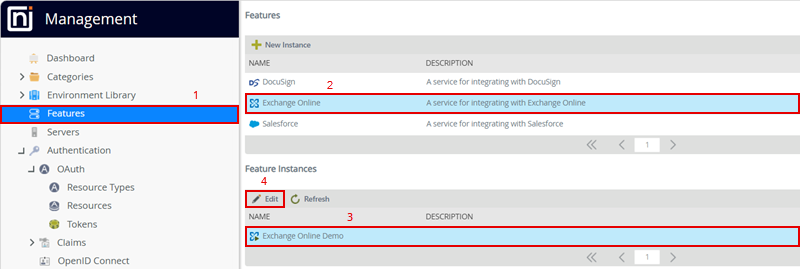
- Select Features and click Exchange Online.
- Under Feature Instances, select your instance and click Edit.
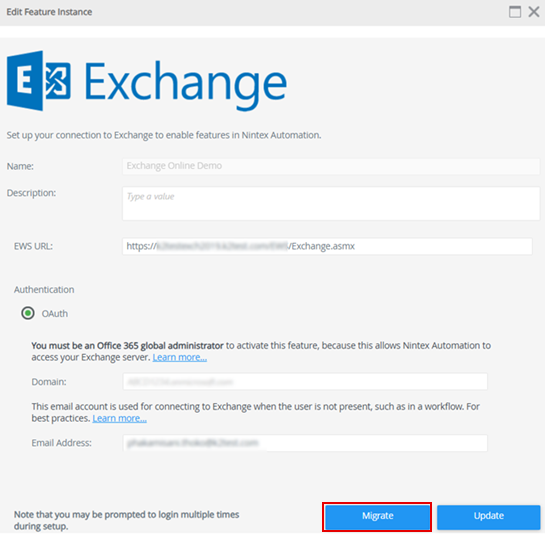
- Click Migrate. This runs through the Configure OAuth steps to:
- Create the new MSGraph OAuth resource.
- Generate a new OAuth token.
- Swap out the old EWS OAuth resource on the service instance.
- Finish the process and click OK.
-
If SmartActions are required, edit the Exchange Online feature instance you just migrated, and check the Enable SmartActions and Workflow Emails check box.
Option 2: Create and configure a new Exchange Online Microsoft Graph feature
- This creates a new MSGraph enabled service instance, but the EWS service instance still exists.
-
Workflows and forms will continue using the EWS Exchange Online feature SmartObjects.
-
This option provides cleaner separation from the legacy EWS because no existing configuration is reused.
-
Requires re-binding of Exchange Online SmartObjects in workflows and forms.
-
Sets up the new MSGraph connection string in the database when the Enable SmartActions and Workflow Emails check box is checked.
-
There is no longer a need to configure connection strings using the K2 Connection String Editor tool.
-
Useful for testing or rollback scenarios because the EWS configuration still exists separately from the Microsoft Graph configuration.
Configure a new Exchange Online (Microsoft Graph) feature, but keep the existing EWS feature intact.
- Add a new Exchange Online feature instance in Management.
- Enter the required information in the Domain and Email fields.
- Check the Enable SmartActions and Workflow Emails check box.
- Click Add.
- Run through the configure steps.
- Finish the process and click OK.
Option 3: Manually configure OAuth and MSGraph resources
- Use this option if you have:
- Highly customized environments
- Multiple tenants or advanced OAuth scenarios
- Custom “Send On Behalf” requirements
- Requires manual OAuth resource and connection string setup.
-
Higher risk, but offers greater flexibility.
- Existing EWS configuration remains unchanged.
Follow the steps in the manual Exchange Online configuration topic to manually migrate data without using the Exchange Online feature in Management.
Use this option if you have:- Highly customized environments
- Multiple tenants or advanced OAuth scenarios
- Custom “Send On Behalf” requirements
Post migration
Step 1 – Identify what is used
- In Management, go to Features> Exchange Online (Feature Instances) and look for Exchange Online instances that still have the EWS URL (https://outlook.office365.com/EWS/Exchange.asmx) or display the Migrate button when you click Edit.
- Go to Authentication> OAuth> Resources and look for OAuth resources that have a resource parameter named "resource" with the value "https://outlook.office365.com". These typically have names starting with "Exchange Online -".
- Go to Integration> Service Instances and look for instances of the Exchange Online type (last column). Edit each instance and identify those that:
- Use an OAuth resource identified in step b (or have an OAuth resource audience of "https://outlook.office365.com"), and
- Have "Use MSGraph" set to false.
- Identify the SmartObjects used by the service instances found in step c. (You can use a SQL script if unsure.)
- Identify the forms or workflows that use the Exchange Online SmartObjects (e.g., Email, Appointment, Folder, Task, etc.) from step d.
- Run the ConnectionStringEditor.exe tool from the K2 installation folder (\Host Server\Bin) and look for any SourceCode.MessageBus.EWS connection strings.
SELECT DISTINCT
[SO].[ID],[SO].[Name],
CASE WHEN [SI].[ID] IS NULL THEN '***MISSING***' ELSE [SI].[Name] END AS [ServiceInstanceName],
[CD].[CategoryID],(SELECT [Category].[GetCategoryPath] ([CD].[CategoryID],null,'\',1)) AS 'CatPath'
FROM [K2].[SmartBroker].[SmartObjectMethodExecutionBlock] [SOMEB]
LEFT OUTER JOIN [SmartBroker].[ServiceInstance] [SI] ON ([SOMEB].[ServiceInstanceGuid] = [SI].[Guid])
LEFT OUTER JOIN [SmartBroker].[SmartObjectMethod] [SOM] ON ([SOMEB].[SmartObjectMethodID] = [SOM].[ID])
LEFT OUTER JOIN [SmartBroker].[SmartObject] [SO] ON ([SOM].[SmartObjectID] = [SO].[ID])
LEFT OUTER JOIN [Category].[Data] [CD] ON ([SO].[Guid] = [CD].[Guid])
WHERE [SI].[ID] IS NULL OR [SI].[ServiceTypeGuid] = '7F3D9D53-C1E0-4E8D-B026-CA146DA63ADB'
Step 2 – Remove EWS Exchange Online feature/service instances
If you had a single EWS Exchange Online feature that was migrated to MSGraph, there should be no instances to clean up, as the EWS configuration would have been reused and updated.
If you identified any Exchange Online service instances still configured for EWS in step 1(c), proceed with the following:
- In Management, go to Integration > ServiceInstances.
- Select the instance in the list you identified in step 1(c) and click the delete button.
Removing a service instance will also remove the associated Exchange Online feature instance (step 1(a)), as the feature instance and service instance are linked.
- Manually remove the SmartObjects identified in step 1(d), and
- Update all forms, views, and workflows identified in step 1(e), to remove or replace references to the affected SmartObjects
Step 3 - Remove residual EWS connection strings
- Run the ConnectionStringEditor.exe tool from the K2 installation folder (\Host Server\Bin).
- Select and delete the EWS connection strings identified in Step 1(f).
Step 4 - Remove OAuth resource (EWS)
- In Management go to Authentication > OAuth > Resources.
- Select the resources identified in step 1(b) and click Delete.
Step 5 - Update config file
- Back up, then edit the K2HostServer.exe.config file located in \Host Server\Bin.
- Under <SourceCode.smartActions.directoryCatalog>, remove the following line:
Checklist
- No EWS connection strings.
- No EWS SmartActions.
- No EWS OAuth resources.
- No EWS feature or service instances.
- No orphaned SmartObjects.
Validate
Monitor network traffic to ensure that there are no calls to:
https://outlook.office365.com/EWS/Exchange.asmx
You should instead see Microsoft Graph calls to URLs such as:
- https://graph.microsoft.com/v1.0/users/{email}/mailFolders/Inbox/messages
- https://graph.microsoft.com/v1.0/users/{email}/microsoft.graph.sendMail
Troubleshooting
Identity lookup error
Issue
When selecting the Enable SmartActions and Workflow Emails check box, the following error is displayed:
Identity lookup failed for UserID
Cause
Nintex Automation K2 cannot find an identity in the Identity Cache that matches the specified email address. A user with that email address must exist in the Identity Cache before SmartActions can be enabled.
Resolution
Ensure that a user with the specified email address is synced or resolved in K2 so that the identity exists in the Identity Cache. Once the identity is available, enable the Enable SmartActions and Workflow Emails feature again.
OAuth token expiry error
Issue
Token-related failures during Exchange Online feature execution (OAuth token step fails or invalid token returned for MSGraph).
Cause
Existing OAuth token is invalid, expired, or corrupted.
Resolution
- Remove the existing token.
- Run Update on the Exchange Online feature instance to regenerate the token via the OAuth Token Step.
- Ensure you log in using the correct user account that owns the mailbox to be used.
-
If issues persist:
- Configure Fiddler as a proxy to capture network traffic.
- Inspect request/response payloads.
- Decode the JWT token using https://www.jwt.io to validate claims and permissions.
OAuth authentication error
Issue
OAuth authentication fails due to missing or invalid OAuth resource configuration.
Cause
OAuth resource is corrupted, outdated, or mismatched with current configuration.
Resolution
- Delete the existing OAuth resource.
- Run Update on the Exchange Online feature instance.
-
This will:
- Recreate the OAuth resource during setup.
- Regenerate the OAuth token via the OAuth Token Step.
K2Trust relying party error
Issue
Relying Party setup not executed or authentication trust not established for Exchange Online (MSGraph).
Cause
-
The Relying Parties step only runs during first-time Service Instance creation.
-
If the Service Instance already exists, this step is skipped.
Resolution
-
Manually rerun the K2Trust Relying Party setup by constructing the URL and executing it in a browser (preferably Incognito mode).
-
https://trust.k2.com/relyingparty/create?k2url={k2url}&mso_cid=93f2b138-41f2-4338-ae96-5004f42db6a0&rpGuid=5fa33df0-d6b8-4dcd-8885-387a0f5576eb&returnUrl={k2url}/Identity/Token/Oauth/2/Authorized
-
Replace {k2url} with your Web Service URL (SSL) as configured in environment settings Example: https://nintex.k2test.net.
-
{k2url} appears twice in the URL and must both be replaced.
-
- You must log in as an Administrator when executing the URL.
- You will be prompted to grant permissions to the Exchange Online (MSGraph) K2 application.
- The administrator used here does not need to be the same user whose mailbox is used for email processing.