Considerations and best practices for custom Special Formats
- You must restart the server after creating or modifying Custom Special Formats.
- You may need to clear the cache and refresh your browser to see changes to Custom Special Formats.
DateTime properties and controls
Custom Special Formats apply to numbers, which means you cannot use them for DateTime properties or controls. However, you can create a custom date format using either the Format dialog or Expression Builder:
Use the format dialog
- Drag a date control or field into a view or form.
- Click the Edit Styles icon in the toolbar.
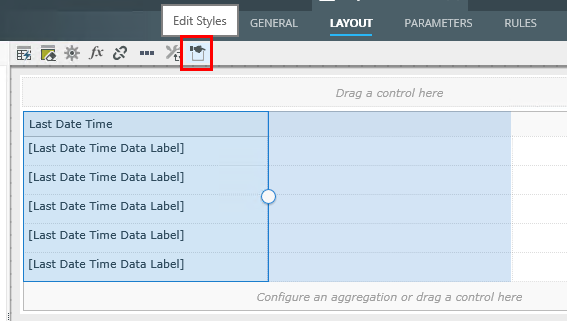
- The Format dialog opens. On the Format tab, select Custom.
- Enter the format you want to use in the Type text box and click OK. For example, M/d/yyyy h:m tt
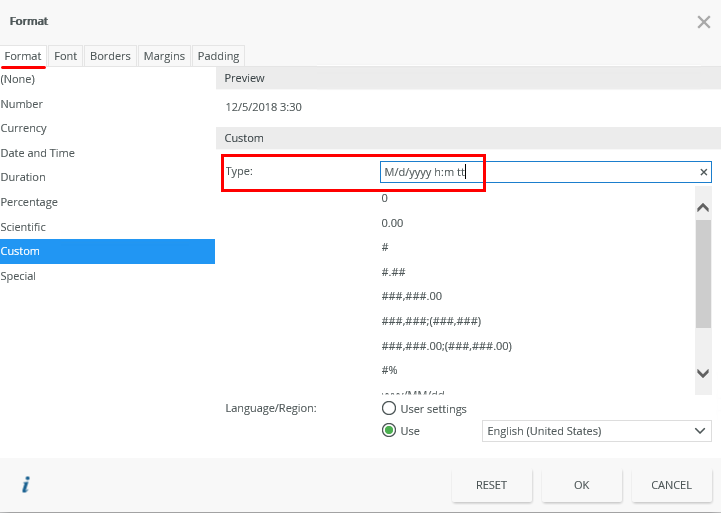 There is no validation to the format you enter.
Use the Expression Builder
- Drag a data label control onto a list view.
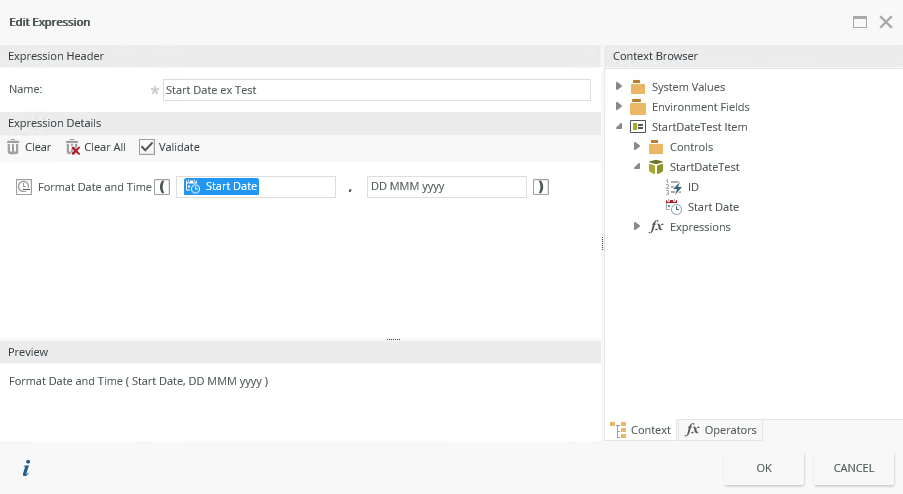
- Click the Expression icon in the toolbar and add an expression.
- Click the Operators tab and expand Date and Time.
- Drag the Format Date and Time function.
- In the Context Browser find the column or data to format, in this case Start Date
- Drag it into the left side of the expression.
- In the right side, enter the format, in this case DD MMM yyyy.