Install and enable Dynamic Advanced Commands
In this article:
Prerequisites
To ensure Dynamic Advanced Commands (DACs) can be properly synchronized, the following must be configured:
-
In Optional features step while installing RPA Server, make sure Enable Distribution System for DACs option is enabled.
-
In Updated service details step while installing RPA Studio or RPA Robot, make sure Enable distribution system option is selected.
In addition, you have to decide whether to install DACs either in the RPA server or the client machine. If they are installed in the server, DACs will synchronize to all client machines where RPA Studio/Robot is installed. On the other hand, if DACs are installed in the client machine, DACs will synchronize to the RPA Studio/Robot installed on that machine.
You can determine whether DAC is installed on the machine by checking the Windows Add/Remove Program (or Apps > Installed apps) menu. For example, if you are checking this on the server and see an entry for Nintex Dynamic Commands, then DAC was previously installed on the server.
Install DACs
-
Make sure that Nintex RPA Studio/Robot is installed before the DAC installation.
-
The Nintex Updater service MUST be running for DAC to work properly. This can be validated by opening Microsoft Windows Services.msc and checking the status of Nintex Updater service.

-
Download the Dynamic_Commands.exe file that corresponds to your RPA version from Nintex Customer Central.
-
Run the Dynamic Commands installer.
-
Select the Deployment Type.
- By selecting Server deployment, the DACs will automatically be distributed to all clients.
- If DACs were previously installed, you can make a different selection here. This depends on whether the machine on which you are installing the DACs has changed its purpose from a client to a server machine or vice versa.
-
Allow the installer to perform a System check.
-
If possible, specify the Installation folder path field such as C:\Nintex\DynamicCommands.
-
Click Next to initiate the installation.
In addition to installing the Dynamic Commands, the installer will also install Microsoft Windows Desktop Runtime to allow the system to run a new host service (Kryon.DC.Remote.Host). The execution of the Dynamic Commands is performed by this new host service, not from Studio.
If a "Failed to extract archives. Error. Could not find a part of the path 'C:\Nintex\installer-assets\dynamic-commands'." error occurs, click Ignore to continue the installation. If the installation does not proceed successfully, uninstall the existing version of Dynamic Commands (DAC) and then restart the installer.
-
Restart the server. This must be performed to ensure the changes take effect and is initialized.
-
To confirm that the service is running, open Task Manager and look for Kryon.DC.Remote.Host service. It may appear in a different location in Task Manager, depending on the version of Microsoft Windows. You can expect two instances running if both RPA Studio and Robot are installed and running:
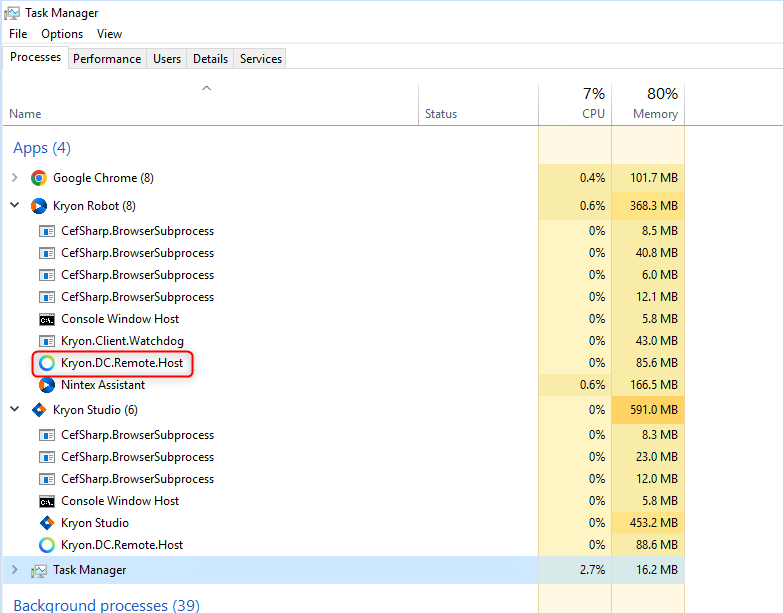
The service "Kryon.DC.Remote.Host.service" starts only when the studio and/or robot are up and running, and not when they are idle.
-
Make sure to run the installation on every client machine that needs to use the Dynamic Commands if it was originally installed on the client machine.
Once installation is complete, you can check that the commands appear under the installation folder. An example is C:\ProgramData\Nintex\packages
Naming convention
The naming convention is : Kryon-ac-commandname-year.month.version
-
"
ac" stands for "advanced command" -
The date stands for the release date of the dynamic command + its version
Synchronize and update DACs
Synchronize from RPA server to RPA client machine
In the setup where DACs are installed in the RPA server, DACs from the server will synchronize with the client machine and is facilitated by the Nintex DAC Updater service in the server and the client machine. This happens in the background and may take up to 40 minutes to complete for the first time.
Ensure the Nintex Updater service is running on the server and client machine for successful synchronization.
Synchronize from RPA client machine to RPA Studio/Robot
In the setup where DACs are installed in the client machine, DACs will synchronize with the RPA Studio and RPA Robot. After synchronizing the DACs, all user accounts on that client machine will access the same copy of synchronized DACs.
Synchronization happens when the RPA Studio or RPA Robot is open and idle with no wizards open. Alternatively, you can force synchronization.
Your DACs are synchronized when you can see a blue dot next to the DAC when editing a wizard in RPA Studio.
Update Dynamic Advanced Commands
The DAC Updater Service can be enabled from either of the following:
Run updater from the Robot
To run the DAC Updater Service from the Robot:
-
In the Nintex Robot, select Options.
-
Select the Advanced tab.
-
Scroll down to the DAC Updater Service and choose from the options listed.
/Dynamic Commands DAC_22.png)
-
Select Run DAC updater service manually option and click Update all DACs to manually update your DACs. When complete, you should change it back to the Run DAC updater service automatically option.
-
Click OK to save settings.
Run updater from the Studio
To run the DAC Updater Service from the Studio:
-
In the Nintex RPA Studio, select Tools from the menu bar.
-
Select Options from the dropdown, and the Options window opens.
-
Select the Advanced tab.
-
Scroll down to the DAC Updater Service and choose from the options listed.
/Dynamic Commands DAC_23.png)
-
Select Run DAC updater service manually option and click Update all DACs to manually update your DACs. When complete, you should change it back to the Run DAC updater service automatically option.
-
Click OK to save settings.