Setting Robot Preferences
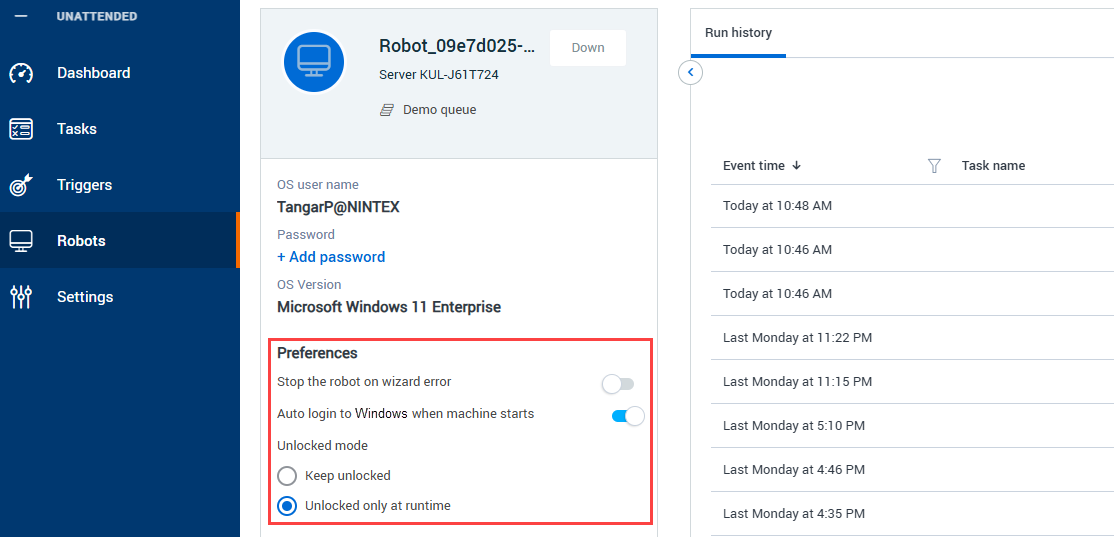
Robots in RPA help to either assist users when performing a task or perform a task independent of human intervention. In a typical RPA scenario, you will have many robots registered and ready to carry out tasks. To manage these robots, there are some settings that you can set for each of them so they can function properly in their specific task. The robot preferences are found at the bottom of the left-hand panel of the specific robot's page.
Follow the steps below to access a specific robot's page and make changes to its preferences:
-
Go to the Robots main page (by clicking Robots in the menu).
-
Click on a specific robot name in the Approved tab. The robot's details will be displayed.
-
Set the robot's preferences by specifying the options under the Preferences section:
-
Stop the robot on wizard error
-
When selected, upon wizard error (that results in the wizard ending):
-
The robot's status is set to Stopped (the robot will be unavailable to run additional tasks); and
-
An email notification is sent if configured. Learn more about Adding/Editing Robot Event Notifications
-
-
When unselected, upon wizard error:
-
The robot remains active (and available to run additional tasks).
-
-
Auto login to Windows when machine starts
When selected, when the machine starts, it automatically logs in to this robot's Windows session (requires that the robot’s OS password has been set; see note below).
-
Unlocked mode
-
When Unlock only at run-time is selected, the robot's Windows session is unlocked (using the robot's Windows password) only when the robot is running a task (this requires that the robot’s OS password has been set; see note below).
-
-
When Keep unlocked is selected, the robot's Windows will remain unlocked at all times.
-
Options 3b & 3c require that a Windows password is set for the robot. To set the password, you can either:
-
Enter an OS password directly into the robot's row in the Robot list (in the OS Password column)
/Console_10.png)
-
On the robot's Details page
/Console_11.png)