Setting Up the Email Server
For detailed instructions about adding IMAP and POP3 permissions, see Microsoft Authentication.
To access the Email Server Settings:
-
Go to Settings > Email Server Settings > Server configuration
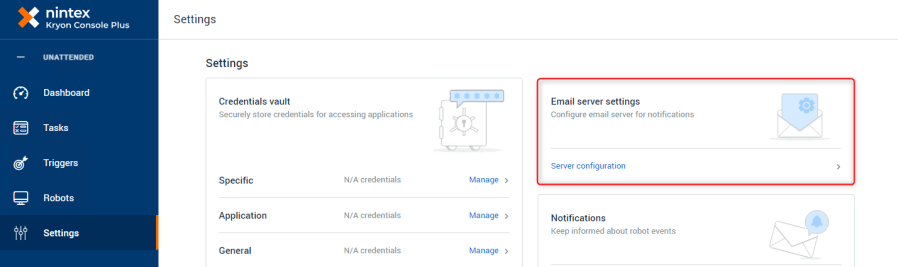
/Console_93.png)
-
In the Email Server section, enter the settings required to access the outgoing email server and account.
-
Choose the Type.
The Office365 type is no longer available for use. If you used this option in an older RPA version, you will have to select another type. You are unable to save your changes until you specify a different server type.
-
Fill in the Server address.
When inputting the Server address in the Console, remove the suffixes to prevent errors.
For example, Server address:
https://outlook.office365.com/EWS/Exchange.asmxshould be written as:https://outlook.office365.com. -
Fill in the Server port.
-
Check if you want to use SSL.
-
-
Enter the From email address from which notifications will be sent.
-
Set up the Account info - You can enter info manually, select credentials vaults, or select login anonymously (if using an SMTP server).
-
(Optional) Verify your settings: Specify an email address to which to send a text email, and click Send a test email.
-
(Optional) Configure Notifications: Specify the event types on which you would like to receive notifications.