Java Manager - Installing Java Access Bridge
If you are using any Java Advanced Commands, you'll need to install the Java Access Bridge tool. This tools tests the functionality of your Java application and its communication with the Nintex system.
The Java Access bridge can be installed by simply running the Nintex Java Manager after the server and client installation are complete.
-
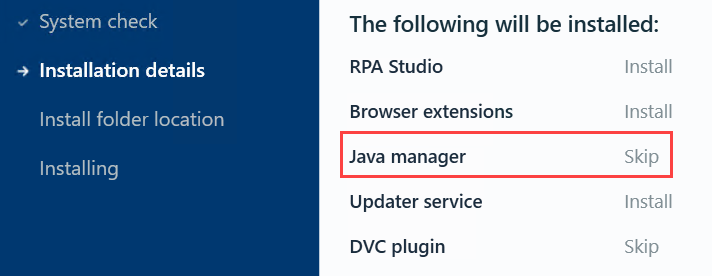
By default, the Java manager option is not enabled during RPA Studio installation. If you want to use the Java Manager, after RPA Studio has been installed, you have to uninstall and reinstall it with the Java manager option enabled. An example of this option is as follows:
Also see:
To install Java Access Bridge
-
Find and execute
Kryon.Java.Manager.exeto install Java Access Bridge. The location of the file depends on the following:-
In RPA Server - Extract JavaManager.zip which is, by default, found in c:\nintex\installer - assets\ folder. You will find
Kryon.Java.Manager.exe. -
In RPA Client - By default,
Kryon.Java.Manager.exeis found in c:\Program Files\Nintex RPA Studio\Support Tools\ folder.
-
-
Run the
Kryon.Java.Manager.exefile./Installation and Upgrade_89.png)
Note that all Java applications will close once you run the tool.
-
Once installation is complete, you'll be able to click the Test button to test the Java functionality.
-
The Java Application functionality and settings are tested through the Java Access Bridge and a report of any error will become available if relevant.
-
Review the report and consult with support if required.
-
Java application and Java Access Bridge may be installed on either Server or Clients (Robot or Studio).
Enabling Java Access Bridge when installing Clients (Robot / Studio)
You can enable the Java Access Bridge when installing the client MSI package by setting the ENABLE_JAVA_MANAGER parameter to 'true':
Example:
/Installation and Upgrade_90.png)
This operation runs the Java Manager as part of the installation on the clients that need to support Java applications.
For more parameters, see Run Client (Robot/Studio) MSI Installer
-Take me to the relevant step in the RPA Installation Guide-