Setting Up the Email Server
To access the Email Server Settings:
-
Go to Settings > Email Server Settings > Server configuration
/Console_92.png)
/Console_93.png)
-
In the Email Server section, enter the settings required to access the outgoing email server and account.:
-
Choose the Type.
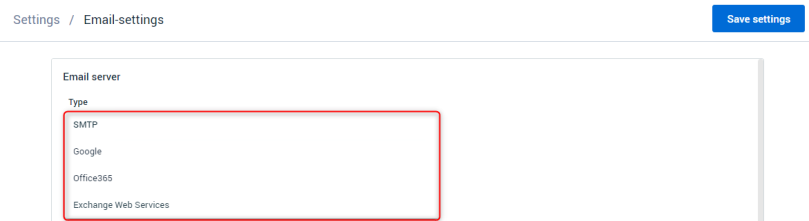
-
Fill in the Server address.
When inputting the Server address in the Console, remove the suffixes to prevent errors.
For example, Server address:
https://outlook.office365.com/EWS/Exchange.asmxshould be written as:https://outlook.office365.com. -
Fill in the Server port.
-
Check if you want to use SSL.
-
-
Enter the From email address from which notifications will be sent.
-
Set up the Account info - You can enter info manually, select credentials vaults, or select login anonymously (if using an SMTP server).
-
(Optional) Verify your settings: Specify an email address to which to send a text email, and click Send a test email.
-
(Optional) Configure Notifications: Specify the event types on which you would like to receive notifications.