Using Item References
The following steps outline how to use an item reference (in this example specifically how to move a List Item using the Item Reference) named QC City:
- Click and drag the Move List Item wizard (located on the List Items ribbon) onto a workflow step.
- Select the Item Reference named QC City from the drop-down list.
- Notice the Item Reference for QC City is also available in the Context Browser making it easy to reuse the reference by dragging and dropping it onto workflow fields.
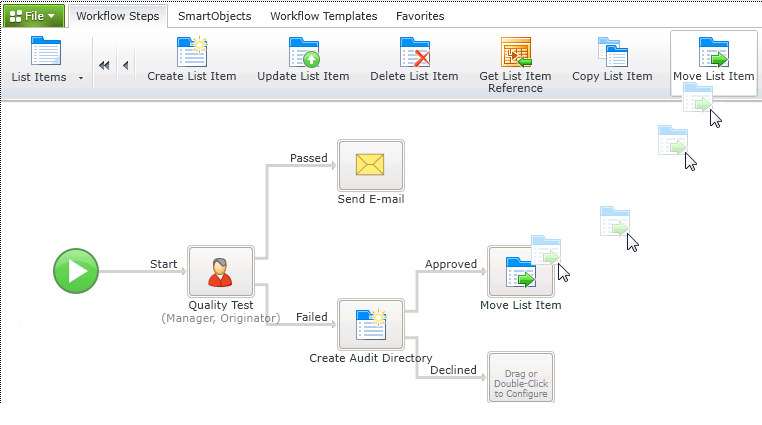

 Using the List Method of the Get List Item Reference wizard to Filter List Items
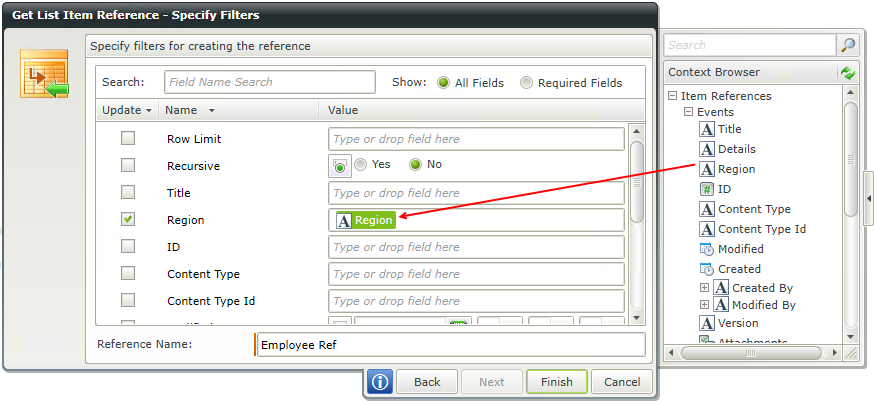
Filters and options can be applied to a List Item Reference in a workflow when configuring the Get List Item Reference wizard. To begin, use the Get List Item Reference wizard to create an item reference based on a value in a SharePoint list column.
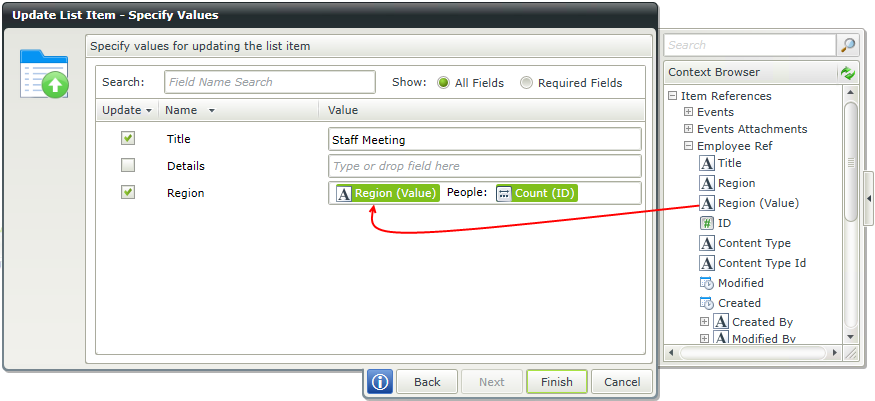
Use the item reference in another wizard such as the Update List Items wizard to update the list item matching the filtered item reference.
A dialog opens when dragging the List Item Reference across where List Options can be specified. This selection determines how the results of the List Item Reference should be returned.
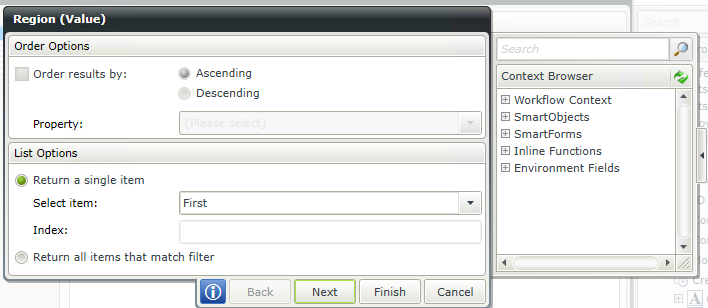
| Feature | What it is | How to use it |
|---|---|---|
| Order Options | This feature is not available | N/A |
| Return a single item |
First - The first item found when executing the query will be returned |
Select one of the item options. If Index is selected specify an Index by dragging a Data Field or XML field from the Context Browser or typing an Index. |
| Return all results that match filter | Returns all the results that match the filter when executing the query | Select the option |