Excel
The Excel functions return values from Excel workbooks stored in SharePoint libraries. They can perform calculations, usually based on input, and return values.
Prerequisites
The following are prerequisites in order to use the Excel Inline Function features:
- Microsoft SharePoint 2010 or Microsoft SharePoint 2013
- SharePoint Excel Services must be enabled
- Excel Services must be configured properly. For more information, please refer to the Microsoft documentation or these articles:
- SharePoint Excel Calculation Services must be running
- Trusted file locations must be set up for the specific document library that the Excel spread sheet resides in
- SharePoint 2010:
http://technet.microsoft.com/en-us/library/ff191194.aspx - SharePoint 2013:
https://technet.microsoft.com/en-us/library/jj219565.aspx
- SharePoint 2010:
It is important that the trusted folder URL is expressed in the correct syntax. An example of the correct format would be http://servername/ExcelDocLib/. Using the incorrect format will result in errors when starting a process instance.
Excel Services Inline Functions
The following Excel features are available within the Function Browser:

An item can be selected and added to the canvas or K2 field part by clicking the Add button, or by using drag-and-drop.
| Functions | Description | Example |
|---|---|---|
|
Get Cell With Input (location String, inputCell String, inputValue String, outputCell String) |
Returns the cell value as a string, after setting the input and performing a recalculation if applicable. |
Cell A1 Value : "1" |
|
Get Cell (location String, outputCell String) |
Returns the cell value from an Excel Workbook as a string. | Output Cell Value: "100test" Result: "100test" |
| Get Range With Input |
Returns the cell or range value as a string, after setting the input and performing a recalculation if applicable. Can be a cell or a range. This function only works with String[] arrays. If required to set or return a single cell using the GetRange/GetRangeWithInput functions, the single value can be wrapped in a Split function to get it into the String[] array which is required by the function. Additionally, if there is a delimited list of strings to be passed in, the Split function can be used to get the delimited list into an array. Input Value Parameter - Supports GetList method of a SmartObject or a function that returns a list of strings Important: the dimensions of the Input Range and Input Value parameters must be the same in order to ensure data integrity. |
Cell:
Input Range: "A1:A5" Input Value: "Split(10;20;30;40;50,;)" Output Range: "A6" Cell A1 Value: "1" Cell A2 Value: "2" Cell A3 Value: "3" Cell A4 Value: "4" Cell A5 Value: "5" Calc of Cell A6: "Sum of A1 to A5" Range Result: "150" |
|
Get Range |
Returns the cell value or range value from an Excel Workbook as a string. Can be a cell or a range. This function only works with String[] arrays. If required to set or return a single cell using the GetRange/GetRangeWithInput functions, the single value can be wrapped in a Split function to get it into the String[] array which is required by the function. Additionally, if there is a delimited list of strings to be passed in, the Split function can be used to get the delimited list into an array. Important: the dimensions of the Input Range and Input Value parameters must be the same in order to ensure data integrity. |
Cell:
Output Range: "A1:A4" Cell A1 Value: "1" Cell A2 Value: "2" Cell A3 Value: "3" Cell A4 Value: "4" Range Result: "1234" |
Considerations when working with Excel
Raw Data: The default value for Raw Data is 'False'. If false, the formatted value is returned. For example, if using currency with a $ symbol and two decimals, a value of $15.00 is returned. If true, the actual value of the cell is returned, in this case 15.
Dimensional Support: To interpret the data which is returned by the Get Cell and Get Range inline functions, it is important to understand what the output range function is capable of. The Excel Inline functions currently support the following:
- Returns from individual Excel cells.
- Array returns from one or more Excel columns, as long as the return does not consist of more than one row.
The following returns are not currently supported:
- Array returns from Excel rows.
- Two-dimensional array returns, for example ‘blocks’ of Excel data which consist of more than one column.
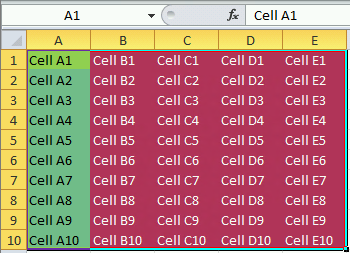
The following rules apply for both the Get Cell and Get Range inline functions. In the diagrams below, green cells represent output ranges that are returned for the given request. Red cells represent output ranges that cannot be returned by the inline function.
To specify an output range from an individual cell, the Output Range string in the Configure Function window must be entered in a format of Column x Row:
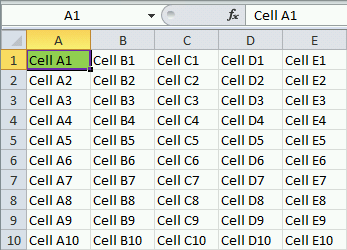
In the example above, the returned output range is from cell A1 only.
To specify an output range from a column, the Output Range string in the Configure Function window must be entered in a format of [First cell : last cell], separated by a colon, for example, A1:A10:
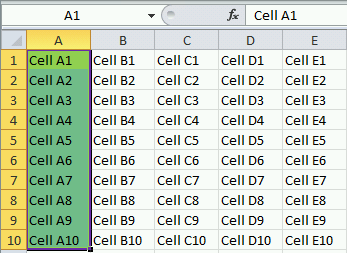
In this example, the returned output range is A1:A10.
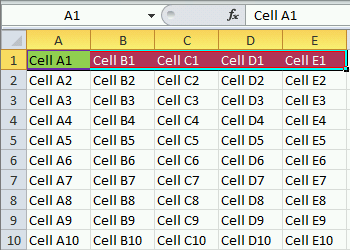
Output ranges from spreadsheet rows cannot be used. For example, if an output range of A1:E1 is requested, only the value for cell A1 will be returned, as seen below:
Two-dimensional output ranges from spreadsheets cannot be used. For example, if an output range of A1:E10 is requested, the Excel Inline function does not return the expected range of columns and rows. Only the relevant values for the first column in the range (i.e. A1:A10) are returned, as seen below: