Testing a Custom User Manager
This topic describes how to test that a Custom User Manager is functioning as expected. Depending on your environment, some of these functions may not be applicable or available.
Using SmartObject Service Tester Tool
With the SmartObject Services Tester Tool (%PROGRAMFILES%\K2\Bin\SmartObject Service Tester.exe) you can check if the SecurityLabel is registered by executing the List method of the GetLabels SmartObject 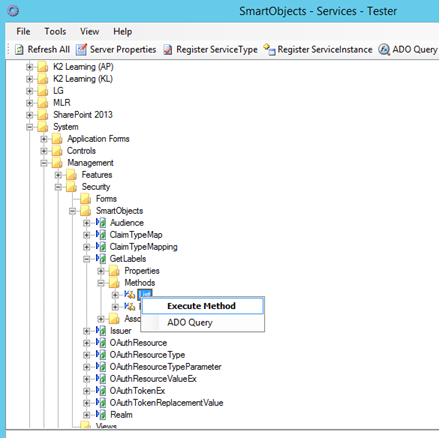
The newly registered User Manager's Security Label should be on the list returned.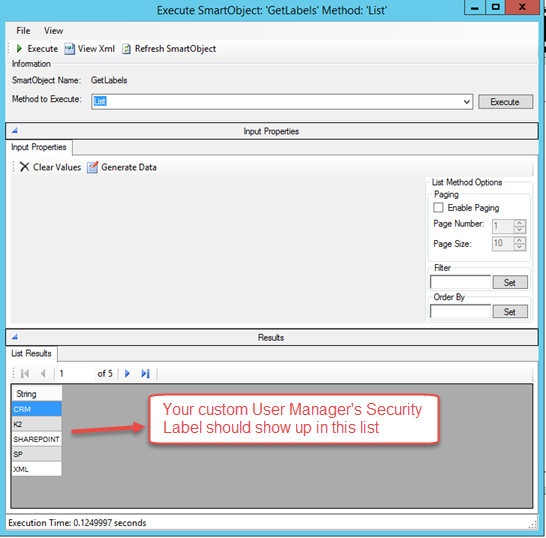
Test if property filtering is properly implemented.
- Execute the UmUser Smartobject in the all category.
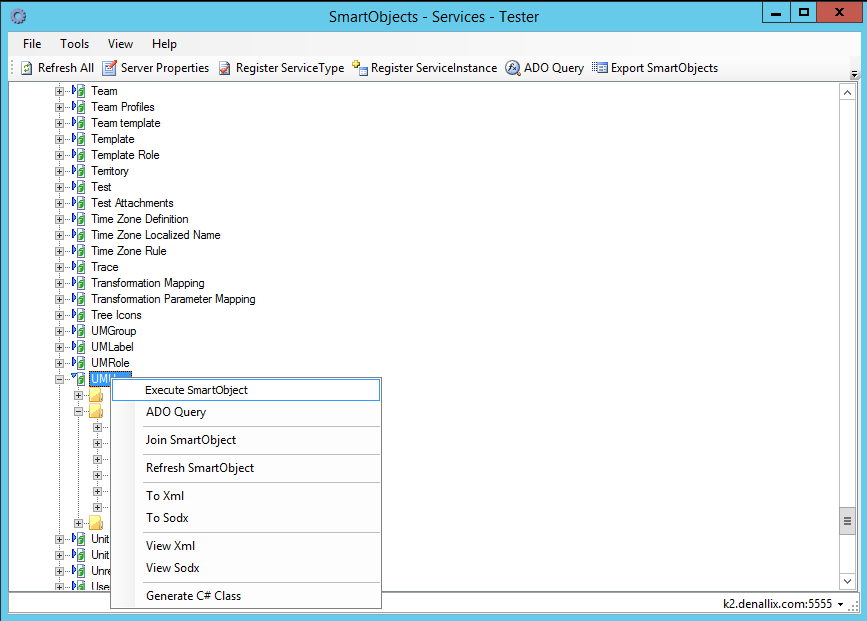
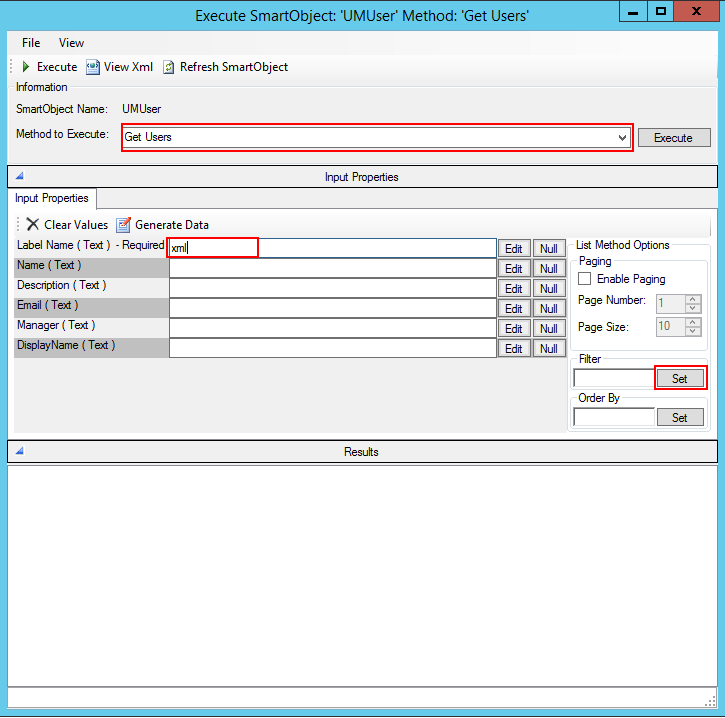
- Select Get User method, type in your security label, click Set
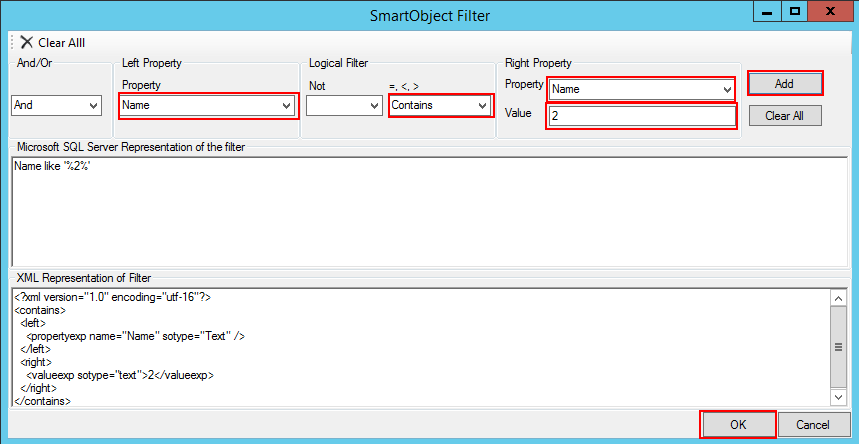
- Select your filter property, logical filter, property value, click Add then click OK
- Click Execute , the SmartObject should return a filtered list based on your filter.
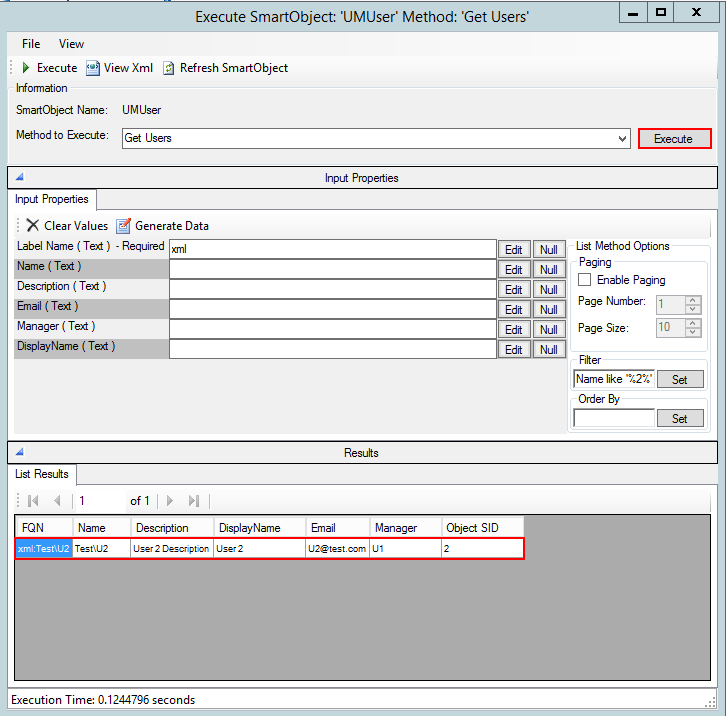
If nothing is returned then the K2 Designer will not be able to search users in your provider as it uses filters to get users and groups, update the custom user manager to accommodate property filtering.
Testing Authentication with code
To test your User Manager authentication, you will need to construct a K2 connection string with the appropriate Security Label. This code sample demonstrates how to construct a K2 connection using the SourceCode.Hosting.Client.BaseAPI.SCConnectionStringBuilder class.
How to construct a K2 connection string
// Insert the following SourceCode namespaces
using SourceCode.Hosting.Client.BaseAPI;
using SourceCode.Workflow.Client;
/// <summary>
/// To test your User Manager authentication, you will need to construct a K2 connection string
/// with the appropriate Security Label. Below is a code sample that demonstrates how to construct
/// a K2 connection using the SourceCode.Hosting.Client.BaseAPI.SCConnectionStringBuilder class
/// </summary>
namespace ExtendingTheK2Platform.K2_Server
{
class CustomUserManager_TestingCustomUserManager
{
public string Server
{
get;
private set;
} // Server is used for Code Snippet.
public void BuildConnectionString()
{
// Build the connection string
SCConnectionStringBuilder builder = new SCConnectionStringBuilder();
Connection _connection = new SourceCode.Workflow.Client.Connection();
builder.Host = "localhost"; //use your K2 server name here. e.g. K2.denallix.com
builder.Port = 5555; //your port number may differ
builder.SecurityLabelName = "MySecurityLabel"; //use your security label here
builder.UserID = "UserName"; //use a valid username from your security provider here
builder.Password = "Password"; //use the appropriate password for the username
builder.Integrated = false;
builder.IsPrimaryLogin = true;
//Open the connection
_connection.Open(Server, builder.ToString());
}
}
}
Test design-time user and group resolution using the context browser
To test Custom User Manager user resolution at design-time you need to:
- Create a simple workflow.
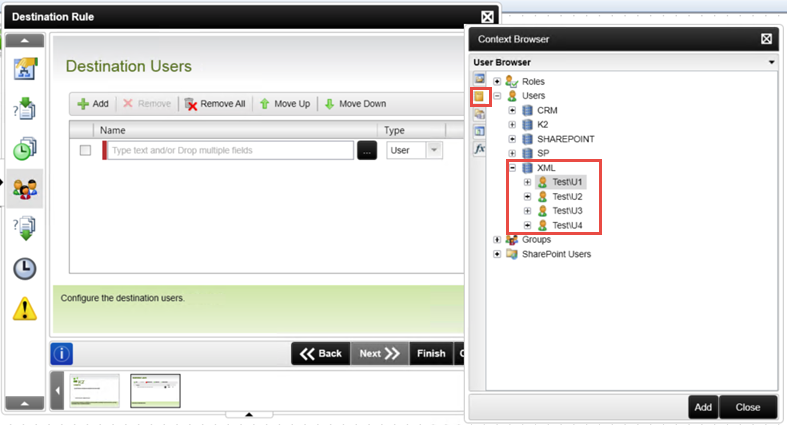
- Open the Context Browser.
- Select the User Browser tab.
- Expand the Users and Groups nodes and then expand your custom Security Label to confirm that users and groups are being returned.
- If you wish to test the runtime resolution of Users and Groups. drag and drop a User or Group from the Context Browser into the workflow and then deploy the workflow. Run the workflow and then use the K2 Worklist tools in the administration interfaces to verify that the task has been assigned to the users. Alternatively, log in as the User with the custom user manager login screen. and open the K2 worklist to verify that the task appears on the User's worklist.
Test the login function with the K2 Designer login page
When the custom user manger has been registered it can be tested by logging into the K2 Designer using a user that is in that provider.
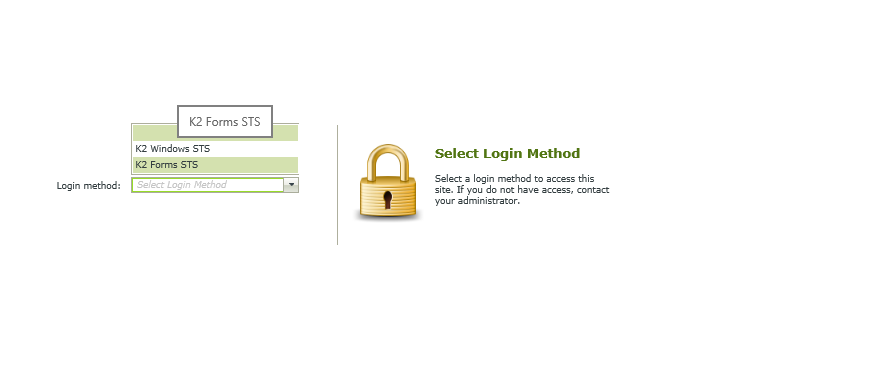
- Navigate to Designer log in: https://.../Designer/_trust/Login.aspx Select K2 Forms STS as a log in method.
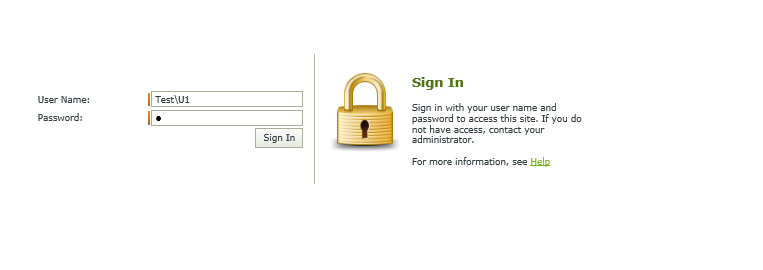
- Enter credentials for a user from the custom provider and click Sign In
Test design time user and group resolution using the workflow designer search
To test Custom User Manager user resolution at design time you need to:
- Create a simple workflow.
- Open the Context Browser.
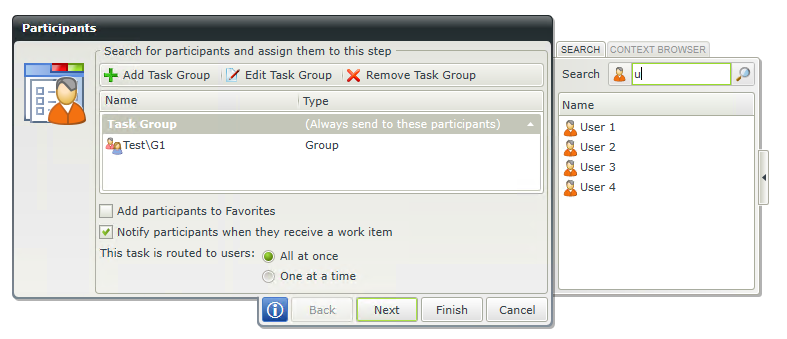
- Select the Search tab.
- Type the user to search for and click the search icon.