Creating custom Workflow steps
To create or update custom steps, use the custom step management form located at:
https://[servername]/Runtime/Runtime/Form/com__K2__System__Management__Workflows__CustomStep__Forms__Main
Replace the [servername] placeholder with the name of your K2 environment)
Example of the Custom Step Management Form
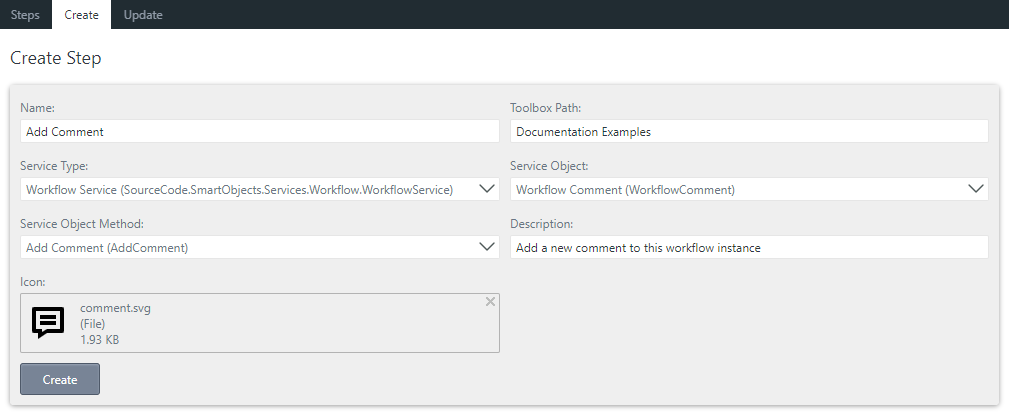
To create a new custom step:
- Select the Create tab and enter the following properties to create a step:
Field Description Name The name of the custom step as it should appear in the K2 Workflow Designer. Toolbox Path The location/"folder" for the custom step in the workflow designer toolbox. You can specify a simple structure such as Company, or up to two levels of nesting, for example Company\Technology.
Using more than one backslash \ in the Toolbox Path results in an error: You can only specify a toolbox path with two levels, such as 'Main Folder\Steps'
Service Type Select the Service Type to use. All Service Types in the K2 environment are displayed. Service Object Select the Service Object to use. All Service Objects belonging to the selected Service Type are displayed in a dropdown for you to select.
The Service object must be used by one or more SmartObjects before workflow designer swill be able to configure the custom step.Service Object Method Select the name of the Service Object Method to use. All service object methods belonging to the selected Service Object are displayed.
The method must be linked to a SmartObject method that the workflows can execute at runtime)Description A short description of the custom step. This description appears as a tooltip in the workflow designer. This field is limited to 100 characters. Icon A 32x32 Scalable Vector Graphic (SVG) that visually represents the service type, object, and method to be shown in the toolbox, on the canvas, on the configuration panel, and in the View Flow report. For more information about creating SVG files and how they are modified when creating or updating a custom step's icon, see About Creating SVG Icons. The special characters you can use are limited to: `~!@#$%^&*()-=\_+[]':",./<>?|. Emoticons and curly braces { } are not allowed in any string input values - Click the Create button to register the new custom step in your environment.
- Launch K2 Workflow Designer to see your new custom step in the toolbox in the path you specified. In the example below we find our custom step in the Documentation Samples group.

About creating SVG icons
For the best results, create SVG icons for each step with dimensions of 32 pixels x 32 pixels. Do not include any animations in the SVG file. You also cannot reference external styles in the SVG, so if you are using styles, export the image with inline styles. You will receive a warning if your icon contains any embedded <styles> or <link rel> tags. The system will create the custom step using the specified icon, but removes the tags mentioned above.
The system removes the following items from the SVG file:
- All <script> tags
- Inline scripts in any XML element attribute, CDATA, comment, or element content
- The <title> tag
- width and height attributes from the SVG root node. Note that viewbox/viewport are kept as-is
If your icon has colors that do not display correctly when added to the canvas, check that it does not contain an embedded style sheet. It should rather contain inline styles.
For information on exporting your SVG file with inline styles, see your SVG editing software's Help. For example, the help topic for Adobe Illustrator: https://helpx.adobe.com/illustrator/using/svg.html
Considerations
- Your Service Type, Service Object, and Service Object Method fields are not validated when you create your steps. If these do not match SmartObjects on your system, you cannot configure the step in the K2 Workflow Designer. If they do match, you see one or more instances of the service type in the Connection dropdown in the designer.
- The form allows you to create and manage steps before SmartObjects are generated, but you should always make sure in each environment where you have custom steps, that they work as expected once all configuration is complete. The system retrieves the SmartObject name by using the selected connection (Service Instance), Service Object, and Service Method specified.
You will not be able to configure your custom step in a workflow if:
- The specified Service Type, Service Object, and/or Service Method do not exist.
- The specified Service Type does not have at least one Service Instance (connection).
- The selected connection (Service Instance) does not have SmartObjects that point to the specified Service Object.
- The specified Service Object Method is not linked to a SmartObject method of a SmartObject, pointing to the specified Service Object, that belongs to the selected connection (Service Instance).