Generic Wizard Screens - Event Notification Message
The Event Notification Message wizard screen is only shown if the Customize the Notification Message option is selected in the Event Notification Settings wizard page. The Event Notification Message wizard screen allows the user to enter (or build with expressions) the message to be sent to participants of the event.
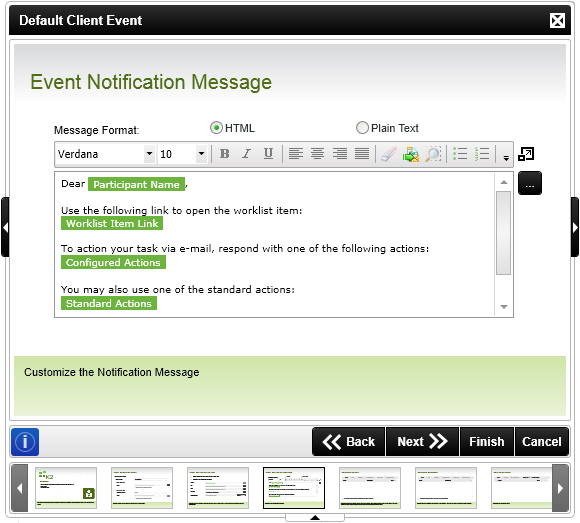
Event Notification Message
| Feature | What it is | How to use it |
|---|---|---|
| Message Format | Specifies which message format should be used for the notification message. | Select either Plain Text or HTML as a format for the notification message. |
| Open Larger Message Body Screen | Opens the E-mail Event wizard screen which provides an extended environment for editing the notification message. | Click on the image to open the E-mail Event wizard screen. |
| Ellipsis button | Opens the context browser. | Variables can be dragged from the context browser to the message body, as seen in the image above. |
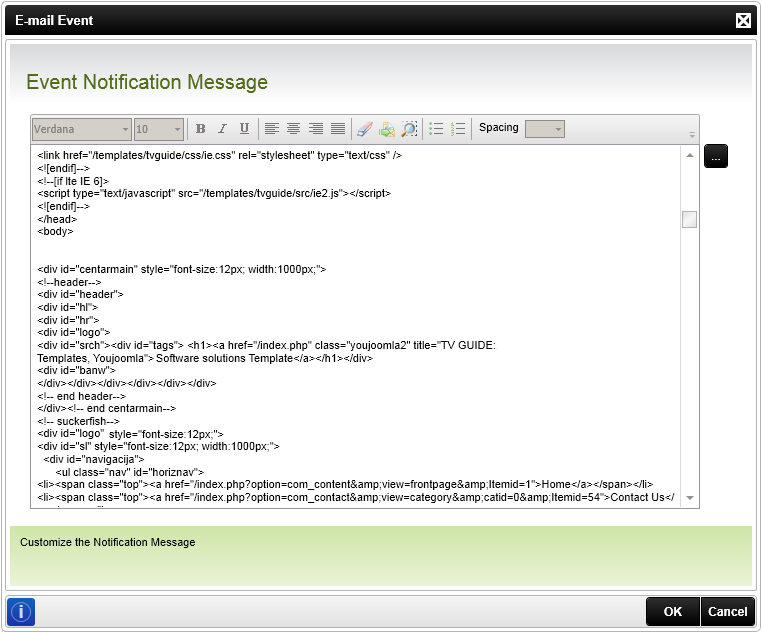
E-mail Event
When selecting the Open Larger Message Body Screen option from the Event Notification Message wizard, the secondary Event Notification Message screen will open. This secondary screen provides a bigger environment to customize the e-mail that will be sent to the selected destination users.

Fig. 2. Open Larger Message Body Screen
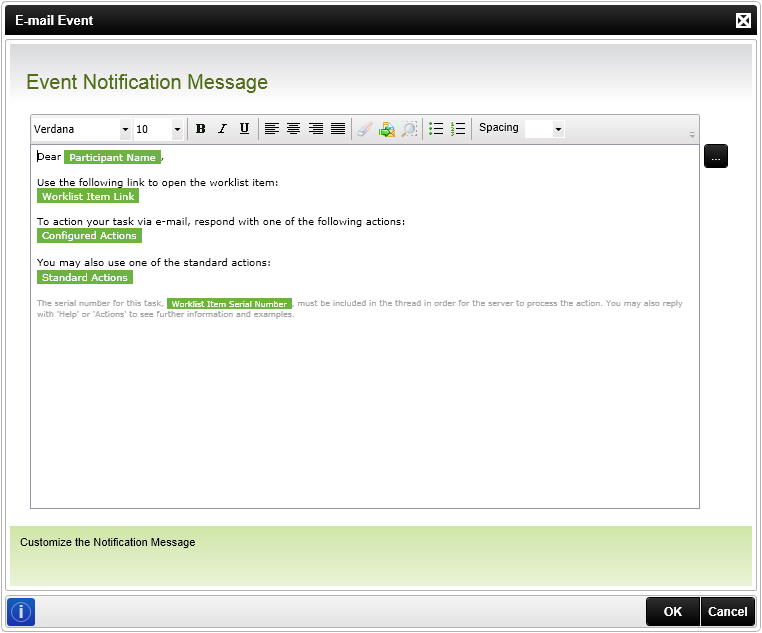
Secondary Event Notification Message screen for message editing
Load HTML Template
When using HTML as the message format, HTML can be loaded from a file in a network location or from a SharePoint Document Library. To access this functionality, click on the Load HTML Template icon as shown below.
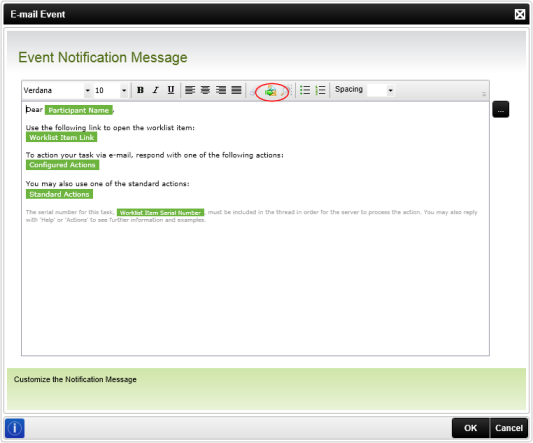
Load HTML Template icon
The Open File screen opens. Navigate to where the HTML file resides and select the file. Click Open.
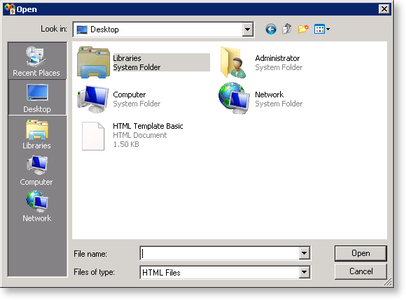
Open File
The HTML is loaded into the Preview pane as shown below.
Preview
Once the message body has been populated with valid HTML, a Preview this message in a new window link will appear. The Preview this message in a new window link will open the HTML in a window for runtime preview.
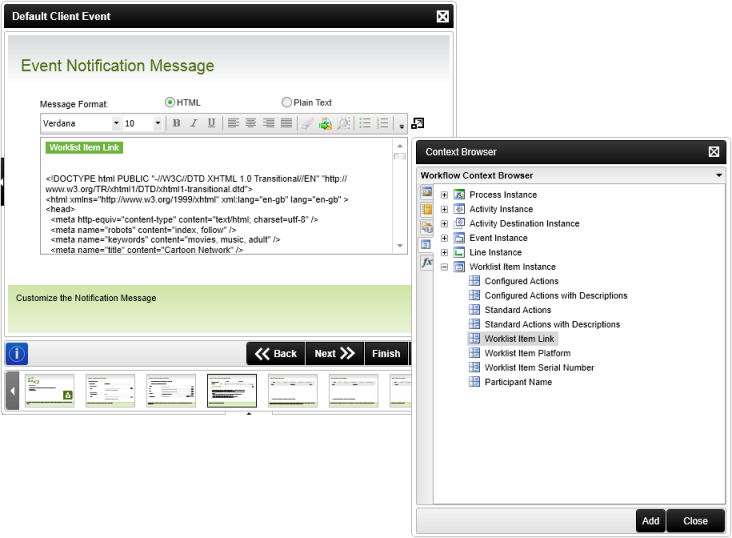
Adding a link to the relevant Worklist in the notification
It is possible to add a link to the relevant Worklist item in the notification e-mail by performing the following steps:
- Expand the Context Browser
- Expand the Worklist Item Instance item
- Drag the Worklist Item Link item onto the wizard screen.
- The relevant worklist item will be added as a clickable link on the notification e-mail.
Event Notification
