User Performance Report Filter Criteria
The Filter Criteria dialog box is accessed by selecting the Filters tab on the Configuration screen and clicking Add. Filters can be added to only view a specific Process according to the specified criteria.
 |
Filters are applied per level of the User Performance Report |
Filter Types
There are mainly 4 different types of filters that can be applied:
- Text filters
- Duration filters
- Date filters
- Lookup filters
|
When using Date filters, and any one of the Last x days filters is selected, it is important to note that the current date will not be included in the result. In the example where current date is 10/8/2009, and the Date filter Last 7 Days is selected, data will be retrieved from 03/08/2009 to 09/08/2009. |
Below is an example of one of the filters that are available on the different levels
Add Filter
Complete the Filter Criteria dialog box and click OK
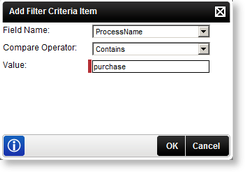
Fig. 1. User Performance Report Filter Criteria
| Feature | What it is | How to use it |
|---|---|---|
| Field Name | A specific field can be selected from the list for the Filter being added | Select a field from the list |
| Compare Operator | Various Compare Operators are available to compare the Field Name with the Value | Select an operator from the list |
| Value | This is the value that will be used in conjunction with the Field Name and Compare Operator to filter the report | Type in the Value you would like to filter on |
Multiple Filters
Multiple filters can be added using the Logical Operator as shown below.
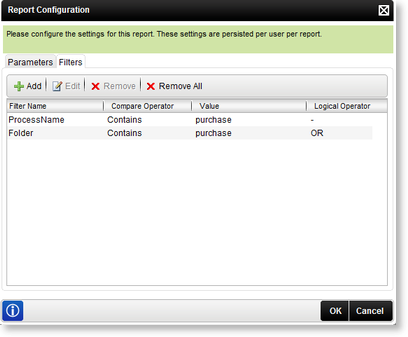
Fig. 2. Multiple Filters
Edit or Remove Filters
Click on the Configuration button on the Main Page, click on the Filters tab, then select the filter you want to edit and click Edit. The Edit Filter Criteria Item dialog box will open from where the filter can be edited. To remove a filter, simply select the filter and click Remove. The Remove All option will remove all the filters set up.
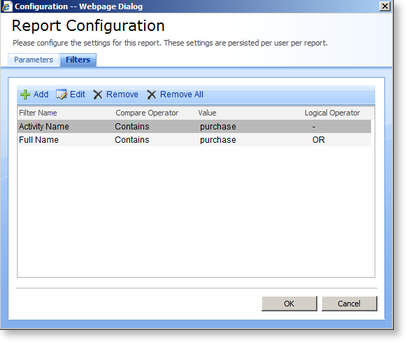
Fig. 3. Edit or Remove Filter
| Feature | What it is |
|---|---|
| Add | Click on the Add button to add new filters |
| Edit | Select the filter, then click on the Edit button to edit an existing filter |
| Remove | Select a filter, then click Remove to remove an existing filter |
| Remove All | Click the Remove All button to remove all existing filters |
