SQL Server Service - Edit Service Instance
The Edit Service Instance wizard screen edits existing SQL Server Service Instances. Two screens are used to configure the Service Instance.
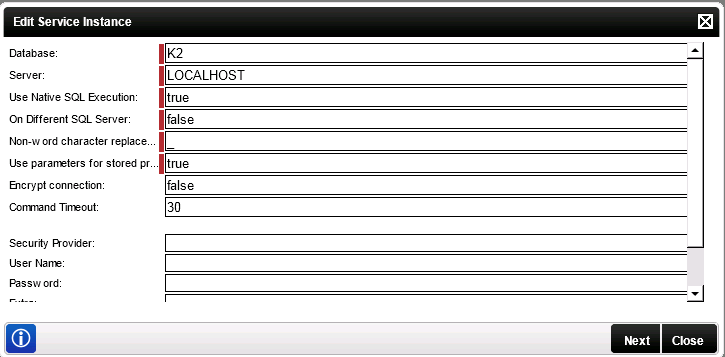
Fig. 1. SQL Server Service - Edit Service Instance Screen 1
| Option | What it is |
|---|---|
| Database | Specifies the relevant SQL Database that is used for the SQL Server Service Instance |
| Server | Specifies the relevant Server that is used for the SQL Server Service Instance |
| Use Native SQL Execution |
This will enable the ability to execute and filter queries directly against the SQL server where the complex queries have been specified in ADO.NET and reduce complex data structures being passed between K2 and the databases. When this option is set to true a SQL query is returned instead of a data table. Note: This only applies to LIST methods. All other method types will be executed directly against the database. Refer to the options section below for more information. |
| On Different SQL Server | Specifies whether the specified Database is located on a different server than the server where the K2 specific Databases are located. Refer to the options section below for more information. |
| Non-word character replacement for object system names | Character to be used for replacement of spaces within object system names if required. The default is '_' |
| Use parameter for stored procedures | Allows stored procedure parameters to be added as Method Parameters. |
| Encrypt Connection | This allows the SQL connection to be encrypted when setting this property to True. This can be used for Cloud based SQL connections such as Azure. |
| Command Timeout | Setting the Command Timeout is usefull when creating, refreshing or editing a SQL Server Service Instance on a SQL database to retrieve metadata, where a table, view or stored procedure contains a large number of properties. |
| Security Provider | Specifies the Security Provider. Not applicable to this service. |
| User Name | Specifies the User Name that should be used to access the specified Server. |
| Password | Specifies the Password that should be used to access the specified Server. |
| Extra | Provides additional information, for example dll paths needed. Not applicable to this service. |
| Impersonate | The impersonate option allows the K2HostServer service account to impersonate the user. |
| Enforce Impersonation | Enforces impersonation using K2 Pass-through Authentication. See the K2 blackpearl Getting Started Guide for more information. |
The second Edit Service Instance Configuration screen:
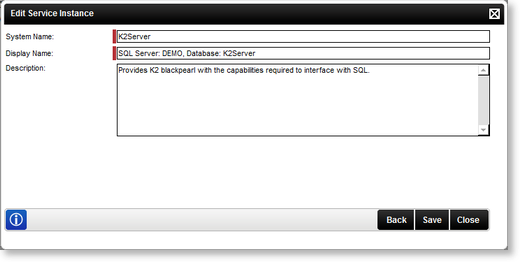
Fig. 2. SQL Server Service - Edit Service Instance Screen 2
| Option | What it is |
|---|---|
| System Name | Automatically generated System Name for the new Service Instance |
| Display Name | Provides an automatically generated display name for the Service Instance. The display name can be edited to be more user friendly.Provides an automatically generated display name for the new Service Instance. The display name can be edited to be more user friendly. This allows users to distinguish between different SQL Service Instances as multiple SQL Service Instances can be created |
| Description | Provides a description for the Service Instance |
SQL Impersonate setting
If the Impersonate checkbox is selected to indicate that impersonation must be used then it is necessary to run the following SQL commands on the database that the interaction will take place with. Replace the [Domain \User Name] placeholder with the correct details for your environment.
 Copy High Level SPAM Security Example Copy High Level SPAM Security Example |
|---|
|
EXEC SP_GRANTLOGIN [Domain\User Name] EXEC SP_GRANTLOGIN [Domain\K2Service] EXEC SP_ADDUSER [Domain\User Name] EXEC SP_ADDUSER [Domain\K2Service] GRANT IMPERSONATE ON USER::[Domain\User Name] TO [Domain\K2Service]; --HERE YOU NEED TO DETERMINE WHAT OPERATIONS THE USER MAY/MAY NOT EXEC AGAINST THE DATABASE / TABLES |
