How to rollback to a previous version of a K2 Designer for SharePoint Workflow
It is possible to rollback to a previous version of a Workflow in K2 Designer for SharePoint if, for example, the Workflow file (WKPRX file) becomes corrupt or recent edits caused the Workflow to stop working.
To do this, follow these steps:
 |
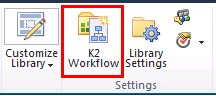
From within a document library or list on a SharePoint site, click on the Library Tools tab and then select the K2 Workflows from the Settings section. |
 |
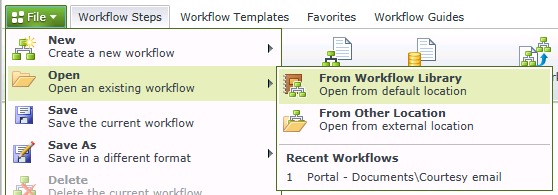
Click on the File menu item, then navigate to Open, From Workflow Library. |
 |
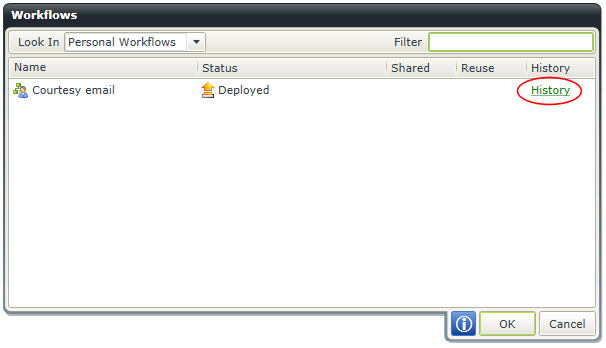
In the Look In dropdown box, select Personal Workflows, browse to the Workflow you want to rollback too and click the History link on the right. |
 |
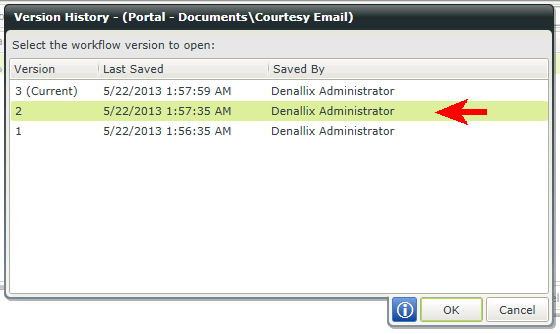
The Version History screen will be shown. Double click on the version of the Workflow you wish to rollback too. The Workflow Validation screen will show before opening the Workflow. |