Process Approval - Activating Process Approval
To make use of the Process Approval feature in the K2 Designer for SharePoint it first needs to be activated. This can be done in either:
- SharePoint Site Actions or
- within the SharePoint Central Administration under the Activate All K2 Features and K2 Configuration Settings
- in the K2 Designer for SharePoint Configuration page.
To activate the Process Approval feature in the K2 Designer for SharePoint Configuration perform the following steps:
 |
The Browser User that is configuring the K2 Process Approval feature in Central Administration or on the Site Collection Settings requires K2 Admin rights. |
Rights and Permissions
If activating from SharePoint central Administration, the following is required:
- Application Pool User: K2 Admin rights
- Logged on user: Local Admin Rights, K2 Admin
If activating from a site collection, the following is required
- Site Application pool User: Local Administration rights
|
Local Administration rights are only required on Site Collections if Process Activation was never performed on the site from SharePoint Central Administration |
- Logged on User: K2 Admin Rights
How to Activate Process Approval
 |
On the SharePoint home page browse to Site Actions > K2 Site Settings or if using SharePoint Central Administration, click on the K2 for SharePoint tab. |
||
 |
Select K2 Designer for SharePoint Configuration. The following screen will be displayed: 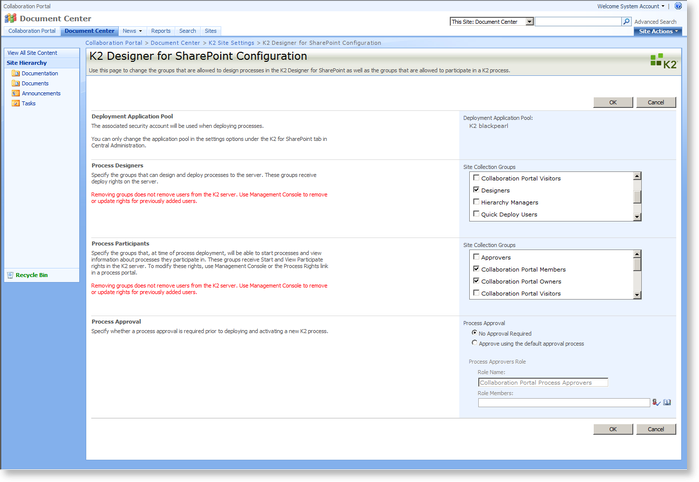 |
||
 |
On the Process Approval section of the page, select the Approve using the default approval process option.  |
||
 |
Modify the Process Approvers Role name if required. |
||
 |
Use the People Picker to assign Role Members to the Process Approval process.
|
||
 |
Click OK |
