Setup Manager - User Manager
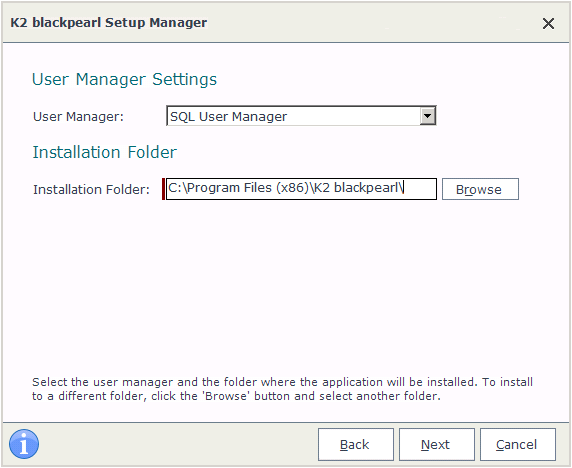
If Active Directory is not detected ie the AD Service is not found on the K2 Server host machine, the User Manager Settings configuration screen will present the option to install the K2 SQL user manager. For the installation of custom user managers the installation must be completed with the K2 SQLUM installed, and then the steps in KB000577 must be followed. For more information on the K2 SQLUM please see User Managers.
 |
If you use SQL Connections to connect to the SQL Server, the K2 Service account must be a SQL User account on the SQL Server. If you use Windows Authentication to connect to the SQL Server, the K2 Service account must be both a SQL User account and a Windows User account on the SQL Server. |
| What it is | Description |
|---|---|
| User Manager | The custom User Manager drop down |
| Installation Folder | The local directory that the custom User Manager will be installed to |
 |
Select the required User Manager |
 |
Confirm the location that the User Manager will be installed to |
 |
Click Next to continue |
If the SQL User Manager is selected for installation, use the following settings as additional configuration guidelines:
SQL Databases
Make sure that the SQL Database and SQL Server names are unique and reflect their function. For example:
K2-SQL (database)
K2-MAIN (Server)
K2 Workspace Application Pool
In SQL, create a new Windows Login using a K2-SQL user
During the installation, specify this account for the Application Pool account
K2 Server Service Account
Create a Windows User (i.e. K2-MAIN\K2Service)
Configure this user as a SQL user (i.e. user K2Service)
During the installation use the K2Service user for the K2 Server Service Account
