Export SmartObjects Configuration
The Export SmartObjects Configuration feature can be found by navigating to the K2 Site Settings page (in the Site Actions dropdown) and clicking on the Export SmartObjects Configuration link.
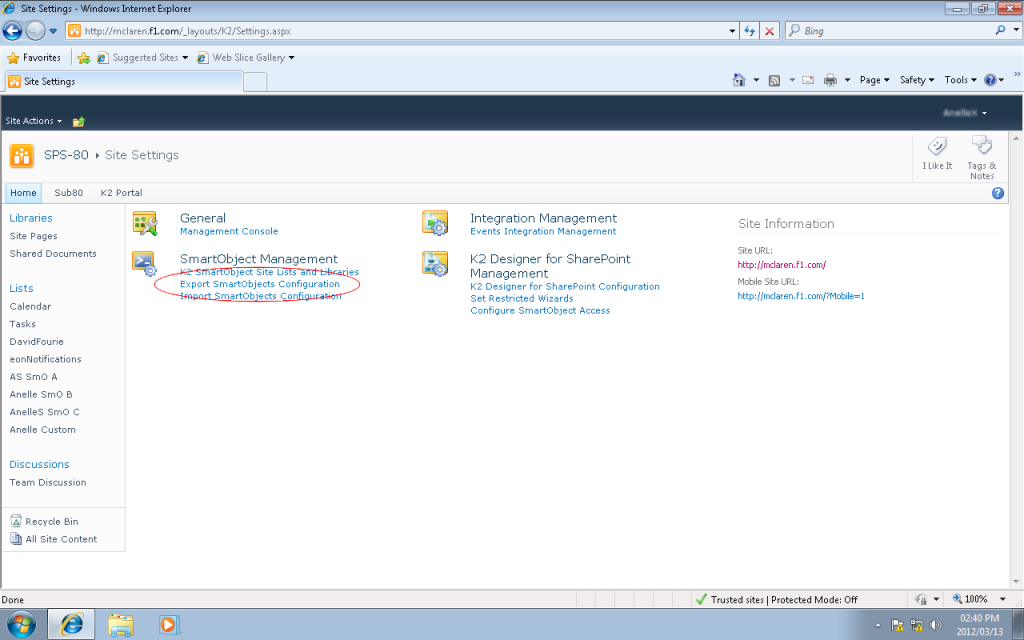
Fig. 1. Export SmartObjects Configuration
The following screen will open:
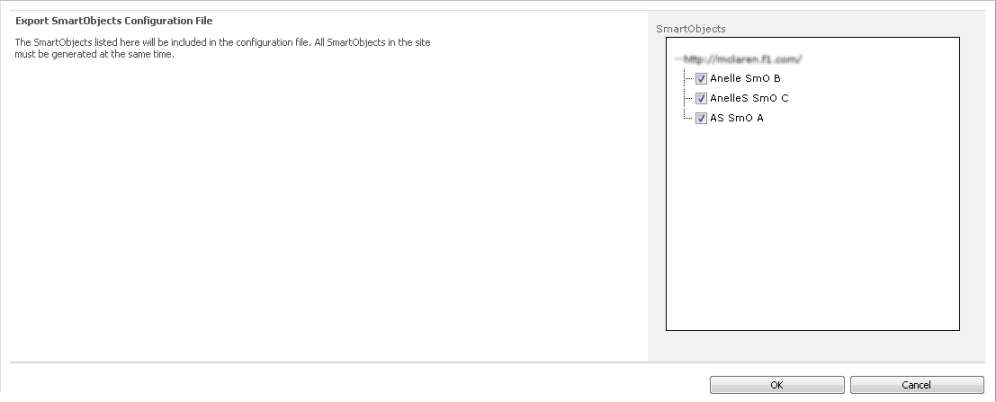
Fig. 2. Export screen
All the SmartObjects for the current site collection are listed. This list does NOT include the SmartObjects for sub sites. Should you wish to export SmartObjects from sub sites, the same operation will have to be performed on those sub sites directly. The list of SmartObjects displayed is the same as the list of checked items found under the SmartObject Service Management link.
Select the SmartObjects you wish to export and click OK.
The File Download screen is displayed. Specify a location to Save the Config.xml to or Open the File.
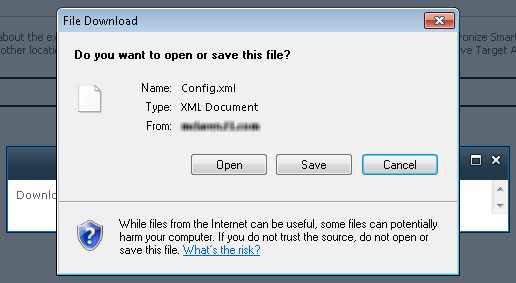

Fig. 3. File Download screen
The SmartObject Configuration Export Finished screen is displayed:
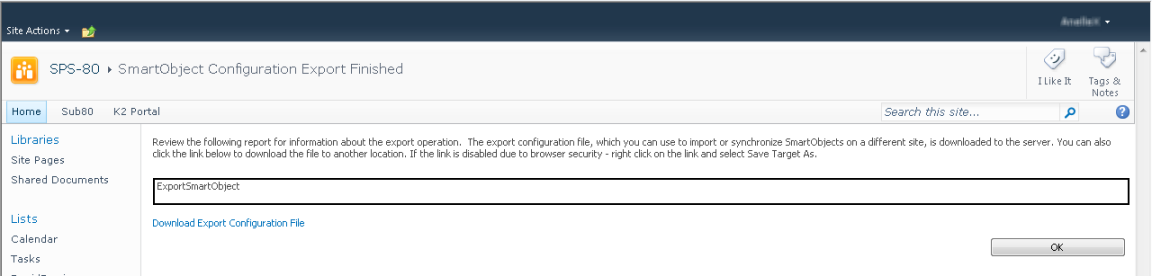
Fig. 4. Export Finished screen
Click on the Download Export Configuration File link if you want to download this file. Should you wish to download it later, it can be found in the location you specified upon File Downloading. This file will be used to import the SmartObject Configuration from the current environment to another environment. This would typically be used when creating SmartObjects in a development environment, then moving to a production environment.
